Calendar
The Calendar tab defines the standard working capacity of the workspace. It is the reference for every plan, allocation and workload computation.
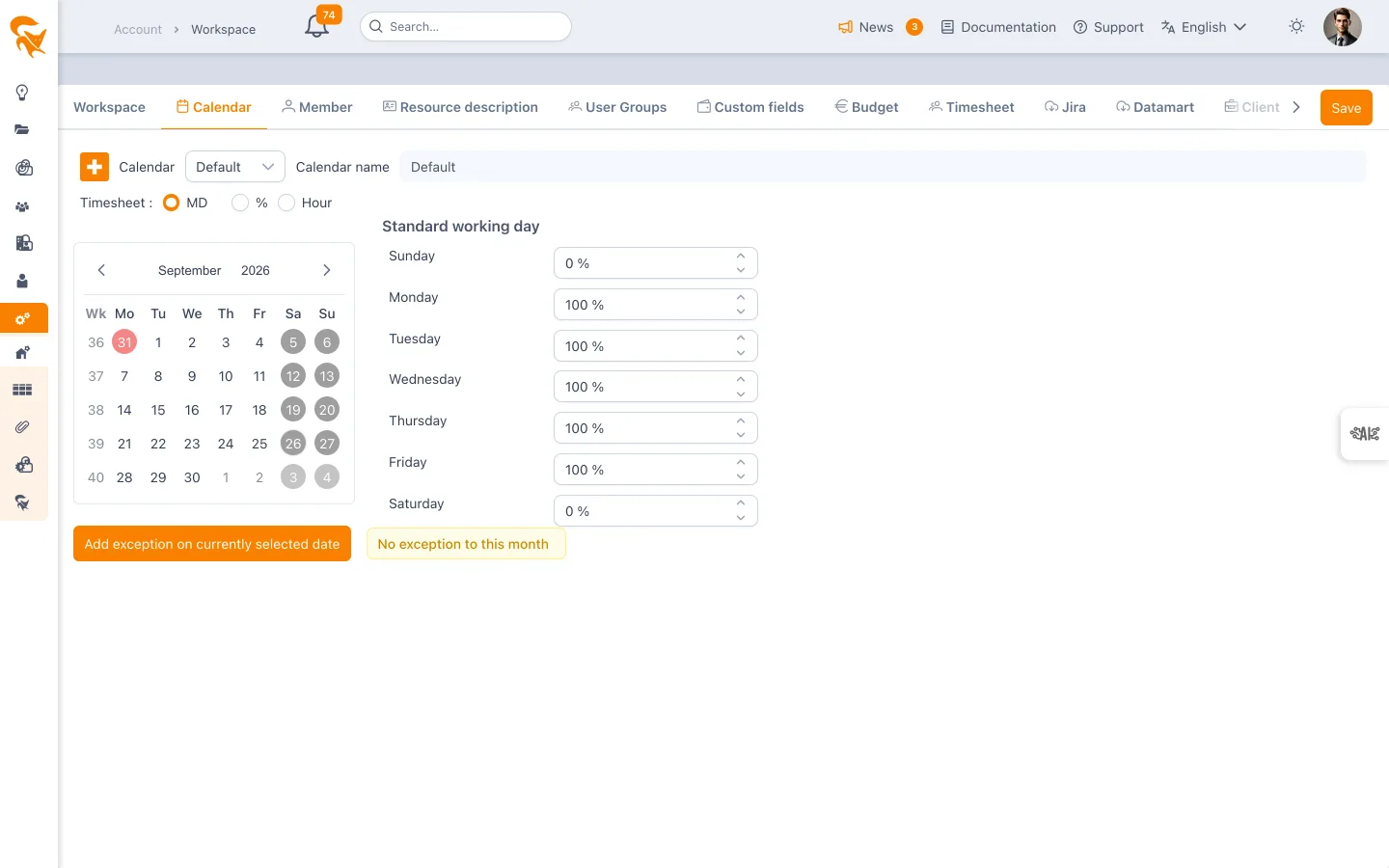
Settings → Workspace → Calendar
Several calendars
The workspace is not limited to a single calendar. The dropdown at the top of the tab switches between them, framed by two buttons:
- + creates a new calendar;
- 🗑 deletes the displayed calendar.
Each calendar has a Name (required), its own weekly capacity and its own exception days. This is how you model different rhythms inside one organisation: head office and production site, a 4-day team, an offshore contractor with local public holidays.
The first calendar in the list is the default one: it cannot be deleted, and the bin only appears on the others.
While unsaved exception days are pending, the selector is disabled — a tooltip reminds you to save the current calendar before opening another. This is a safeguard: the entered exceptions would be lost.
A project picks the calendar applied to it in the Default calendar field of its Advanced tab. A task can in turn override that choice.
Weekly capacity
For each of the seven days of the week, set the capacity percentage: the share of the day actually worked.
| Percentage | Meaning |
|---|---|
| 100% | Full working day |
| 50% | Half day (morning or afternoon) |
| 0% | Non-working day (weekend, for example) |
A classic European pattern is 100% Monday to Friday and 0% on Saturday and Sunday. You can adapt this to your organisation (4-day week, part time, etc.).
The sum of the percentages divided by 100 gives the number of working days per week used as the basis for conversions.
Timesheet entry unit
Below the weekly capacity, the Timesheet row sets the unit in which resources report their time. Three mutually exclusive choices:
| Unit | Entry |
|---|---|
| MD | In man-days (0.5 for a half day) |
| % | As a percentage of the day (50%) |
| Hour | In hours |
The 1MD = field that follows gives the number of hours in a man-day. It drives every conversion between the three units: it is what translates an entry in hours into the man-day workload used by budgets and workload plans.
The unit and the conversion belong to the displayed calendar, not to the workspace. Two calendars can therefore have different hourly bases — useful when one entity works 7 hours a day and another 8.
See Timesheet for the rest of the timesheet configuration (closure date, validation, actual and absence types).
Timer
The Timer ⏱ button, at the end of the Timesheet row, opens a window that sets how the duration measured by the header timer is rounded before it is logged in the timesheet:
- Round the duration: No rounding (default, exact duration to the hundredth of an hour) or a step of 1, 5, 6, 10, 15, 30 or 60 minutes;
- Rounding direction, once a step is chosen: to the nearest, up (the usual convention for time-based billing) or down.
Examples show the effect of the rule on a few durations. Like the entry unit, the rule belongs to the displayed calendar and applies once the calendar is saved. People can still correct the proposed duration before logging it.
Exception days
Exception days depart from the standard capacity: public holidays, bridges, annual closures, off-sites…
The monthly calendar on the left selects the dates; the Add an exception date button creates the matching rows in the table on the right.
Each row has four columns:
- Date — the day concerned;
- Reason — a dropdown of the workspace absence types (Vacation, Training, Bank Holiday…), not free text. These types are renamed in the Timesheet tab;
- Percentage — the capacity removed for that reason;
- Comment — free-form detail.
The percentage is carried per reason, not per date: changing the reason in the dropdown shows the percentage belonging to that reason. One day can therefore combine several motives — a half bridge and a half day off-site, for example.
The table only shows the exceptions of the displayed month. Navigate month by month to enter the year; a message warns you when the current month has none.
Good practice
- Enter every public holiday and annual closure at the start of the year: planning gets more accurate.
- Set the entry unit and the value of 1MD before the first timesheets: changing them afterwards reinterprets the entries already recorded.
- Create an extra calendar only when the rhythm genuinely differs. An isolated public holiday is better handled as an exception than with a dedicated calendar.
- For an individual unavailability, this is not the place: use Leave.