Card & Story
The Card & Story screen is a project's agile view: this is where you create and track work items (cards and stories), organize them by epic and, for Scrum projects, by sprint. You reach it from the Card & Story menu in the project sidebar.
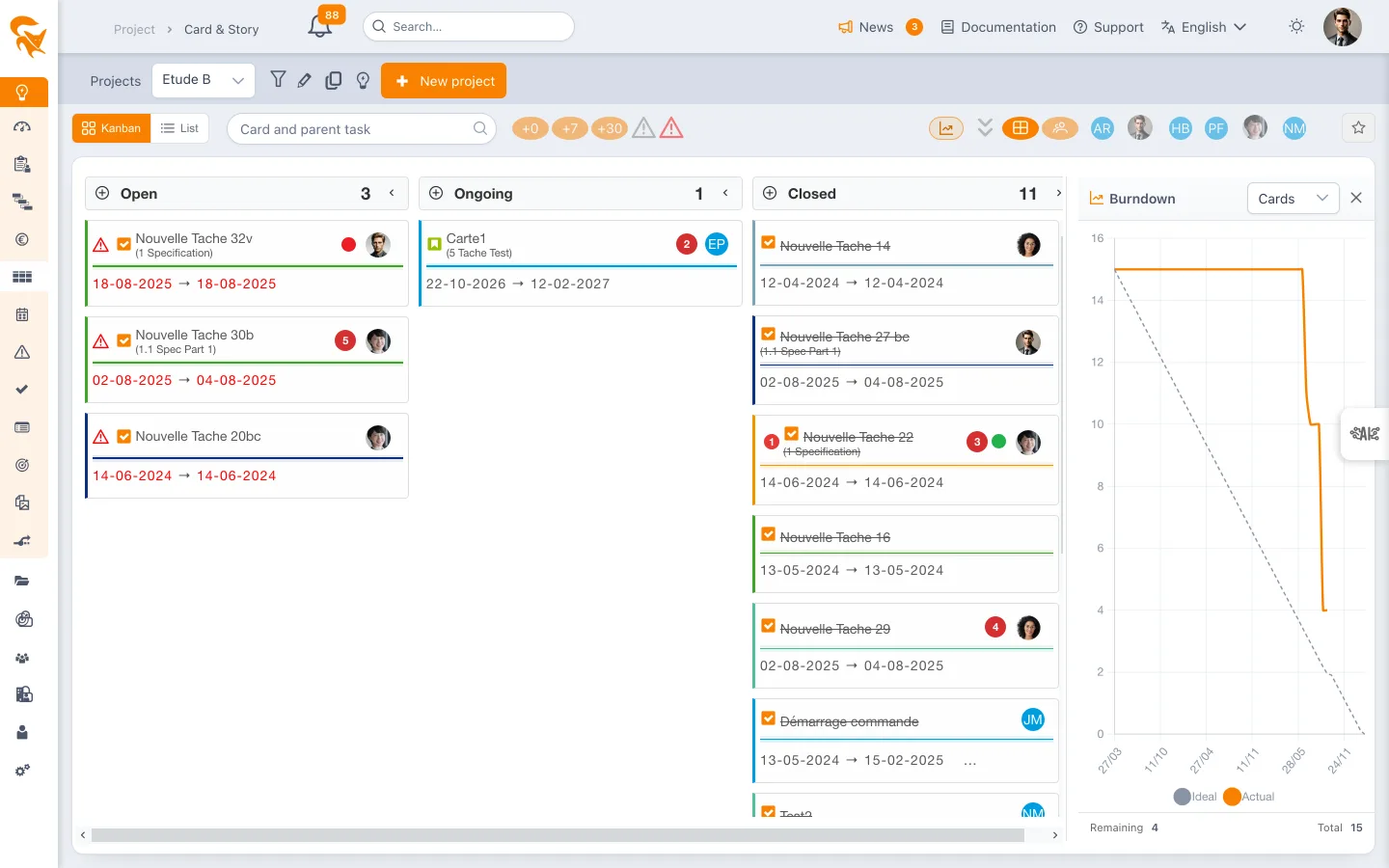
- Kanban / Scrum — the screen offers the full agile experience: Backlog board, epics, swimlanes, sprints.
- Gantt (planned) — the screen is still available, in Table view only (so the View switch is not shown), to manage cards linked to tasks.
The two views: Backlog and Table
At the top of the screen, a View switch lets you toggle between:
- Backlog — the organising board: its columns are containers, not statuses. On a Kanban project they are the backlog and the board; on a Scrum project, the backlog and one per sprint. Dragging a card from one column to another attaches it to the target container.
- Table — the progress board: its columns are the statuses (for example Open, In progress, Closed). Dragging a card from one column to another changes its status.
It is the same action — a drag and drop — but it does not mean the same thing in each view: in Backlog you decide where the card lives, in Table how far along it is.
Two layouts: Kanban or List
In the toolbar, a switch picks how cards are laid out:
- Kanban — cards in columns, moved by drag and drop;
- List — the same cards as a task list, one line per card when there is room: type, alerts, parent task, start and end dates and deadline (in red under the same rules as on the cards), points, indicator and assignee.
In both layouts, a card with comments shows the comment indicator 💬 followed by their count, as on the Gantt planning bars. It updates as soon as a comment is added or deleted in the edit panel.
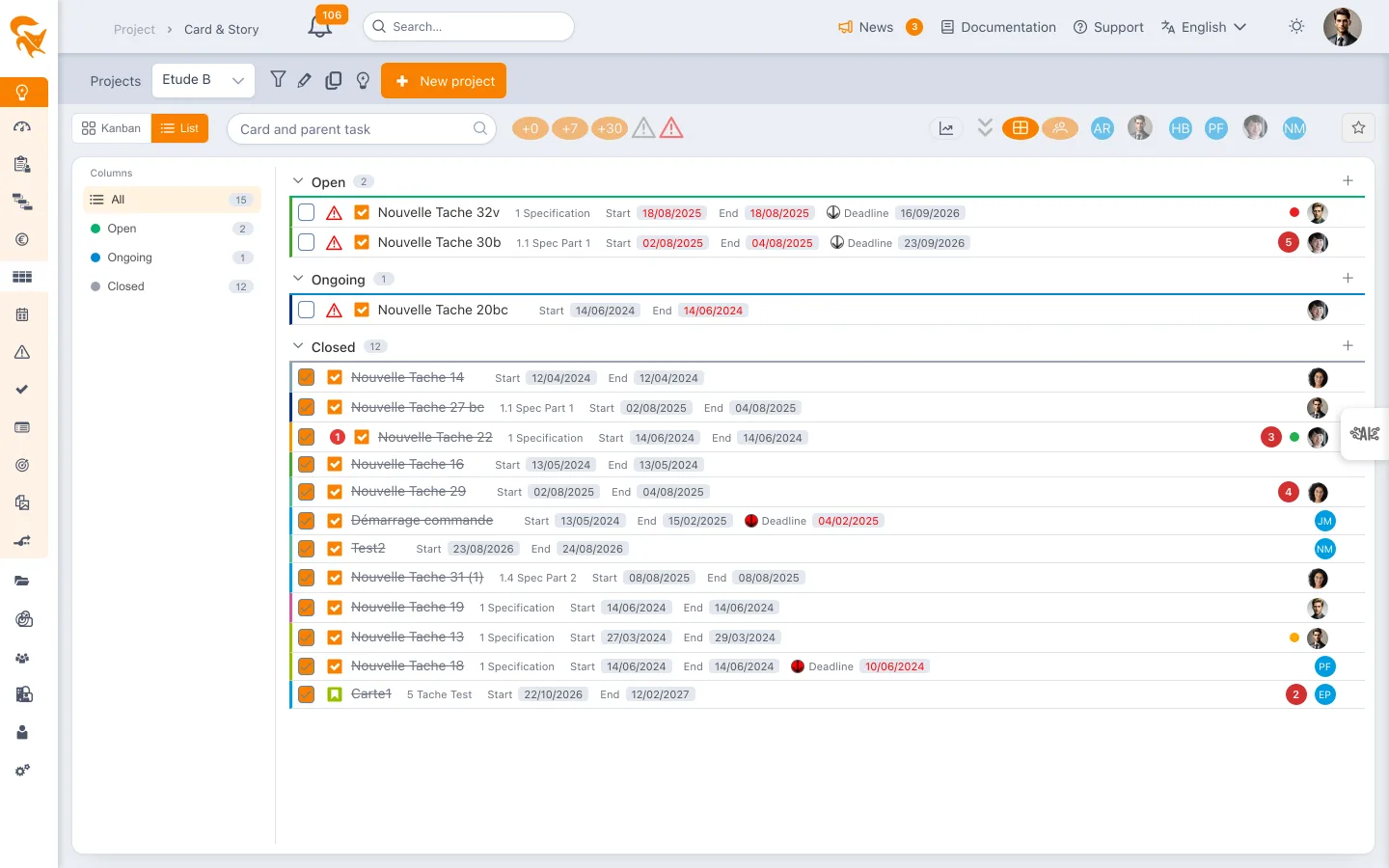
In the List layout:
- the left pane lists the columns (statuses) with their card counts: click several to combine them, a second click removes one, All clears the selection;
- clicking a row opens the card in the edit panel;
- the checkbox closes the card (it moves to the first Closed column) or reopens it (first Open column);
- the + of a section creates a card in that column;
- when grouped by column, drag a row onto another section, or onto a column of the left pane, to change its status;
- the ⤓ icon in the toolbar, left of the favorites, exports the displayed cards to Excel (.xlsx) or CSV: one row per card (column, parent task, owner, priority, dates, points, comments, closed status), honouring the current search, filters and column selection.
Grouping uses the same buttons as the kanban, at the top right — flat (one section per column) or by resource (one section per person, unassigned cards last). Outside the column grouping, each row shows its column as a badge, the + is hidden, and the status pane filters cards within each group — for example each person's ongoing cards.
The toolbar is shared by both layouts: search, +0 / +7 / +30 filters, alerts, person filter, favorites and burn down all apply the same way. The Kanban / List choice is saved in the favorite; the grouping is remembered like the kanban's.
Card types
A card can be of several types:
| Type | Use |
|---|---|
| 📘 Story | A functional item to deliver (user need) |
| 🐞 Bug | A defect to fix |
| ⚙️ Action | An attached subtask / concrete action |
A card can be linked to a parent task in the planning. In that case it inherits by default the same period as the parent task, and stays of type Story unless changed.
Organizing with epics
On Kanban and Scrum projects, an Epics panel is shown on the left:
- Add an epic via the + icon
- Collapse / expand each epic to see its statistics (number of cards per status)
- All tickets — shows every card in the project
- Tickets without epic — isolates cards not attached to any epic
Epics group cards into broad themes; they sit one level above stories.
Attaching a card to an epic — two routes, same effect:
- Drag the card onto the epic's block (its statistics area, in the left panel);
- or open the card and pick the epic in the Epic field of its edit panel.
An attached card carries its epic's badge, in the epic's colour, and the epic's counters update straight away.
Sprints (Scrum projects)
For a Scrum project, a Sprint button lets you create a sprint: its panel opens pre-filled (name, dates, duration) and you only need to name it. Each sprint then becomes a column of the Backlog view, alongside the backlog itself.
Putting a card into a sprint
A card's sprint is its parent task. Two routes, same effect:
- Drag the card from the backlog onto the sprint's column;
- or open the card and pick the sprint in the Parent task field of its edit panel.
To take a card out of a sprint, do the reverse: drag it back onto the Backlog column.
Starting and closing a sprint
The header of a sprint's column carries a Start button until the sprint has begun. It opens a dialog restating the name, the dates and the sprint goal: confirm with Start.
If cards in the sprint have dates outside its window, FoxPlan lists them and asks you to click Start again to confirm: those cards' dates will then be aligned with the sprint's.
A started sprint is closed the same way, from its column header. Closing requires the sprint's cards to be finished.
The Table view on a Scrum project
On a Scrum project, the Table view is organised by active sprint: one band per started sprint, with the status columns inside. As long as no sprint has been started, the screen shows "There is no active sprint" — a cue to start one, not an error.
Configuring the columns
The columns of the Table view are set in Definition & members → Cards & Agility tab: Add column, then drag a tag from the Statuses column into it. A card dropped in the column takes that status.
Four rules apply:
- A column carries a single status. Dropping a second tag into a column is refused (A column can carry only one status message); first move the existing one back to Statuses.
- Every column carries a status. An empty column blocks saving (Column without a status message).
- Every status has at least one column. A status without a column blocks saving (No column for status message).
- A column holding cards cannot be deleted. The column's bin then shows The “…” column still holds N cards: move those cards to another column, then delete it.
The same status can, however, be carried by several columns: for instance a To validate column carrying the Ongoing status, to detail the workflow without changing the progress calculation. Jira statuses, for their part, can be several in one column.
The Backlog column is the exception: it carries no status, appears neither in the editor nor on the boards, and feeds the side panel. It is recognized whatever language it was named in (Backlog, Rückstand, Reserva, Pendências).
These rules also apply to changes made through the API and the AI tools. For older projects that did not follow them:
- a column carrying several statuses keeps only the first one at its next save — the cards it holds keep their own status until they are next moved;
- a column without a status is tolerated as long as the columns are not modified; it must be given a status the next time the columns are changed.
Creating and editing a card
- The + icon at the top of a column opens the Add Action / Add Bug / Add Story menu; the card is created in the column you started from
- When creating / editing, you fill in:
- Card name (required)
- Type (Story, Bug, Action)
- Kanban column / status (required)
- Assignee (required for a linked card)
- Description
- Bulk import (⏬ Bulk import of card icon) lets you create multiple cards at once.
Tickets created by resources (private / public)
By default, only people with an editing role on the project (Project Admin, Project Lead) can create cards. You can however allow the project's resources to create their own tickets.
Enabling the option
In Definition & members → Card & Agility tab, tick "Allow resources to create their own tickets".
Once the option is on, every project resource sees the + button at the top of the columns and can create their own cards — even if the rest of the project stays read-only for them.
An authorized resource can only create, edit and delete their own cards (the ones they created / own). They cannot modify other people's cards.
Private or public card
When created, a card has a visibility:
| Visibility | Icon | Who sees it |
|---|---|---|
| Private | 🔒 lock | The creator only — invisible to everyone else, including project administrators |
| Public | — | All project members |
- A card created by a resource is private by default.
- The Private / Public toggle is in the card's edit panel (header, next to the status).
- Private cards are flagged with a lock on the board.
A private card is never visible to another user, whatever their role (neither project lead nor administrator). To share a card with the team, switch it to Public.
Who can make a card private?
The Private / Public lock only appears in the edit panel when all of these conditions are met:
- the project has the "Allow resources to create their own tickets" option enabled;
- the card is assigned to you — you are its owner (person in charge);
- you are its creator.
In every other case the lock is hidden (visibility cannot be changed). In particular:
- a card with no owner cannot be made private;
- only the card's owner (and creator) can toggle it private / public;
- on a project without the option, the lock appears for nobody.
Search and filter
The toolbar offers several sorting aids:
- Search by card and parent task
- Time filters: +0 (today), +7 (this week), +30 (this month)
- Cards to be started and Cards to be closed (alert icons) to spot delays
- Filter by assignee: click a resource's avatar to see only their cards
- Add a filter (⊕ button next to the favourites star): filter on any card field — status, indicator, card type, column, constraint, assignee, custom list… Each value is shown with its label in your language, and the filter is saved in the favourite
- Favorites: save a combination of filters to reuse it
Kanban layout
On Kanban / Scrum, two layouts are available via the toggles in the top right:
- Flat — all cards within the status columns
- By resource — board grouped by owner (swimlanes)
Closed cards: the 20 most recent
A Closed column grows endlessly. To keep the board readable and fast, FoxPlan only loads the 20 most recent closed cards of each column (the most recent being the last modified). Older ones are not displayed, but they still count:
- the number at the top of the column remains the total number of cards in the column;
- the List representation counts them in their section and says so at the bottom of it;
- sprint progress and the burn down always cover every card.
Search finds them by their name (not their description): they are then counted, but not displayed. To find and open an old card, use the global search at the top of the screen. The same rule applies to My cards, Team cards, Portfolio cards and the support board.
The burndown
The chart button (curve icon) at the top right of the toolbar opens the burndown to the right of the board. It is available on all four card boards: a project's Card & Story, My cards, Team cards and Portfolio cards.
Two lines:
- Ideal (dashed) — the theoretical pace, from the total down to zero over the period;
- Actual (orange) — what is really left to do. The line stops at today: a burndown does not predict what comes next.
Unit: either Cards (default) or Points. In points, a card without points weighs nothing; on a project that does not use points, the panel invites you to switch back to cards. A card's points appear on the card itself, as a badge to the left of the avatar, as soon as it carries any — you enter them in the edit panel, Effort Point field.
The unit is not a personal preference: on a shared board, everyone reads the same chart. It is therefore stored with the board, and a single person decides it:
| Board | Where the unit is stored | Who can change it |
|---|---|---|
| A project's Card & Story | on the project | the project manager |
| Portfolio cards | on the project portfolio | the portfolio administrator |
| Team cards | on the resource portfolio | the portfolio administrator |
| My cards | on your profile | you |
For everyone else the selector stays visible but locked. Opening the panel remains a personal preference in every case.
Scope: the burndown covers exactly the cards on screen. Search, time filters, filter by person, grouping, favourite — everything is reflected immediately in the curve. One consequence worth knowing: the +0 / +7 / +30 filters hide completed cards, so under those filters the line stays flat, since nothing on screen has been burnt down.
Period: from the earliest start date to the latest end date among the displayed cards.
FoxPlan keeps a snapshot of every card at every save. The completion date is the moment it moved to Done: the first snapshot of the last unbroken run at the Done status. A card that was reopened and closed again therefore counts at its second closing, not the first. For cards closed before this history existed, the last modification date is used as a fallback.
See also
- Project management — project creation and planning
- Project members — who can edit cards depending on their role
Use the +0 / +7 / +30 filters daily to stay focused on the cards to handle in the short term, and save your recurring filters as a favorite.