Scheduled reports
The Reports tab of the Definition & members screen — of a project or a project portfolio — schedules an automatic email with a status of the scope. You choose the contents, the recipients and the frequency.
A portfolio produces a single email covering all its projects (archived projects are excluded), with one section per project.
Create a report
- Open the project's Definition & members (or the portfolio's Definition / Members)
- Go to the Reports tab
- Click "New report"
- Fill in:
| Field | Purpose |
|---|---|
| Report name | Used in the email subject |
| Content | One or more of the contents listed below |
| Alert margin (days) | For deadlines: a task is reported as soon as its planned end is less than N days from its deadline (0 = overruns only) |
| Horizon (days ahead) | For milestones, tasks without a resource and overload: the window looked at, from today |
| Age (days) | For pending decisions/changes and status reports: beyond it, the item is reported |
| Thresholds | Shown depending on the contents ticked: progress gap (20 points), overload (100%) and underload (50%) of capacity, risk criticality (high and critical, or critical only), budget alert (90%) and achievement / consumption gap (20 points) of a strategic plan. Values in brackets are the defaults, quoted in the tables below |
| Recipients | One or more people of the workspace |
| Frequency, Day, Time | Every day, every week (chosen day) or every month (day 1 to 28), at the time of your time zone |
| Do not send when the report is empty | Avoids a "nothing to report" email |
| Active | Untick to suspend sending without deleting the report |
- Save
You can create several reports on the same project or portfolio — for instance a weekly planning and budget report for management, and a daily overdue cards and actions report for the team.
Available contents
| Group | Content | What is reported |
|---|---|---|
| Planning | Deadlines | Open tasks whose planned end is after the deadline, within the margin of it, or whose deadline has passed |
| Planning | Tasks behind schedule | Open tasks whose planned end date has passed, with or without a deadline |
| Planning | Tasks that should have started | Tasks still Open although their planned start has passed |
| Planning | Progress behind schedule | Ongoing tasks whose entered progress is at least 20 points behind the elapsed time |
| Planning | Upcoming milestones | Open milestones falling within the horizon |
| Agility | Overdue cards | Open cards whose due date — the deadline, otherwise the end date — has passed |
| Staffing | Tasks without a resource | Ongoing tasks, or tasks starting within the horizon, with no resource assigned |
| Staffing | Overloaded resources | People in scope whose planned load, across all projects, exceeds their capacity over the horizon (workload screen computation) |
| Staffing | Missing timesheets | People planned in scope last week who entered no actuals |
| Governance | Overdue actions | Open actions whose due date has passed |
| Governance | Open critical risks | Open risks of high or critical criticality |
| Governance | Pending decisions and changes | Decisions without a decision date and open change requests, pending for longer than the age |
| Governance | Project status to update | Projects without a status report, or whose last one is older than the age |
| Budget | Budget overruns | Envelopes whose forecast or actual cost exceeds the budget (same amounts as the budget dashboard) |
Tasks, cards and milestones exclude parent tasks (except for deadlines): a summary task is not counted twice.
Resource portfolio
On a resource portfolio, the Reports tab offers contents centred on the team's people. Each row is about one person, across all projects:
| Group | Content | What is reported |
|---|---|---|
| Workload | Overloaded resources | Planned load above capacity over the horizon |
| Workload | Underloaded resources | Planned load under 50% of capacity over the horizon (available people) |
| Workload | Upcoming absences | Leave and absences entered over the horizon, with the number of days (a half day counts 0.5) |
| Timesheets | Missing timesheets | People planned last week who entered no actuals |
| Timesheets | Timesheets not submitted | People planned last week whose timesheet is neither submitted nor approved, or was returned |
| Timesheets | Timesheets to approve | Timesheets submitted and not yet approved over the age window, with the oldest pending |
| Delivery | Resources' tasks behind schedule | Open tasks assigned to a team member whose end date has passed |
| Delivery | Resources' overdue cards | Open cards owned by a team member whose due date has passed |
The summary at the top counts resources with alerts out of the resources analysed. Archived projects are ignored. Only the portfolio Owner (or a company administrator) creates and edits these reports; any portfolio member can view them.
Personal report
In My profile, the Reports tab schedules a report on your own tasks and cards: those you own and those assigned to you, across all projects (archived projects excluded). Only you see and manage it; it is sent to you by default, and you can add other recipients (your manager, for instance).
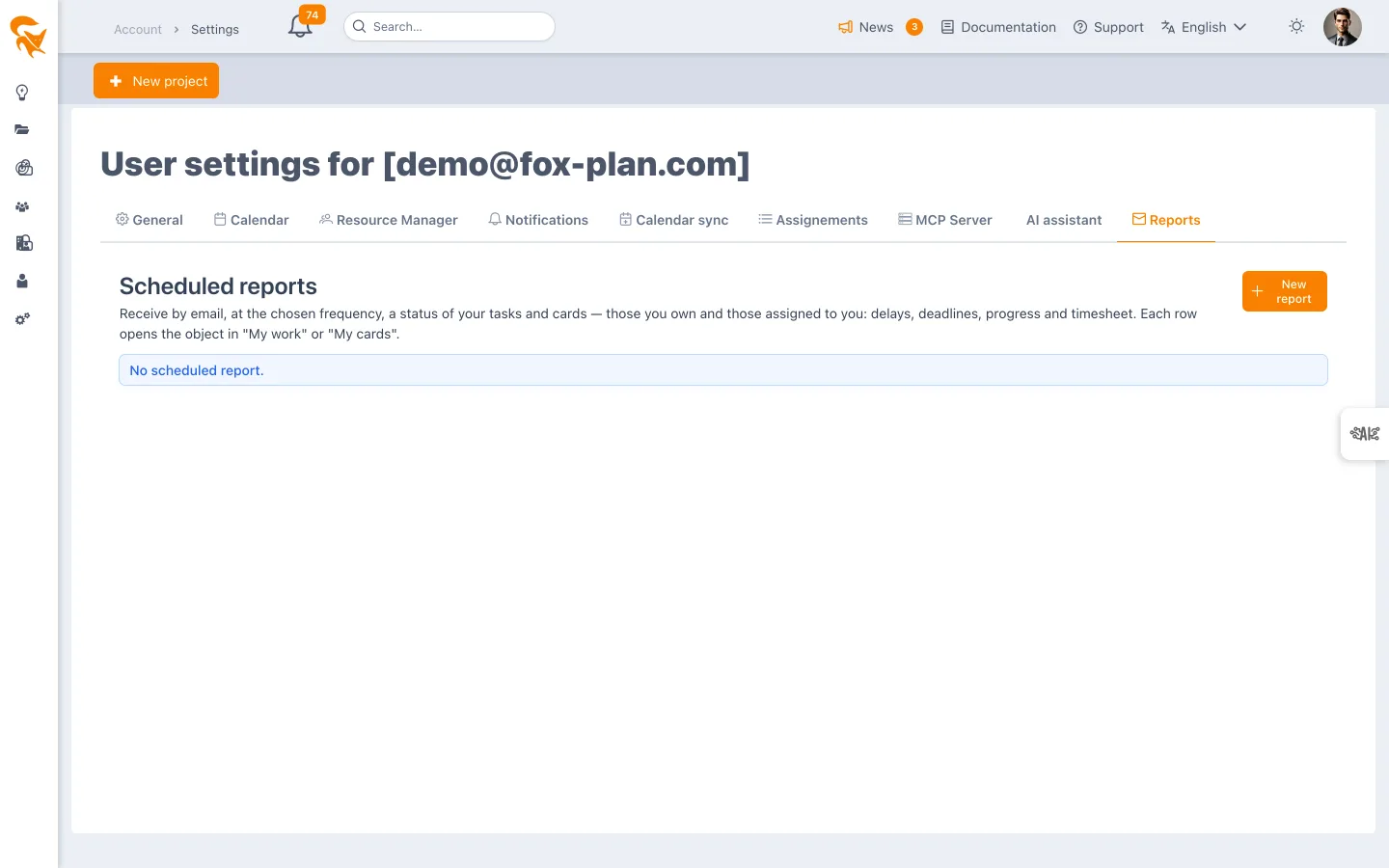
| Group | Content | What is reported |
|---|---|---|
| Overdue | Overdue tasks and cards I own | Due date (deadline, otherwise end date) passed |
| Overdue | Assigned tasks behind schedule | Planned end date passed |
| Coming up | Deadlines to watch | Planned end after the deadline, within the alert margin, or deadline passed |
| Coming up | Due soon | Due within the chosen horizon |
| Coming up | Progress behind schedule | Entered progress at least 20 points behind the elapsed time |
| Timesheets | My timesheet | Last week neither submitted nor approved, with the actuals already entered |
The summary counts the tasks and cards with alerts out of those you follow. Each row opens directly in the matching Me screen, ready to edit: a task in My work, a card in My cards, the timesheet in My timesheet.
Strategic plan
On a strategic plan (Reports tab of the plan's Definition & members), the report combines contents specific to strategic management, computed on the current fiscal year with the same rollup as the Tracking screen, and all project contents, applied to the plan's projects (its list, or every project of the workspace when it is empty):
| Content | What is reported |
|---|---|
| Objectives with a budget alert | In cost mode: forecast at 90% or more of the envelope (red above 100%). In revenue or margin mode: forecast under 90% of the target |
| Objectives with no contributing project | Objectives (leaves) with an envelope for the year that no project contributes to |
| Achievement behind spending | Achievement at least 20 points below consumption (actual / envelope, otherwise / allocated) |
| Plan projects with no contribution | Projects in scope that contribute to no objective |
| Over-allocated projects | In amount mode: amounts assigned to objectives above the project budget |
An objective name opens the plan Tracking; a project name, its planning.
What the email contains
At the top, a tile summary covers only the enabled contents: projects with alerts out of projects analysed, then — for deadlines — deadlines already passed, expected overruns and deadlines at risk (three exclusive categories), and one tile per other content. For overdue cards, a line adds the average and maximum delay and the three people holding the most.
Then comes a Resources section (overload, timesheets), then one section per project concerned, with its team (project admins and project managers) and one table per content. Every object listed is a link: a task or card opens in the planning or card board, an action, risk, decision, change or status report opens in its register with its detail panel, a budget overrun leads to the project budget, a project name to its planning. In a resource portfolio report, a person's name leads to the portfolio workload. The link works even when logged out: FoxPlan asks you to sign in, then opens the object.
Each recipient receives the report in their language, with their date format and their decimal separator.
If a content cannot be computed (for instance a misconfigured budget), the email is still sent with the other contents, and says so.
Send now, pause
In the report list, the actions let you send now (without shifting the next scheduled send), pause / reactivate, edit and delete. The Next send and Last send columns show the state: Sent, Nothing to report or Error; hovering the last send shows the generation time.
Who can do what?
| Project | Portfolio | |
|---|---|---|
| View reports | Any member who opens Definition & members | Any portfolio member |
| Create, edit, send, delete | Project Admin | Portfolio Owner (or company administrator) |
The report runs with the rights of the last person who saved it: each content only covers the projects where that person can read the corresponding register (planning, actions, risks, budget…). If that person leaves the project or portfolio, or their account is deactivated, sending stops and the report switches to Error: another administrator just needs to save it again to restart it.
See also
- Definition & members — the other tabs of the project record
- Portfolio definition — the tabs of the portfolio record
- Cards and stories — the card lifecycle