Definition & members
The Definition & members screen gathers the whole configuration of a project. Reach it from the Definition & members menu in the project sidebar.
The tabs
| Tab | Purpose |
|---|---|
| General | Project identity — name, dates, status… |
| Project members | The team and their roles |
| Portfolio members | The inherited rights from portfolios (read-only) |
| Business panels | Extra tabs depending on your configuration ("Cards & Agility"…) |
| Notifications | Who is notified, on which channel, for which event |
| Advanced | Scheduling, calendar, progress calculation |
| History | Who changed the project, and what |
| Reports | Scheduled reports: email status on deadlines, delays, staffing, governance and budget |
General, Advanced and the business panels are not fixed: they are form layout panels, defined in Settings → Custom fields. An administrator can move fields between them, add fields, or create new panels — so your tabs may differ from the ones described here. Members, Notifications and History, on the other hand, are always present.
The "General" tab
This is the project identity. Depending on the configured layout, you typically find:
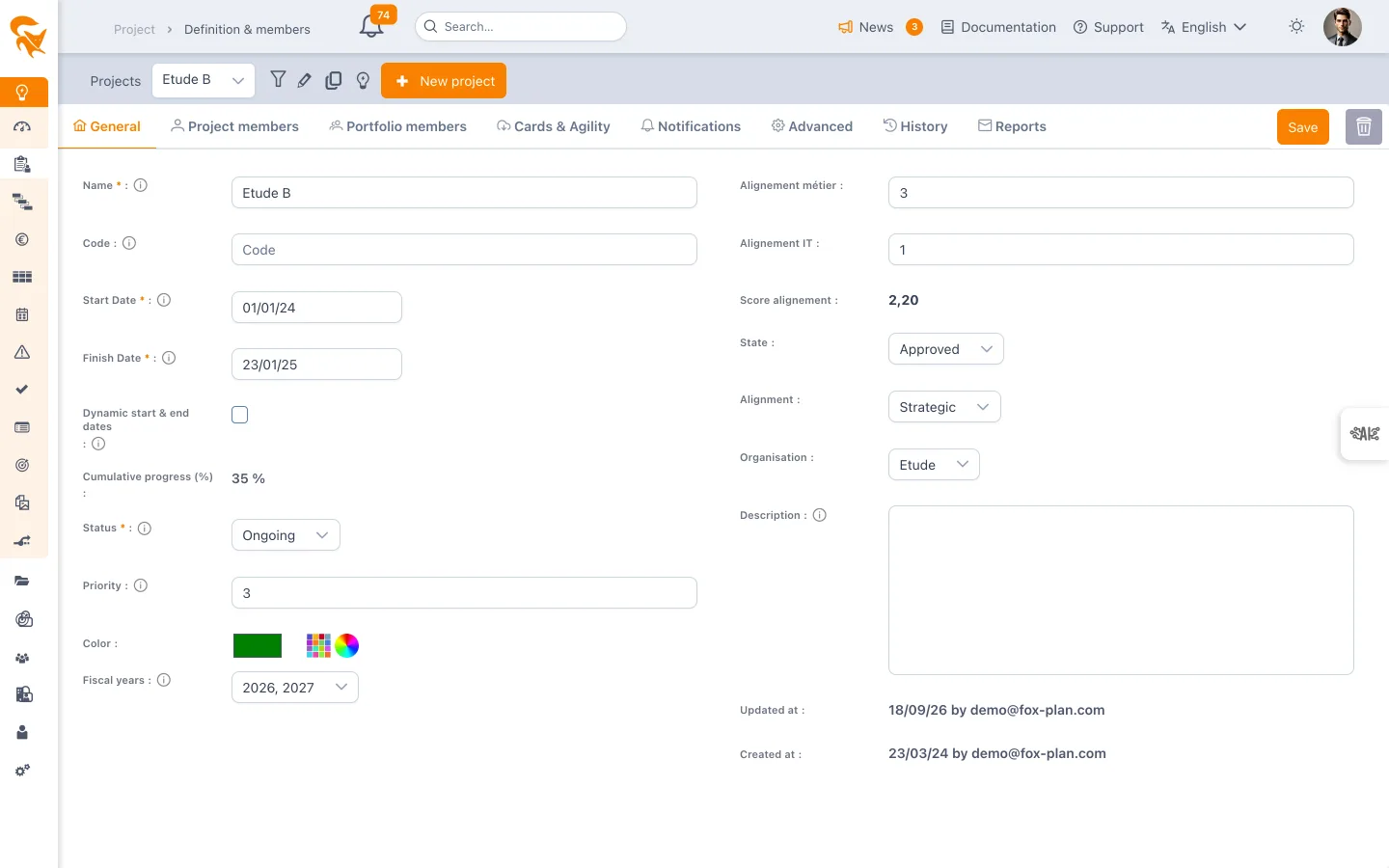
- Name and Description
- Code — the short reference used in consolidated views and exports
- Start date and End date — once the start date is set, the end-date calendar opens directly on that month and does not offer any day before the start. If the start date is later moved past the end date, the end date is automatically brought forward to that new start date (a message says so); an end date before the start blocks saving in any case.
- Dynamic start & end dates — when enabled, the project dates are recomputed from the tasks (minimum of starts, maximum of ends). At least one of the two dates must be filled in before enabling the option.
- Status — Open, In progress, Closed
- State — Idea, Draft, Checked, To approve, Approved…
- Priority — from 1 to 5, used as a grouping and badge criterion in trade-offs, the global planning and the workload
- Project leader, Alignment, Organisation, Key dependencies
The "Project members" tab
It lets you add people to the project and give them a role (Project Admin, Project Leader, Reader, Resource).
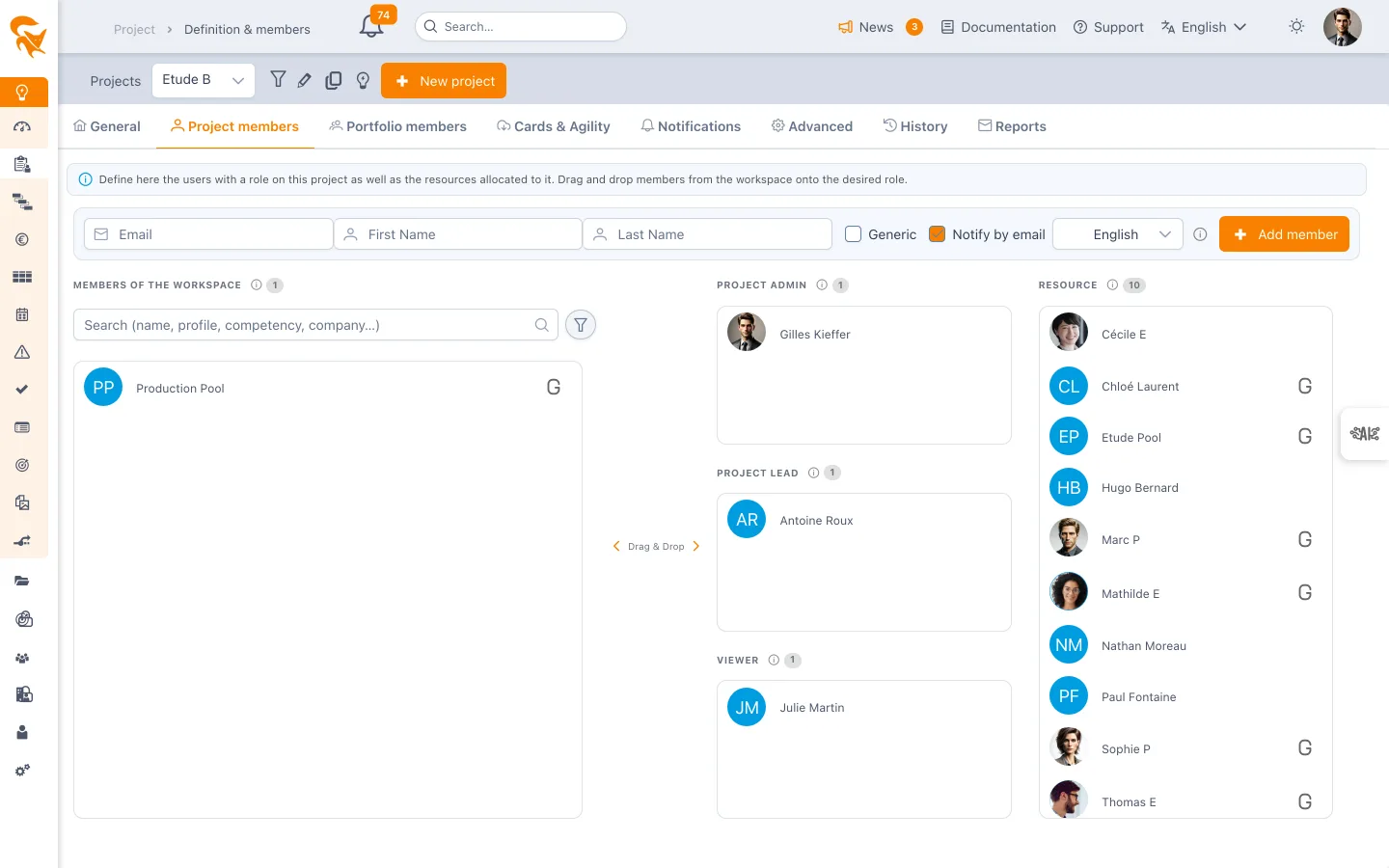
On a new project, the Create button stays available from this tab. If you click Add member before the project has been created, FoxPlan offers to create it right away: the member you entered is added as soon as the project exists. The required fields of the General tab (dates, name) must be filled in.
Managing members and editing the definition are reserved for the Project Admin. The Project Leader sees this screen in read-only mode. Roles and their rights are detailed in Project members.
The "Portfolio members" tab
This tab is read-only. It answers a frequent question: why does this person have access to my project when they are not among my members?
It lists the users holding inherited rights through the portfolios containing this project, with the matching role — Projects admin, Project leader or Projects reader. These rights add to those of the Members tab, they do not replace them.
To change them, go to the relevant portfolio screen: see Portfolio definition. A checkbox Also show portfolios with no inherited role completes the list with the portfolios that contain the project without granting rights on it.
The tab only appears on an already saved project.
The "Notifications" tab
This is where you set, project by project, who is notified of what.
Webhooks
Start by selecting the webhook services involved — Slack, Microsoft Teams and/or Google Chat — then enter the URL of each. A ? icon next to each field unfolds the step-by-step procedure to obtain the URL in the corresponding service.
Webhooks are optional: without any, you can still notify FoxPlan users.
Events and channels
Four events are configured independently, each with its Notification mode:
| Event | Available modes |
|---|---|
| On planning allocation to a task | None / Webhook only |
| Task owner ("In charge" field) | None / Webhook only |
| When the task status is updated | None / User only / User and webhook |
| New comment on a task | None / Webhook only |
For allocation, ownership and comments, the bell notification and the email are not driven here: each user sets them in their own profile. The project only decides on sending to team channels.
Notified roles
When the task status event is set to a mode including users, an extra selector appears: User notification roles. There you choose who receives the notification — Project admins and/or Project leads among the project members.
The "Advanced" tab
The settings driving the project calculations. Shipped by default in this panel:
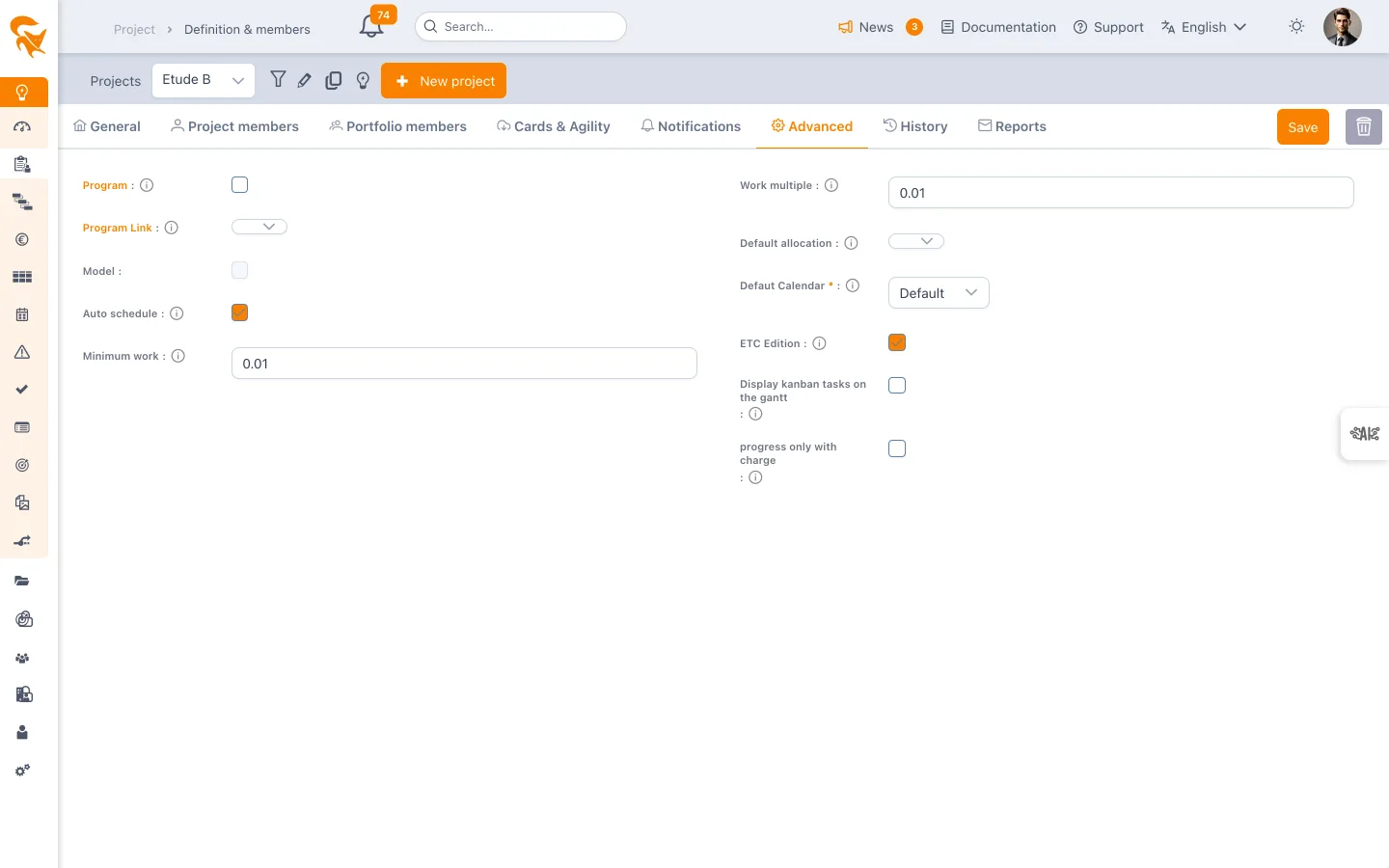
| Setting | Effect |
|---|---|
| Auto schedule | Tasks are created in auto-scheduling mode by default |
| Default calendar | The calendar applied to tasks — determines duration computation |
| Minimum work | Minimum work per working day, in man-days (0.01 to 1) |
| Work multiple | Multiple used to spread the workload (0.01 to 1) |
| Default allocation | The allocation type offered when assigning a resource |
| Progress only with charge | Enabled: progress = actuals / (actuals + ETC). Disabled: progress computed from durations |
| ETC Edition | Lets resources edit their remaining work |
| Cap time entry at planned workload | A resource cannot record more time than the workload planned for them on the task (see below) |
| Display kanban tasks on the gantt | Brings cards into the planning — may move tasks depending on the constraints in place |
| Program / Program Link | Marks the project as a program, or attaches it to a parent program |
| Available | For a template: allows its reuse to create new projects |
| Overall Indicator, Criticality Rate | Steering indicators surfaced in consolidated views |
Set the calendar and auto schedule before building the planning: they drive the date computation of every task.
Cap time entry at planned workload
When enabled, this option prevents a resource from recording on a task more time than the workload planned for them: their total actuals on the task, all actual types combined, cannot exceed their planned workload. An entry that would exceed this cap is rejected with a message; the resource can still reduce or correct an existing entry.
The check applies to any time entry on the project — timesheet, My activity, AI assistant, connectors — including when a manager enters time on behalf of a resource. To allow more time, the project manager first increases the planned workload of the allocation in the planning.
When disabled (the default), time entry is not capped.
The "History" tab
The list of project changes, most recent first: Modified by (who) — Modified on (when).
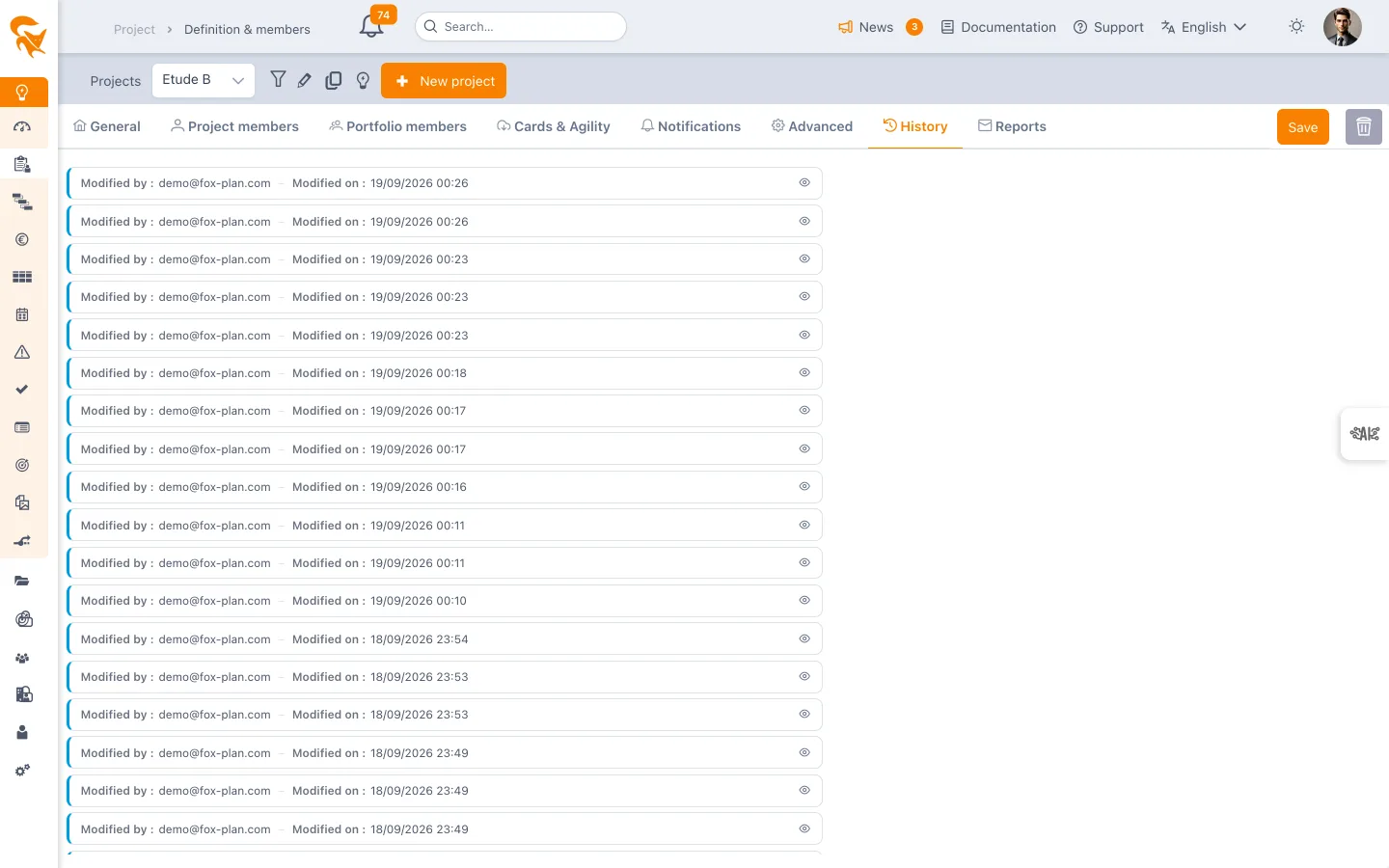
Each row opens a comparison detailing the changed fields, with their before and after values. This is the audit trail of the project record.
The tab only appears on an already saved project, and shows "No history available" until a change has been tracked.
The "Reports" tab
Schedules an email with a status of the project (deadlines, delays, staffing, governance, budget), at the chosen frequency and to the chosen recipients. Several reports can coexist. See Scheduled reports.
See also
- Project members — roles and permissions in detail
- Portfolio definition — where inherited rights come from
- Custom fields — add fields and reorganise the tabs
- Project management — project creation and scheduling constraints
- Planning — where the calendar and scheduling defined here apply