Arbitrations
The Arbitrations screen lets you prioritize the projects of a portfolio along weighted criteria and simulate scenarios. It is the tool of portfolio steering committees.
Reached through the Arbitrations menu of a project portfolio.
The arbitration matrix
Every project of the portfolio is positioned in a grid crossing two dimensions you configure:
- X-axis: by default Effort (planned workload or cost)
- Y-axis: by default Value (business score, ROI, strategic alignment)
Classic quadrants:
| Quadrant | Characterization | Typical decision |
|---|---|---|
| Top-left | High value, low effort | Quick wins — launch |
| Top-right | High value, high effort | Large project — plan |
| Bottom-left | Low value, low effort | Avoid or defer |
| Bottom-right | Low value, high effort | Discard |
Scoring criteria
You can define custom weighted criteria: strategic alignment, complexity, ROI, urgency, risk, customer satisfaction…
For each project, FoxPlan computes a composite score feeding the matrix.
Budget simulation
- Envelope — Set a budget or man-day ceiling
- Auto selection — FoxPlan suggests the combination of projects maximizing value under the constraint
- Manual selection — Check/uncheck each project and watch total value and consumption
- Scenario comparison — Save several combinations and compare them in committee
Fiscal year of budget data
The Fiscal year selector in the toolbar filters the list's budget data: amounts and man-days. It works as in the budget, up to 3 years back: tick one or more years, or leave All fiscal years. The years do not have to be consecutive. The list of projects does not change. The choice is saved in the favorite.
Grouping projects
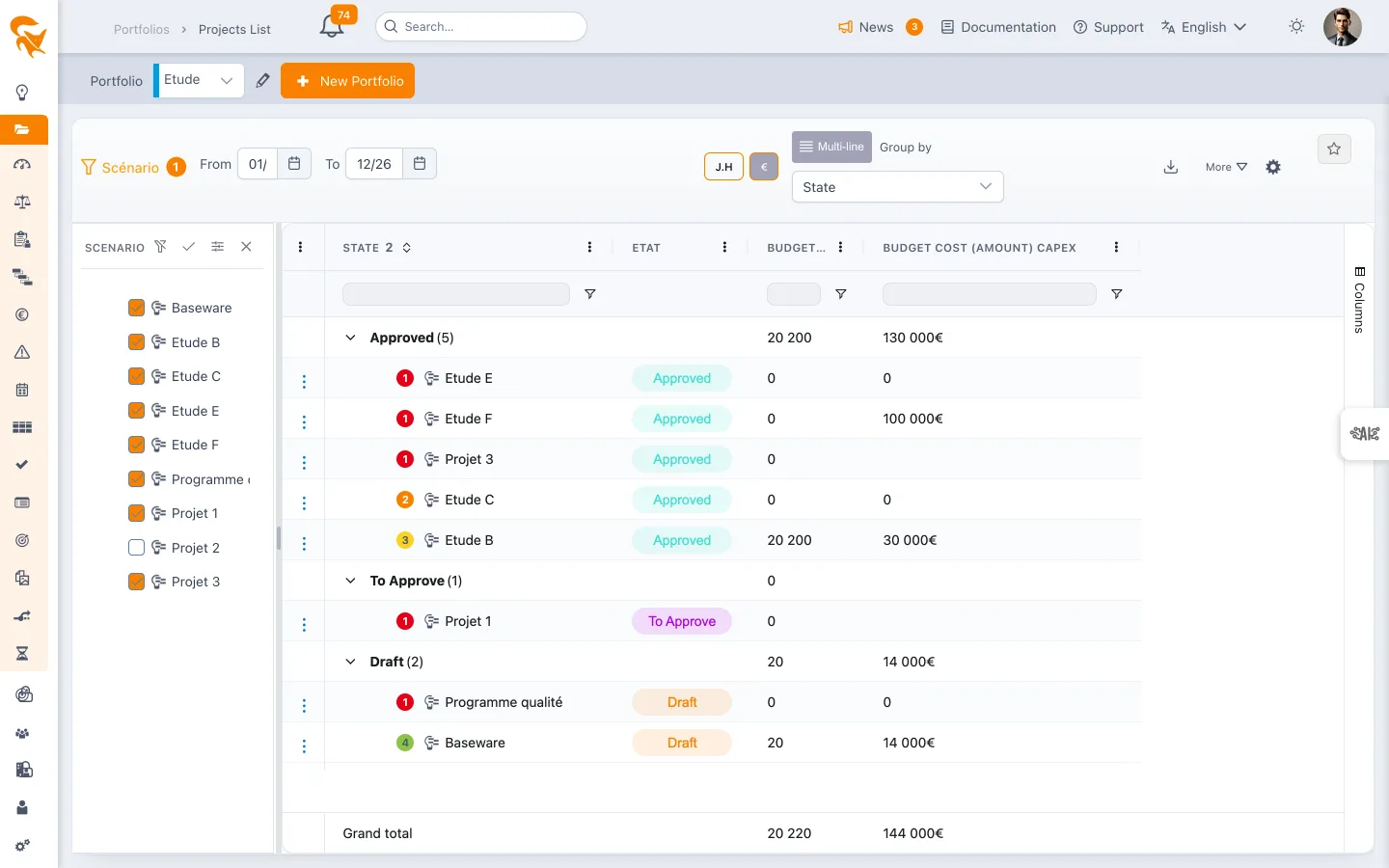
The project list can be grouped by a criterion of your choice, through the Group by list of the toolbar. Every group row carries the group label, the number of projects it holds and the roll-up of the numeric columns (sum of amounts and workloads, average of progress).
| Grouping | What each group gathers |
|---|---|
| State | The state of the project (the State field of its definition). Default grouping, offered at the top of the list |
| No grouping | Flat list: no group, the project name column is shown again |
| Program | The projects attached to a same program, the program itself acting as the group row. Projects belonging to none are gathered under No program |
| Status | The Status field of the project, when defined in the portfolio |
| Priority | The priority level of the project. Groups follow one another from the most to the least urgent — Priority 1 to Priority 5 — with No priority closing the list for projects whose field is not filled in |
| Other fields | Any other project field of type list or multiple-choice list defined in the portfolio, listed alphabetically at the end |
The chosen grouping is remembered per user and per portfolio, and it is stored in the view favorite: reopening a favorite restores the grouping it was saved with.
Grand total row
A Grand total row is pinned to the bottom of the grid: it stays visible however far you scroll and sums the numeric columns of the whole view, with or without grouping. It follows the same rules as the group rows — sum of amounts and workloads, average of progress — and totals what is displayed, so filters and the project selection scenario are reflected in it immediately.
When grouping by Program, the grand total adds up the group rows, that is the consolidated amounts carried by each program, rather than the individual projects that make them up.
The row is turned on and off from the ⚙️ View settings button, Display tab, with the Show the grand total row at the bottom of the grid option. It is on by default; the choice is remembered per user and per portfolio, like the other settings of the view, and only takes effect when the window is confirmed.
Project actions
Clicking a project name opens an action menu. The three vertical dots in the leftmost column open the same menu.
| Action | Effect |
|---|---|
| ✏️ General project attributes | Opens a quick edit panel: name, dates, status, priority and the other fields of the General tab of the project definition. The 💾 button saves, ✕ closes without saving. A read-only project opens in consultation mode, with no save button |
| 🗓️ Open the project in a new tab | Opens the project schedule in a separate browser tab, without leaving the current view |
| 💶 Open the project budget in a new tab | Opens the project budget summary in a separate tab |
| 🎫 Open the project cards in a new tab | Opens the project cards (tickets) in a separate tab |
The project name is also clickable in the Scenario panel on the left.
Below the actions, the Included in the scenario checkbox removes the project from the view (or brings it back) without going through the Scenario panel: it is the same setting as the project's checkbox in that panel, which updates at the same time.
The Esc key closes the menu, then the edit panel.
Showing project priority
The ⚙️ button opens the View settings. Its Display tab offers the Show the project priority as a badge next to its name option: a colored pill is then added to the right of every project name in the grid, with or without grouping.
| Badge | Priority |
|---|---|
| 🔴 1 | Highest |
| 🟠 2 | High |
| 🟡 3 | Medium |
| 🟢 4 | Low |
| 🟩 5 | Lowest |
The priority shown is the project's Priority field, set in its definition. Projects with no priority set carry no badge, and grouping rows carry none either.
The setting is per user, remembered for this portfolio, and only takes effect when the panel is confirmed.
Arbitration statuses
Each project can be flagged:
- 🟢 Selected — Approved for execution
- 🟡 Under review — Awaiting arbitration
- 🔴 Discarded — Decision not to launch
- ⏸️ Postponed — Deferred to a next session
Decision history is kept for audit.
Stage gates and state changes
Both features depend on options of the Stage gate tab of the workspace; stage gates are disabled by default, state change validation is enabled by default.
- "Stage gate" column — added from the columns manager, it shows the last approved gate of each project. It is read-only: decisions are made on the planning milestones (see Stage gates).
- Changing the state in the grid — when the Validate and track state changes option is enabled, editing the State cell opens the validation window: Approved by (a workspace resource), validation date and comment. Cancel restores the original state without saving anything. A project in the Idea state goes through the idea-to-project conversion form, which includes the same validation fields. Details and history are described in Project definition.
See also
- Dashboard — the aggregated portfolio view
- Portfolio members — who can arbitrate