Document (Portfolio)
This screen gathers in one grid the documents referenced by every project in the portfolio. Handy to find a scoping note without knowing exactly which project it belongs to.
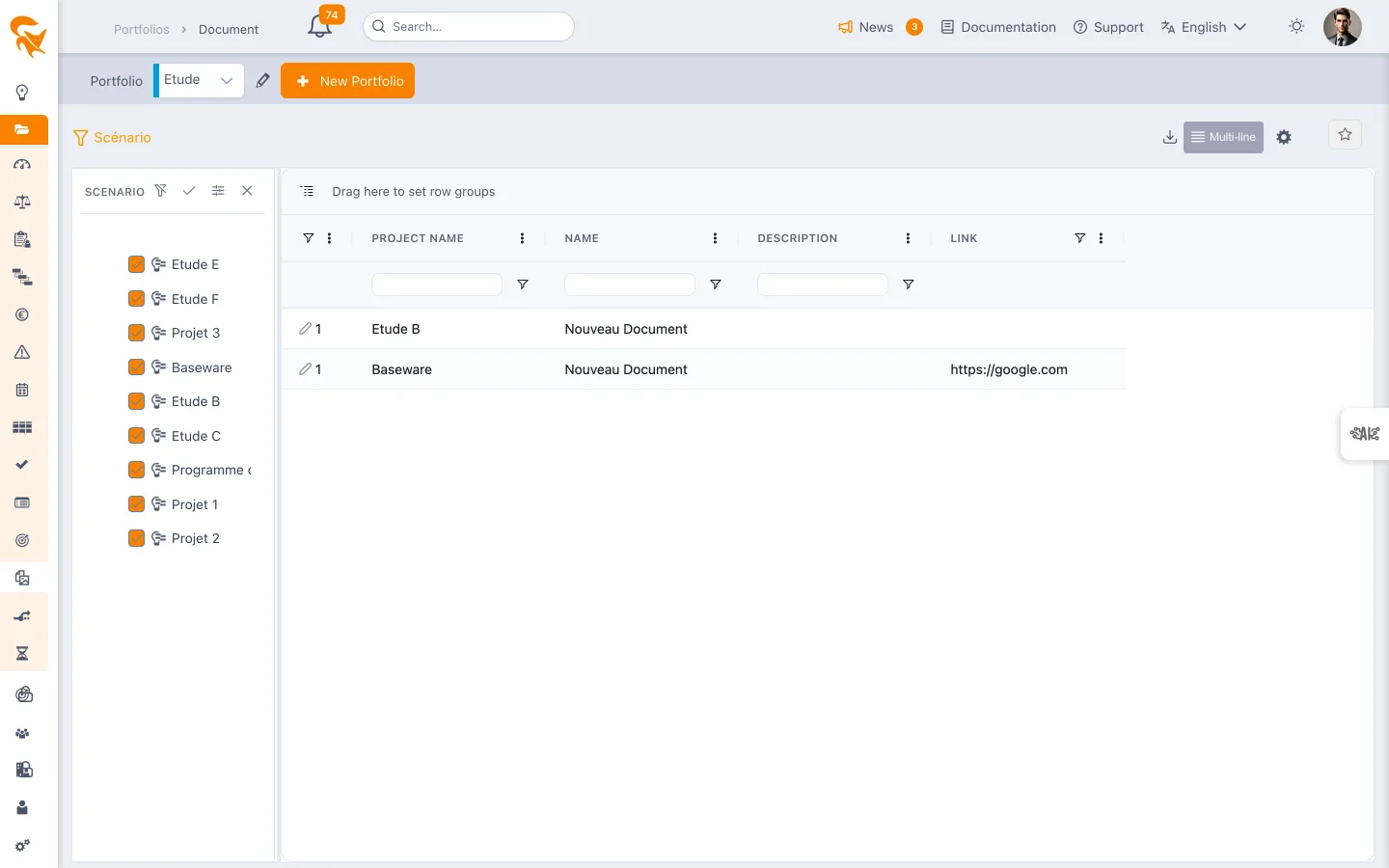
Reach it from the Document menu of a project portfolio.
A FoxPlan document is a link to a file living elsewhere — SharePoint, Google Drive, an intranet, a corporate DMS. The entity carries only three fields, and not a single byte is stored in FoxPlan.
There is therefore no upload, no file size, no versions, no preview and no bulk download, and the search cannot cover the content of PDF or Word files: it covers what you typed in.
The columns
| Column | Content |
|---|---|
| Name | The document label, as you type it |
| Link | The file URL at its host |
| Description | Free text — this is where you describe what the document is |
An administrator can enrich this list through custom fields: a Category, Version or Author column is added that way, and becomes filterable and exportable like the others.
Finding a document
- Sort and filter on any column. The search covers Name and Description — hence the importance of filling them in.
- Group by dragging a column header into the grouping bar at the top of the grid.
- Scenario — the funnel narrows the scope to a selection of projects. An orange badge on the button shows the number of unticked projects, hence missing from the list.
- View settings (⚙️) — Column management, Display, Project hierarchy management.
- Export — Excel (.xlsx) or CSV (.csv).
Opening a document
The Link field carries the file address: your browser and the hosting tool open it. Access rights to the file therefore remain those of that tool — FoxPlan does not control them.
From the edit panel of a task or a card, the linked documents section lets you search an existing document and attach it. The document stays unique; only the link to the task is added.
See also
- Project document — the documents of a single project
- Requirement — requirements, often backed by a document
- Custom fields — adding Category, Version or Author
Since the search only sees the name and the description, adopt a convention (PROJECT_TYPE_YYYYMMDD_NAME) and describe the content in one sentence. That is the only text you will be able to fall back on.