Portfolio cards
The Cards view of a project portfolio gathers every card (stories, bugs, subtasks) of the projects it contains in a single board. Where a project's Card & Story only shows one scope, this one gives the overall picture of a programme or a domain.
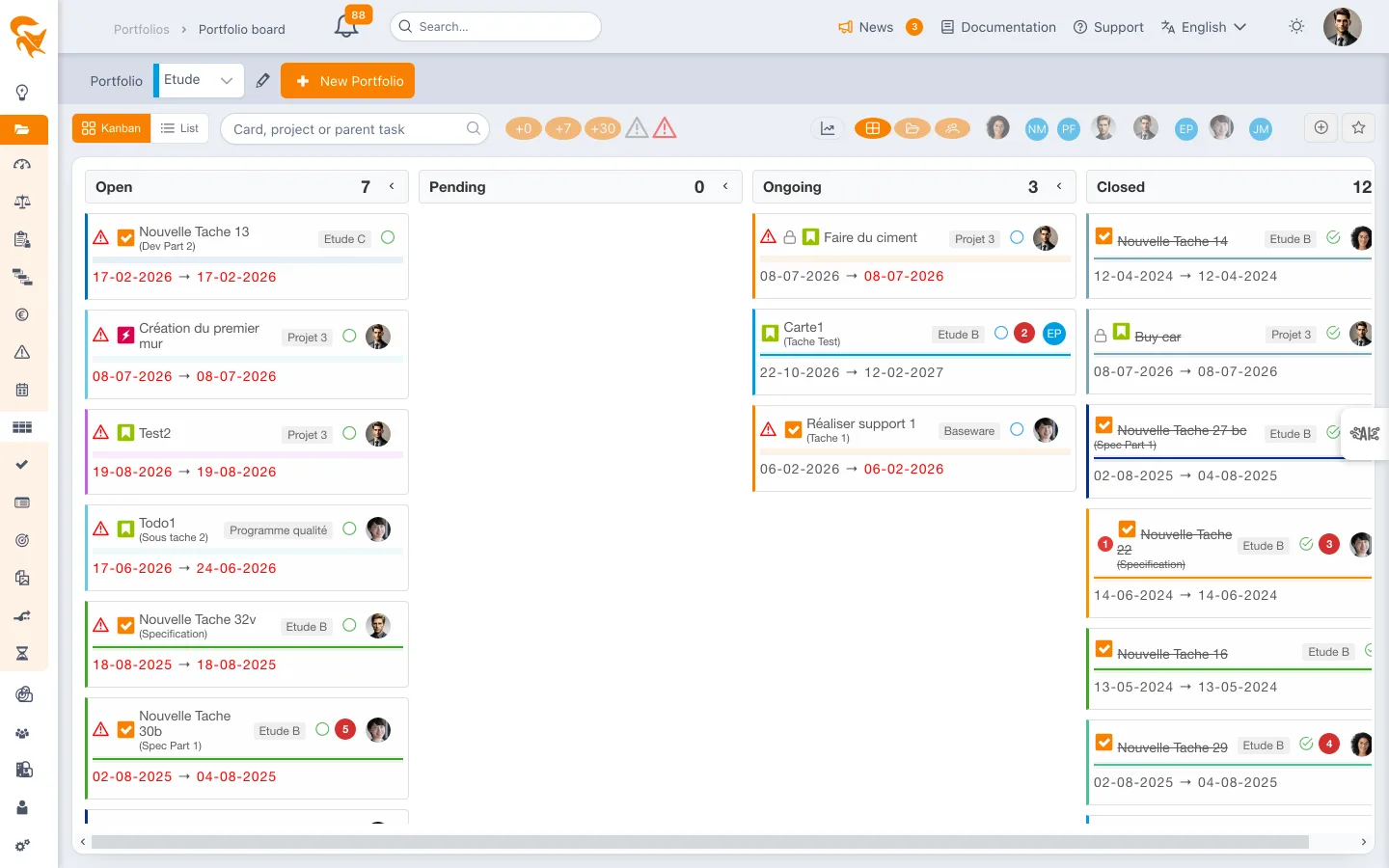
Reach it from the Kanban menu of a project portfolio.
FoxPlan offers the same board at three scales. Don't mix them up:
| View | Scope | For whom |
|---|---|---|
| Card & Story | A single project | The project leader |
| Portfolio cards (this page) | Every project of a project portfolio | The programme manager |
| Team cards | Every project a team is allocated to | The team manager |
The last two share the same screen and the same controls; only the scope changes — the projects of a portfolio on one side, those of a team on the other.
The portfolio shown is the one from the portfolio selector in the breadcrumb, shared across the whole section.
The five layouts
The toggles at the top right change the grouping:
| Layout | Grouping |
|---|---|
| Combined columns | Every card in shared status columns, all projects together |
| By project | One swimlane per project — to compare how the portfolio's projects are progressing |
| By owner | One swimlane per person — to see who carries what across the portfolio |
| By project, then resource (📂 › 👥) | One group per project, and within each one swimlane per person in charge |
| By resource, then project (👥 › 📂) | One group per person, and within each one swimlane per project |
In the combined layouts, dragging a card into another swimlane changes its owner — and its project if the swimlane belongs to another project — just as in the simple layouts.
The choice is remembered per portfolio, whatever the layout: coming back to a portfolio restores the layout you left it in.
Clicking a person's name — By owner swimlane, group or sub-heading of the combined layouts, section title of the List grouped by resource — opens a small menu: 👤 open the person's profile, ➕ create a card assigned to that person; under a project (By project, then resource layout), the card is also set on that project. The avatar still opens the profile directly.
Project actions
Clicking a project name opens an action menu: on a card's project chip, and on a swimlane label in the By project layout, on a group title in the List view grouped by project, and on a project name in the combined layouts (group header and sub-heading).
| Action | Effect |
|---|---|
| ✏️ General project attributes | Opens a quick edit panel: name, dates, status, priority and the other fields of the General tab of the project definition. The 💾 button saves, ✕ closes without saving. A read-only project opens in consultation mode, with no save button |
| 🗓️ Open the project in a new tab | Opens the project schedule in a separate browser tab, without leaving the current view |
| 💶 Open the project budget in a new tab | Opens the project budget summary in a separate tab |
| 🎫 Open the project cards in a new tab | Opens the project cards (tickets) in a separate tab |
| ➕ New card | Opens the New card dialog on that project. Greyed out if you only have read access to the project |
The Esc key closes the menu, then the edit panel.
Creating a card
The + New card button in the toolbar, at the top right before the burndown toggle, opens the New card dialog:
- Linked project — only the projects of the portfolio whose schedule you can edit are offered: read-only projects, ideas and archived projects are left out. If only one project qualifies, it is preselected;
- Card name — required: the Create button stays greyed out while it is empty;
- Description — optional;
- Column / status — the columns of the chosen project; defaults to the first "to do" column, or the one you start from;
- Type — Story, Bug or Action;
- Person in charge — among the members of the chosen project; defaults to you if you are a member.
The button is hidden when no project is editable.
The same dialog opens prefilled from:
| Starting point | Prefilled |
|---|---|
| A project's action menu — ➕ New card | The project, fixed; under a person (layout or list grouped by resource, then project), the card is assigned to that person |
| A person's menu — ➕ | The person, assigned by default; only their projects are offered (including those where they already have cards), the one where they have the most is preselected |
| The + at the top right of a status section, in the List grouped by column | The column: the card is created, in its project, in the column bearing that name |
| A parent task heading, in the List with Sub-group by parent task checked — click its name, then ➕ Add a card to this task | The project and the parent task, fixed; in a list grouped by resource, the person of the group |
The card appears straight away on the board, in its place; click it to fill in its dates and other fields in the edit panel.
Everything remains subject to write access on the project: on a read-only project, these actions are greyed out.
Kanban or List layout
The Kanban | List switch, at the start of the toolbar, shows the same cards as a task list, one line per card when there is room. Each row shows the card's project, parent task (except when sub-grouped by parent task, where the heading already shows it), dates and deadline (in red under the same rules as on the cards), points, indicator and assignee.
On Kanban cards, the same quick editing is available: click a date (start, end, deadline), the priority, the points or the owner's avatar to change them without opening the panel; a missing deadline or priority is offered when hovering the card — the deadline to the right of the end date, where it shows once entered; points, on a project that uses them, are edited by clicking their badge (even at 0). The ⋮ button at the end of the card, shown if you are allowed to edit the card, opens Comment and Edit card. Clicking the 💬 indicator of a commented card opens its comments directly; a card without comments offers + 💬 in the same place, on hover, to add a first one. The status is still changed by dragging the card to another column.
In the List layout:
- the left pane lists the columns (statuses) with their card counts: click several to combine them, a second click removes one, All clears the selection. Your choice is remembered for each view (project, portfolio, My cards) and restored on your next visit;
- clicking a row opens the card in the edit panel; clicking the project name opens its actions;
- the checkbox closes the card — it moves to the first Closed column of its project — or reopens it;
- inline editing: click a row's status, a date (start, end, deadline), its priority, its points or the owner's avatar (members of the card's project, or Remove owner) to change them in place, without opening the panel. A missing deadline or priority is offered when hovering the row (+ Deadline…); points, on a project that uses them, are edited by clicking their badge (even at 0). The 💬 indicator opens the card's comments, and + 💬 adds a first one. The dates of a card that has sub-cards derive from them and cannot be changed here;
- the ⋮ button at the end of the row, shown if you are allowed to edit the card, opens its actions just below it, without hiding it: Comment (add a comment, mentions included) and Edit card (edit panel);
- when grouped by column, drag a row onto another section, or onto a column of the left pane, to change its status. If the card's project has no such column, a message says so and nothing changes.
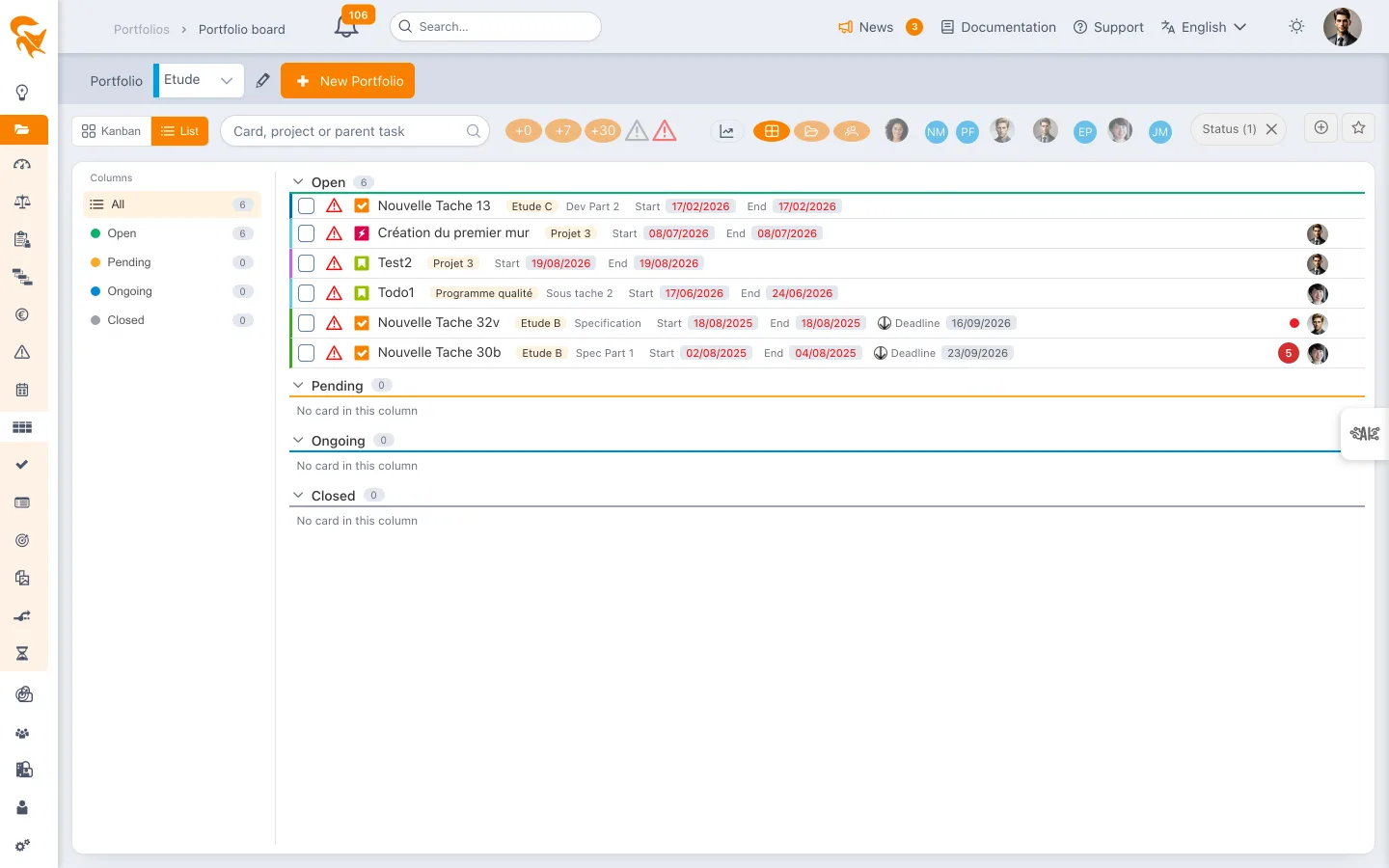
Grouping uses the same buttons as the kanban — flat (one section per column), by project, by resource (one section per person, unassigned cards last), by project, then resource or by resource, then project (one section per first-level item, one sub-heading per second-level item). Outside the column grouping, each row shows its column as a badge, and the status pane filters cards within each group — for example each person's ongoing cards.
Sub-grouping by parent task: in every grouping — flat included, under each column — the Sub-group by parent task checkbox, at the bottom of the left pane, arranges each group's cards under a heading per parent task (with its card count). Cards without a parent task — or whose parent task no longer exists — come last, under No parent task. In the combined groupings, it thus adds a third level. The choice is remembered for all card views.
Latest comment: just below, the Show the latest comment checkbox shows the most recent comment under each card (author, date and time, two lines of text). If there are others, the N more link expands them, newest first. Once it is checked, Only from the person in charge shows only the latest comment written by the card's person in charge; a card they have not commented on shows nothing. Show the full comment displays its whole text instead of the first two lines. Clicking the comment opens the card's comment box, like the 💬 comment-count bubble. That bubble, like the + 💬 of a card without comments, sits right after the dates, where the comment is shown; it disappears when the comment is displayed. The choice is remembered for all card views.
Points: each card follows its project's setting — Use points checkbox in the Cards & Agility tab of the project definition, disabled by default. When disabled, points disappear from its cards, the list and the edit panel; values already entered are kept (see Card & Story).
Search, filters, favorites and burn down work the same way. The Kanban / List choice is saved in the favorite; the grouping is remembered like the kanban's.
As on Card & Story, only the 20 most recent closed cards of each column are loaded; the counters, the list and the burn down also count the older ones.
Searching and filtering
- Search by card, project or parent task
- Time filters: +0 (today), +7 (this week), +30 (this month)
- Cards to start and Cards to close — the two alert icons isolate what is late
- Add a filter (⊕ button next to the favourites star): filter on any card field — status, indicator, card type, column, constraint, assignee, custom list… Each value is shown with its label in your language, and the filter is saved in the favourite
- Favourites — save a combination of filters and layout to replay it in one click
Editing a card
Clicking a card opens the edit panel on the right, identical to the project Kanban one: status, person in charge, dates, description, comments. Dragging from one column to another changes the status, just like inside a project.
A card is only editable if you have rights on its project. The portfolio consolidates the display, it does not widen permissions — see Portfolio members for the propagated rights.
See also
- Card & Story — a project's Kanban, and the detail of cards
- Team cards — the same board at team scale
- Task — the tabular view of the portfolio's tasks
- Task and card priority — the coloured dot carried by cards
In a programme review, the By project layout with the +30 filter shows in one screen what each project must deliver this month.