Portfolio definition
The Definition screen opens the record of the project portfolio. It has five tabs:
| Tab | Purpose |
|---|---|
| General | Portfolio identity |
| Portfolio members | Who administers or views the portfolio |
| Members of portfolio projects | Rights propagated to every project in the portfolio |
| Projects | Selection of the attached projects |
| Reports | Scheduled reports on the portfolio's projects |
Reach it from the Definition / Members menu of a project portfolio.
The Save button and the bin only appear on the General and Projects tabs. Both member tabs are saved automatically on every add or removal.
The "General" tab
The identity tab is deliberately minimal:
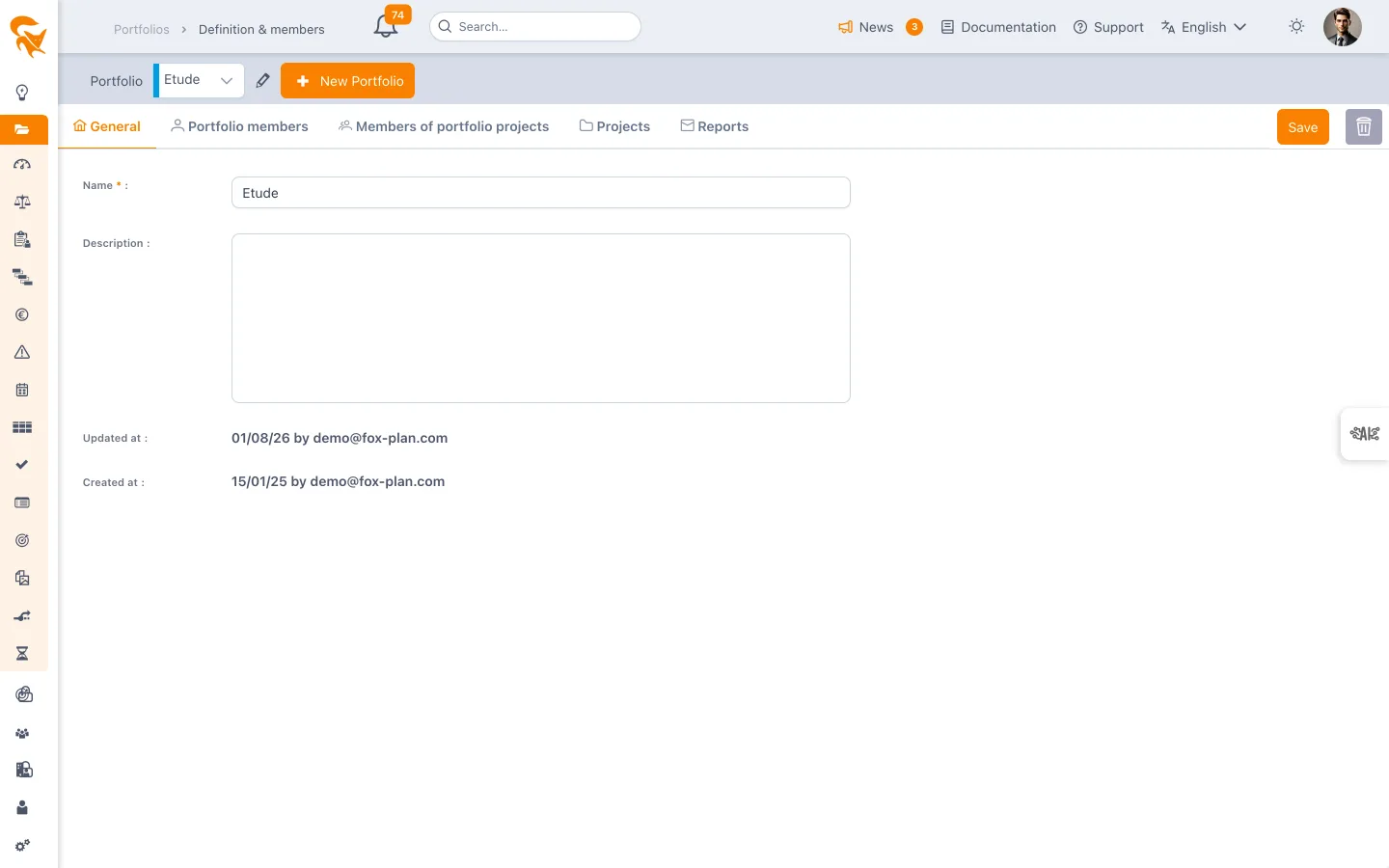
- Name (required) — The label shown in the selector and in screen titles. It is the only blocking field.
- Description — Free text, entered in a rich editor (formatting, lists, links).
- Updated at / Created at — Read-only timestamps.
The Save button confirms the changes. The bin deletes the portfolio after a confirmation asking you to retype your email and the portfolio name — deletion has no effect on the projects, which stay in the workspace.
They are not on the portfolio. They are project attributes: you enter them in the project definition, then use them as grouping and filtering criteria in the portfolio's consolidated views.
The "Portfolio members" tab
It handles the sharing of the portfolio itself: Owner and Viewer. The rights are detailed in Portfolio members.
The "Members of portfolio projects" tab
This tab is distinct from the previous one, and often misunderstood: it does not grant rights on the portfolio, but rights on every project it contains, in one go.
| Role | What it grants on each project of the portfolio |
|---|---|
| Projects admin | Administer the project — equivalent to a workspace administrator on that scope |
| Project leader | Manage the project — equivalent to the Project leader role |
| Projects reader | Read the project |
Two rules to remember:
- These rights are additive: they come on top of those defined project by project, never instead of them. A member keeps the strongest of the two.
- There is no Resource role here: operational assignment stays the responsibility of each project.
This is the right place to give a programme director visibility over their whole scope without adding them by hand to each project.
The "Projects" tab
Projects are attached between two lists:
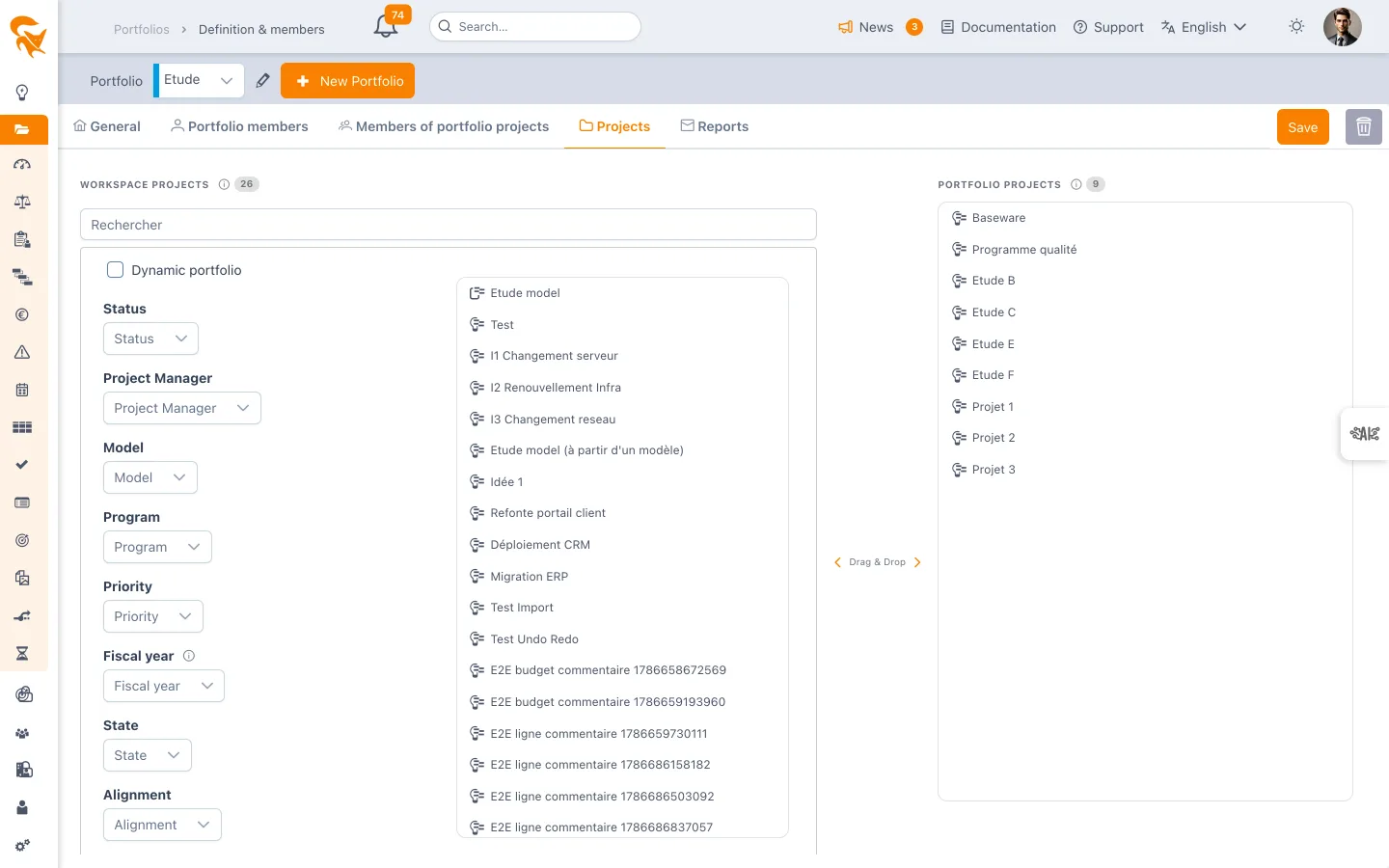
| Column | Content |
|---|---|
| Workspace projects (left) | The available projects |
| Portfolio projects (right) | The current portfolio composition |
The Search field filters the left list by project name.
Manual selection
By default, drag a project to the right to attach it, to the left to detach it. The filter selector (classification, status, custom fields…) then simply narrows the left list so you find a project faster.
Dynamic portfolio
Ticking Dynamic portfolio changes the logic: the portfolio content is no longer a fixed list but the result of the filters. Any project matching the criteria enters it automatically, any project that stops matching leaves it.
The Portfolio projects column then disappears from the screen: there is no manual selection left to maintain. See Managing a programme for the setup.
A project can belong to several portfolios at once (for example "R&D 2026" and "All digital projects"), whether they are manual or dynamic.
The "Reports" tab
Schedules an email with a status of every project in the portfolio (deadlines, delays, staffing, governance, budget), at the chosen frequency and to the chosen recipients. Only the portfolio Owner can create or edit a report. See Scheduled reports.
See also
- Portfolio members — Owner and Viewer in detail
- Managing a programme — set up a dynamic portfolio
- Managing a portfolio — day-to-day steering
- Project definition & members — where project attributes are entered