Workspace
The Settings → Workspace screen is the entry point for FoxPlan global configuration. It groups every tab that drives the environment behavior.
Access
Main menu → Settings → Workspace
This screen is reserved to workspace administrators and enterprise administrators. Other members have no access, and the “Settings” entry is not offered to them in the menu.
Available tabs
| Tab | Purpose |
|---|---|
| Workspace | Identity, status and general settings (current tab) |
| Calendar | Weekly working capacity and exception days |
| Member | Manage users and generic resources |
| User access | Profiles, groups, menu and feature access |
| Custom fields | Business attributes for projects and other entities |
| Budget | Currency, daily rates and budget rules |
| Timesheet | Periodicity and timesheet rules |
| API | API accounts and keys, associated rights |
| Notifications | Email templates and alert channels |
| Jira | Jira connector to synchronize tasks |
| Datamart | Export data to an analytical warehouse |
| Client | Commercial documents, payment terms and billing terms |
| Stage gate | Enable stage gates and define the gate groups, validate state changes (stage gates disabled by default, state change validation enabled by default) |
| Archive | Archive and restore projects with drag and drop |
Unsaved changes
Settings screens (workspace, company, profile, connectors) are saved with their Save button: nothing is ever saved on your behalf. So that you do not lose input by mistake:
- Leaving the screen (menu, link, Back button) with unsaved changes asks a question: Save, Discard changes, or the cross to stay on the screen. Closing or reloading the browser tab triggers the browser's own warning.
- Closing an edit window (cross, Esc, click outside or Cancel) after changing it asks the same question. If the form is incomplete, only Keep editing and Discard changes are offered.
- Value lists (values of a custom field, actual and leave types): a row entered without clicking the green check mark is confirmed by Save, with the same checks as the check mark.
- Other tables, such as your calendar exceptions, require each row to be confirmed or cancelled before saving: otherwise a message says so and nothing is sent.
The "Workspace" tab
This is the identity tab. It lets you set:
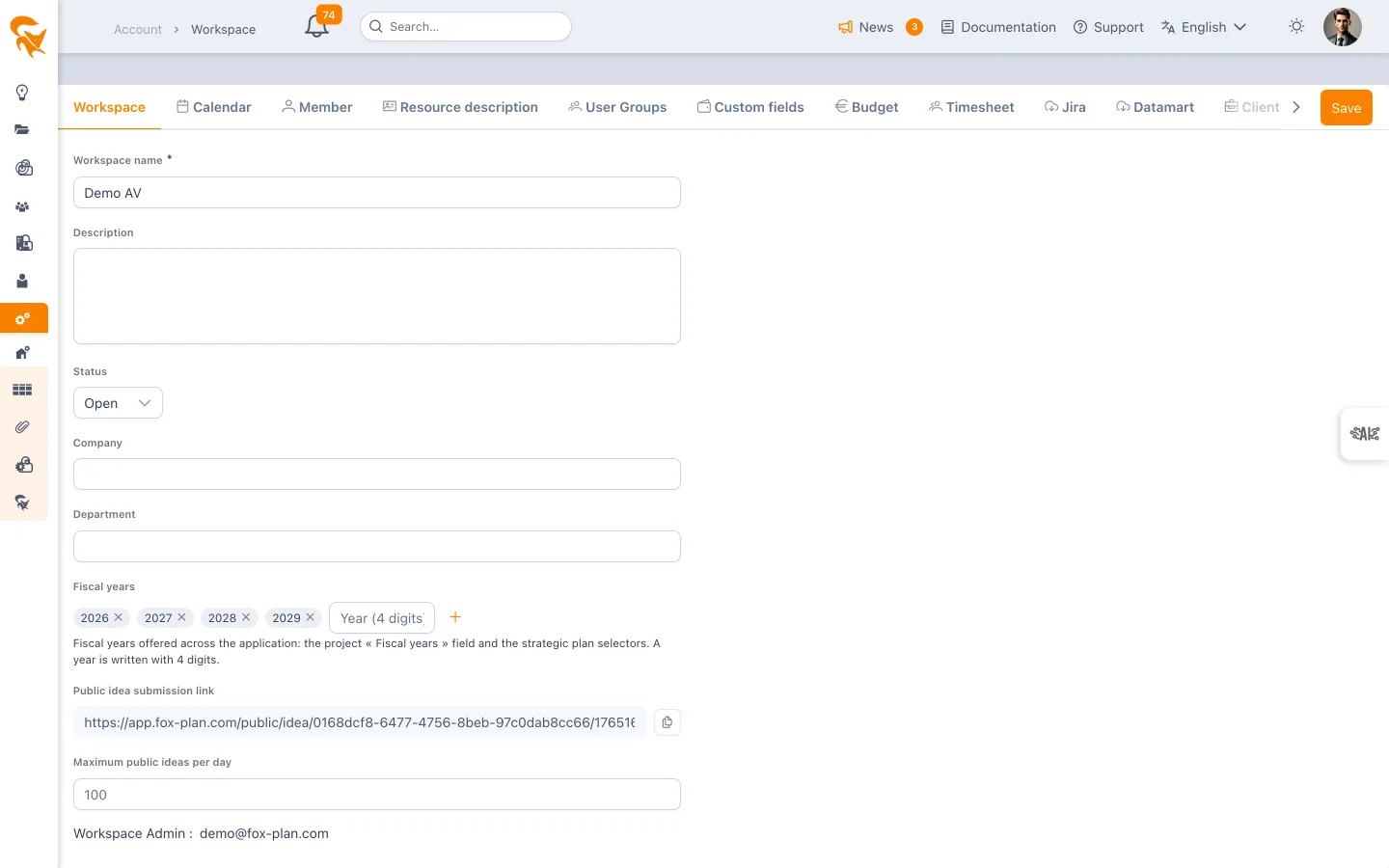
- Name (required) — Label displayed in the application header
- Description — Free text describing the workspace usage
- Status — Current state (active, in-project, archived…)
- Company — Legal entity owning the workspace
- Department — Internal entity (IT, R&D, BU…)
- Fiscal years — List of fiscal years (four-digit years) offered throughout the application. Add a year with the input field then the
+button; remove it by clicking the cross on its chip. When the workspace is created the list contains the current year, N+1 and N+2; an existing workspace declaring none is initialised the same way. These fiscal years feed the Fiscal years field of a project definition and the fiscal years of a strategic plan - Ideas — Enables or disables ideas in the workspace (on by default). When off, the Project or idea step of the creation wizard and the idea button of the project bar disappear, the public ideas URL no longer responds and the API rejects any idea creation. Existing ideas can still be viewed and converted.
- Public ideas URL — Address allowing external users to submit ideas to the workspace idea box, when this feature is enabled
- Maximum public ideas per day — Anti-spam ceiling on the public idea URL (
0by default, up to10000) - Maximum look-back of the displayed period (years) — Limits the start date of project and resource portfolios (
3by default, from1to10) - Company logo — Up to four logos that replace the FoxPlan logo for this workspace; when no logo is provided, the FoxPlan logo applies. Each file is saved as soon as it is selected and can be removed at any time.
- Why four? The logo sits on different backgrounds depending on the user's theme. In the light theme, the top bar and menu use the workspace background colour; in the dark theme, they are always dark. One logo rarely reads well on both: a logo with dark text disappears on a dark background, a white logo on a light one. The screen therefore offers two shapes, each for both themes
- Same or separate logos — By default, the workspace uses the same logos for both themes: two slots (rectangular and square), previewed on both a light and a dark background. If your logo does not read on one of the two backgrounds, turn on the Different logos for the light and dark themes switch: four slots appear. The choice is saved immediately; turning the switch off hides the dark versions without deleting them, and they come back if you switch again
- Light theme — a rectangular logo (top bar, expanded side menu, public idea form) and a square logo (collapsed side menu)
- Dark theme (separate logos) — the same shapes for a dark background, often the white or "negative" version from the brand guidelines. Without a dark version, the light version is used, then the FoxPlan logo. These slots are previewed on a dark background and show when the light version is used
- The displayed logo follows the active theme and switches without reloading when the user changes theme. The public idea form works the same way
- Format rules, identical for both themes: PNG or JPEG, 512 KB max, transparent PNG recommended. Rectangular: landscape (width 2 to 5 times the height), from 340 × 68 px to 2000 × 1000 px, recommended size 680 × 212 px. Square: 1:1, from 120 × 120 px to 1024 × 1024 px, recommended size 512 × 512 px. A file that breaks these rules is rejected with an explanatory message; an accepted file is never distorted when displayed
- Open the form — The button next to the public idea URL opens the form in a new tab, as visitors will see it
- Idea form introduction text — Shown at the top of the public form, in the visitor's language. A default text is provided in each language; select a language to edit it, then save the workspace. The "Restore default text" button cancels the customisation of the displayed language. Leaving the field empty hides the introduction for that language. Visitors can switch language with the selector at the top right of the form: the introduction, field labels and messages follow their choice, which is remembered in their browser
- Workspace administrator — Read-only list of current administrators
The Save button in the action bar persists the changes.
The list defined here is the single source of fiscal years:
- Project definition — the Fiscal years system field attaches a project to one or more fiscal years
- Advanced project search, content filter of a project portfolio and of a strategic plan — the fiscal year is a filter criterion there
- Strategic plan definition — a plan's fiscal years are chosen from this list
Wherever a fiscal year is selected, a help bubble next to the field recalls that the list is defined and maintained here, by the administrator — there is nothing to add from a project sheet or a plan.
Removing a year from the list does not erase it from the projects or plans already using it: it simply stops being offered.
- Workspace members — understand roles
- User administration — create/disable accounts