Email log
The Emails tab answers a question nothing else could settle: did the message reach the sending platform, and did that platform accept it?
Settings → Enterprise → Emails
Restricted to enterprise administrators, like the Sign-in methods, Two-factor authentication and AI configuration tabs.
The notification log records that a send was requested: it does not know what became of it. The Emails tab records what the sending provider replied — accepted, rejected, and why. The two complement each other: the first tells you which event triggered what, the second whether the mail actually left.
Health of the sending platform
A banner at the top of the screen gives the immediate verdict. Its colour reflects the last email sent, not an average: an ongoing incident must be visible even if a thousand messages went out during the day.
| Colour | State | What it means |
|---|---|---|
| 🟢 Green | Operational | The last email went through, and there were no failures in the last 24 hours |
| 🟠 Amber | Disrupted | The last email went through, but there were failures in the last 24 hours |
| 🔴 Red | Failing | The last email failed — notifications are no longer reaching their recipients |
| ⚪ Grey | Unknown | No email recorded yet |
The banner also shows the channel in use (SendGrid, SMTP, Gmail), the date of the last success or last failure, the error message returned by the provider, and the sent / failed counters over 24 hours.
The log
One row per email, most recent first. The grid is paginated and every column can be filtered.
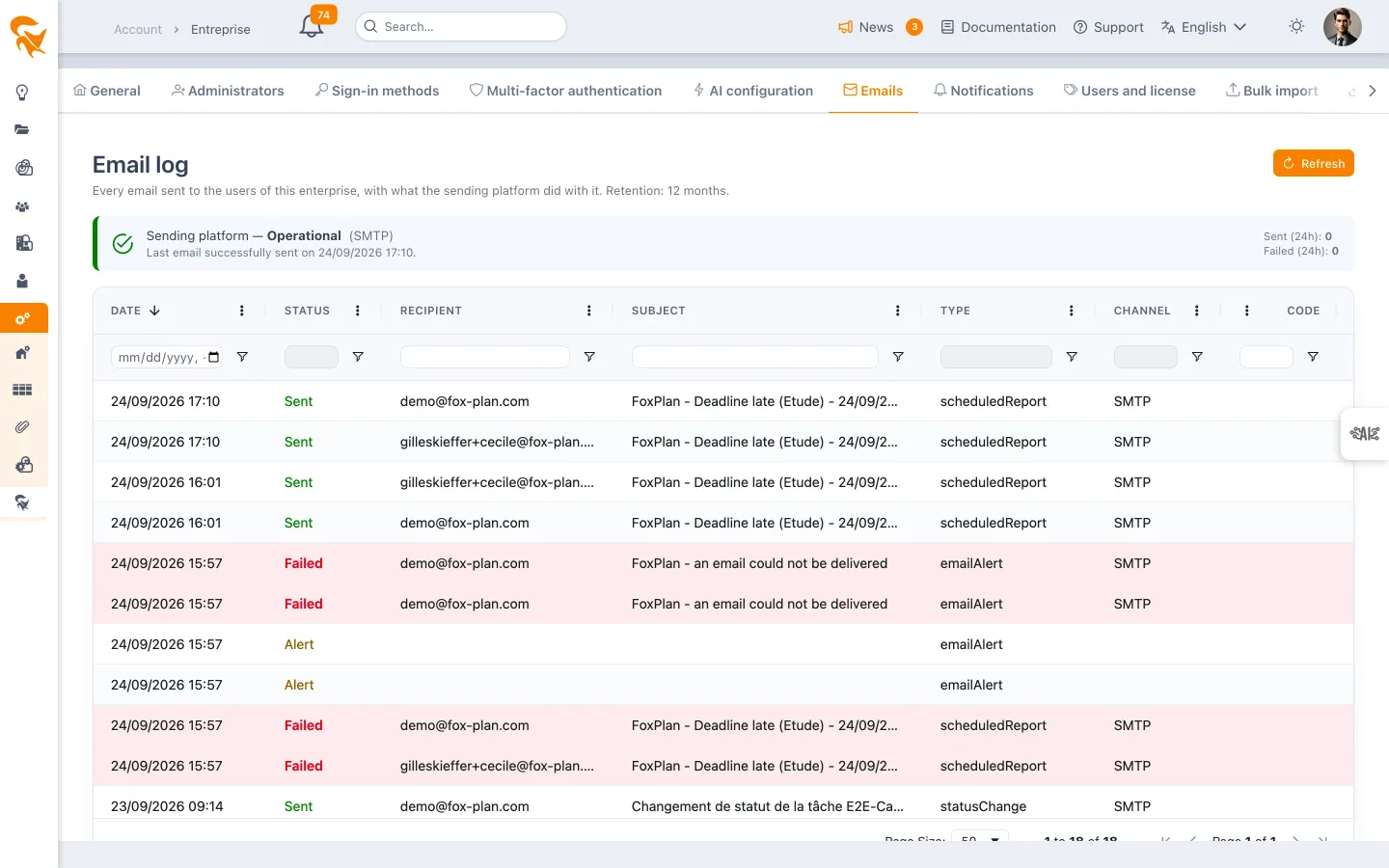
| Column | Content |
|---|---|
| Date | When the email was sent |
| Status | Sent, Failed, or Alert (incident marker, see below) |
| Recipient | The target address |
| Subject | The subject of the message |
| Type | The nature of the email: account activation, password reset, MFA code, assignment, comment, deadline alert… |
| Channel | SendGrid, SMTP, Gmail |
| Code | The code returned by the provider's API — 202 with SendGrid when the message is accepted |
| Error | The reason for the rejection, as worded by the provider |
| Duration | Time spent calling the provider |
Extra columns are hidden by default and can be enabled from the grid menu: Sender, Triggered by, Message ID, Workspace, Recipient ID.
With SendGrid, every accepted message is given an identifier. That is the value to pass on to the provider's support team to locate a specific email in their Activity Feed — the recipient address is not enough.
Only the subject is recorded. The body contains business data — task names, project names, one-time codes — which has no place in an operational log. Retention: 12 months.
When an email fails
A failure is never silent. Three things happen:
- The row turns red in the log, with the provider's code and error message.
- The administrators of the enterprise workspaces receive a bell notification describing the incident — channel, recipient, reason. The bell does not depend on any email: it arrives even when the sending platform is completely mute. An email is also sent to them, on a best-effort basis.
- The incident is reported to FoxPlan monitoring, so that the operator can act on a revoked key or an exhausted quota before you notice it.
An outage makes every email fail, not just one. Alerts are therefore spaced at least 30 minutes apart per enterprise. Each alert writes an Alert status row in the log: that is not an email, it is the marker that prevents repetition.
Reading common errors
| Code | Usual cause | What to do |
|---|---|---|
401 | API key revoked or missing | Check the sending configuration with your operator |
403 | Sender or domain not authenticated with the provider | Have domain authentication (SPF/DKIM) verified |
413 | Message too large | Reduce the attachments |
429 | Sending quota reached | Wait for the quota to reset, or upgrade the plan |
| (empty) | SMTP server unreachable or refusing authentication | Check the SMTP host, port and credentials |
A Sent status means the provider accepted the message, not that it reached the recipient's mailbox. A later rejection (unknown address, spam filter) is visible in the provider's console, not here.
See also
- Notifications — the log of requested notifications, on the workspace side
- My user profile — choosing between bell and email
- Enterprise SSO & MFA — the other tabs reserved for enterprise administrators