Client
The Client tab gathers the contracting and billing settings of the workspace: the styling of the commercial documents generated from contracts, and the value lists offered when filling in a contract.
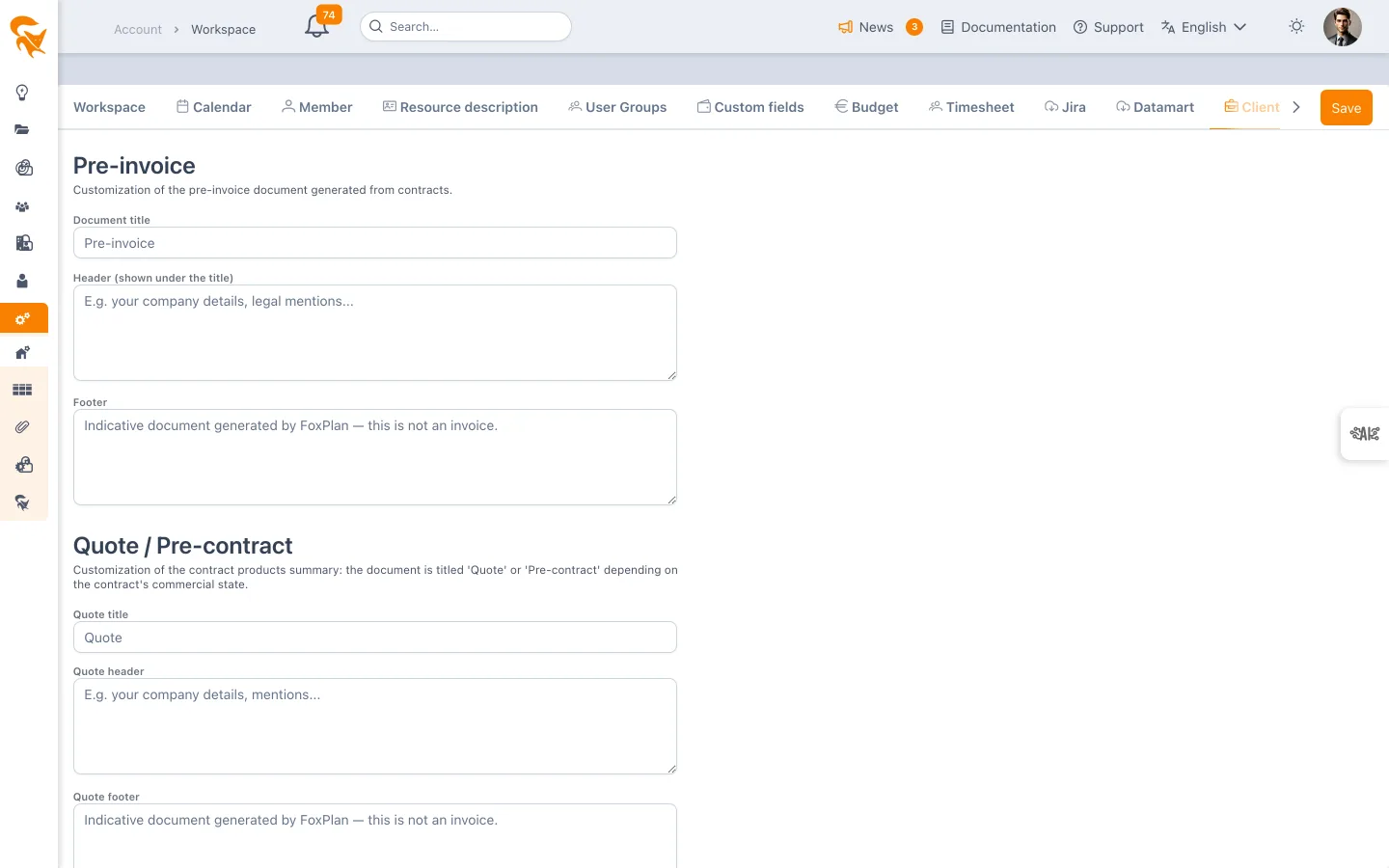
Settings → Workspace → Client
The tab is restricted to workspace administrators — it does not appear on a read-only workspace.
Pre-invoice
Customisation of the pre-invoice document generated from contracts.
| Field | Purpose |
|---|---|
| Document title | The title printed at the top of the document (default "Pre-invoice") |
| Header | Text block shown under the title — typically your company details and legal mentions |
| Footer | Bottom-of-page text block |
The default footer says so explicitly: it is an indicative document generated by FoxPlan. Legal invoicing remains the responsibility of your accounting tool.
The content of the lines is not set here but on each contract, with the Breakdown option of the Consumed & billable block: one line per profile (default), per resource, per actual type, or a combination ("Time and materials services - Profile - Resource - Actual type"). The same choice applies on screen and in the pre-invoice. The contract rate grid is set either by profile (profiles from the workspace's resource description) or by resource (workspace resources); only the rows of the chosen mode apply.
Quote / Pre-contract
The summary of a contract's products is titled "Quote" or "Pre-contract" depending on the commercial state of the contract. Since the two documents do not address the same audience, each has its own styling:
- Quote title, Quote header, Quote footer
- Pre-contract title, Pre-contract header, Pre-contract footer
These six fields follow the same logic as the pre-invoice ones.
Payment terms
The list of terms offered in the contract description (30 days, 45 days end of month, on receipt…).
Each row has:
- a free label,
- an Active checkbox,
- a bin to delete it.
Billing terms
The list of terms offered on contracts, to be chosen according to the contract type:
| Term | When | Typical contract type |
|---|---|---|
| In arrears | After delivery | Time and materials |
| In advance | Upfront | Subscriptions, recurring |
| Milestone billing | Along milestones | Fixed price |
Same entry structure as the payment terms: label, Active checkbox, bin.
The rule to know: deactivate rather than delete
For both lists, an item used by a contract cannot be deleted. The server refuses the deletion and returns an explicit message.
This is intentional: erasing a term would make the contracts referring to it unreadable. To remove a value from future choices without touching the existing ones, untick its Active checkbox — it disappears from the dropdowns and current contracts keep their value.
Saving
Careful, the tab has two separate saves:
- the Pre-invoice and Quote / Pre-contract blocks follow the Save button of the workspace action bar;
- both lists have their own Save lists button, at the bottom of the tab.
Remember to use both if you changed the documents and the lists.