Enterprise sign-in methods (SSO) & multi-factor authentication (MFA)
Configuration location
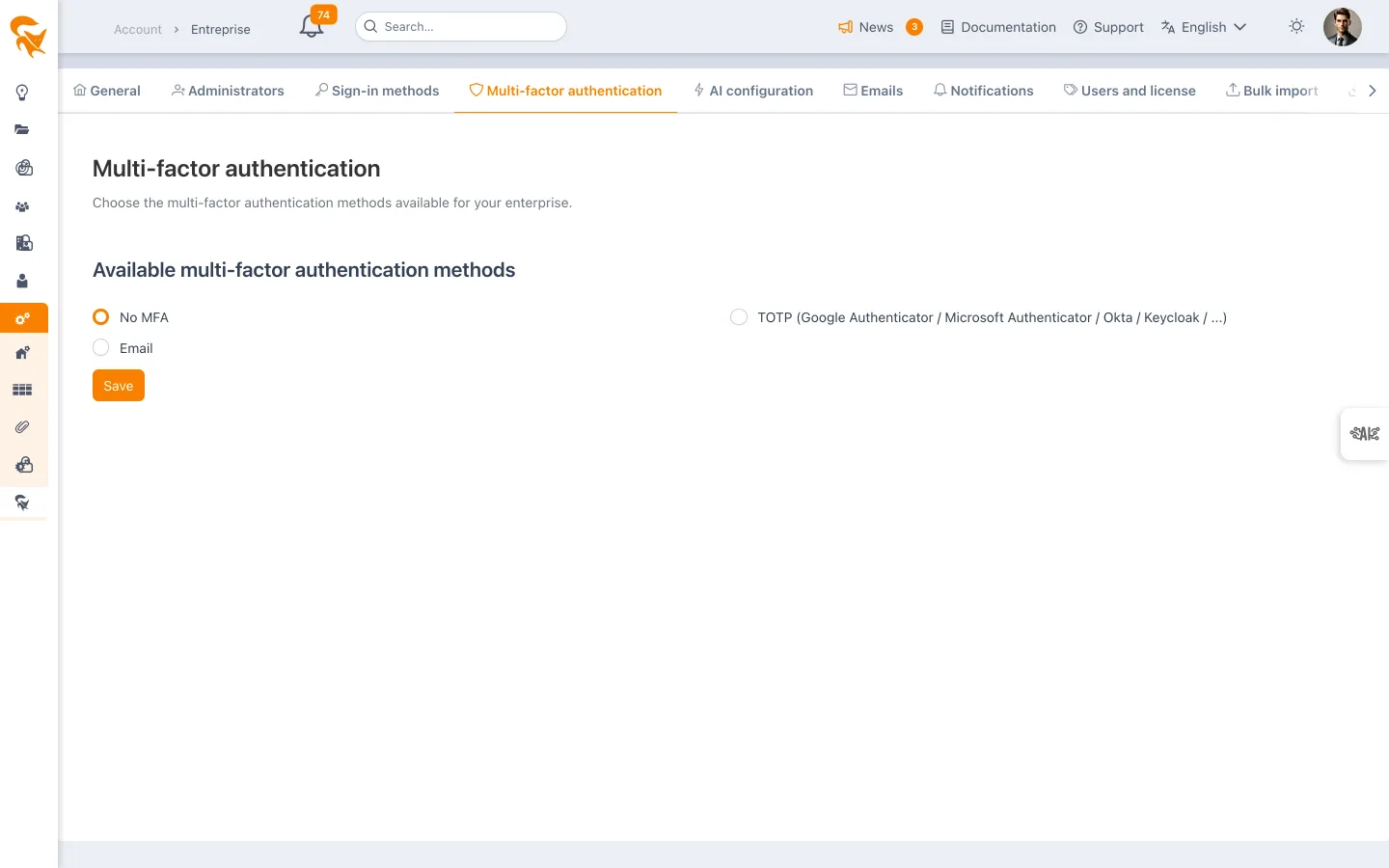
Enterprise administrators access these settings via Settings → Enterprise, in the Sign-in methods and Multi-factor authentication tabs.
If your users sign in behind a VPN, a corporate proxy or a firewall performing SSL inspection, some SSO flows may be blocked or altered (state cookie stripped, identity domains unreachable). The typical symptom is a sign-in that fails or loops — while SSO works without the VPN. Share the network flow matrix with your network team to allow the required domains without SSL inspection or cookie rewriting.
Available sign-in methods
FoxPlan supports multiple authentication approaches:
- Password-based login
- Google Sign-in
- Microsoft Sign-in
- Enterprise SSO (OIDC)
- Enterprise SSO (SAML 2.0)
Enterprise administrators always keep password sign-in, even when it is disabled for the enterprise. This prevents being locked out of FoxPlan if the identity provider becomes unavailable.
Exceptions: keeping password sign-in for specific users
When moving your organization to SSO, you can disable password sign-in for everyone except a designated list of users.
Clear the Password checkbox: an "Exceptions: users keeping password sign-in" picker appears below the checkboxes. Select the relevant users there, then save.
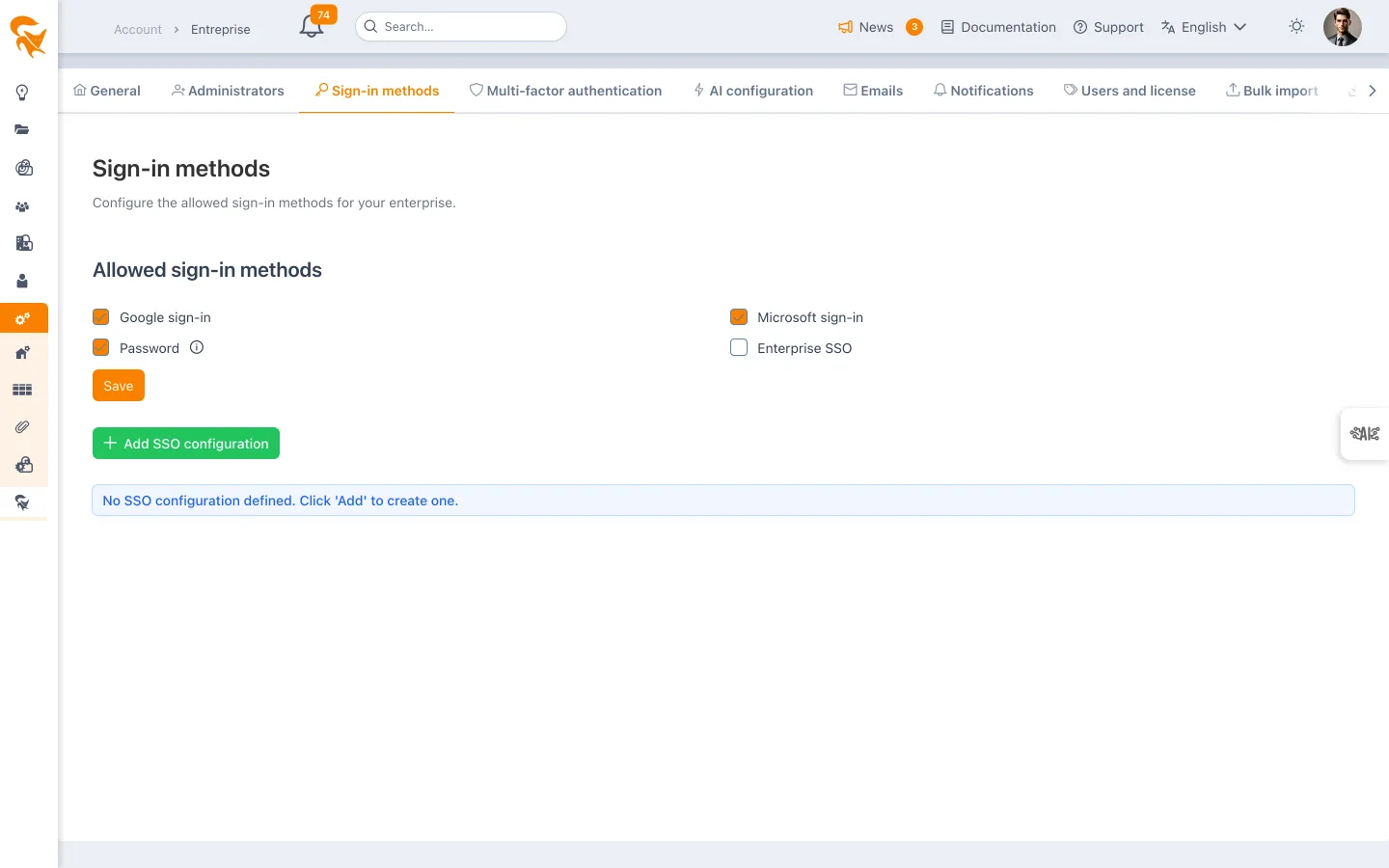
Those users keep seeing the password field on the sign-in screen, while everyone else must use SSO or Google/Microsoft sign-in.
Typical use cases:
- Break-glass accounts in case of an identity provider outage
- Contractors or external users who are not in your corporate directory
- Phased migration: moving teams to SSO in waves
The setting is enforced by the server, not just by the sign-in page: a password sign-in through the API or the mobile app is refused, and Did you forget your password? sends no link. Enterprise administrators and the exceptions above keep their access. API accounts, which authenticate with a token, are not affected.
The picker only appears when the Password method is unchecked: while it is enabled, it already applies to everyone and no exception is needed.
Multi-factor authentication options
Organizations can select from these MFA approaches:
- TOTP (compatible with Google Authenticator, Microsoft Authenticator, Okta, Keycloak)
- Email-based verification
- No MFA
Scope: who multi-factor authentication applies to
As soon as a method is selected (TOTP or Email), an "Applies to" section lets you choose the target population:
| Option | Effect |
|---|---|
| All users | Multi-factor authentication is enforced across the whole enterprise (default behaviour). |
| Only the listed users | Only the selected users go through multi-factor authentication. |
| All users except the listed ones | Multi-factor authentication applies everywhere, except for the selected users. |
For the last two modes, a picker lets you designate the users concerned.
Typical use cases:
- Phased rollout: start with "Only the listed users" and a pilot team, then switch to "All users".
- Targeted hardening: require multi-factor authentication only for administrators and sensitive profiles.
- Technical exclusions: exempt accounts that cannot answer an MFA challenge (service accounts, shared kiosks) via "All users except the listed ones".
The scope is enforced server-side: a user outside the scope signs in directly, with no MFA challenge, even when a method is active for the enterprise.
In "All users except the listed ones" mode, every excluded user weakens your security posture. Review that list regularly.
Login flow process
- User provides email and proceeds
- FoxPlan identifies the associated enterprise
- Available authentication methods display for that organization
- User selects Password or SSO based on enabled options
For password-based flows, MFA challenges apply. SSO flows delegate authentication assurance to the identity provider.
Enterprise SSO (OIDC) setup
FoxPlan supports OIDC providers including Okta, Keycloak, Google, Microsoft, and custom implementations.
Identity provider configuration:
- Create a Web-type OIDC application
- Redirect URI:
{origin}/login/oauth2/code/{registrationId} - Collect Client ID, Client Secret (or certificate, see below), and Issuer URI
FoxPlan SSO form fields:
- Provider selection
- Display Name
- Client ID
- Client authentication: shared secret or certificate
- Issuer URI
- Scopes:
openid,profile,email - Username attribute (typically
suboremail) - Enable toggle
Enterprise SSO (SAML 2.0) setup
For identity providers that only speak SAML — AD FS older than Windows Server 2016, or SAML required by your security policy — and for any SAML 2.0 provider: Entra ID, Okta, Keycloak, Shibboleth… Once signed in, the user gets exactly the same session as with OIDC.
In the FoxPlan SSO form, choose the SAML 2.0 provider, then preferably provide the provider's metadata:
- Metadata URL — for AD FS:
https://<adfs-server>/FederationMetadata/2007-06/FederationMetadata.xml. It is read again at every sign-in: a signing certificate renewed at the provider is picked up with no action on your side. - or pasted metadata XML, if the FoxPlan server cannot reach that URL. Unreadable XML is rejected as soon as you save. Paste it again when the provider renews its certificate.
The metadata provides the provider's entity ID, SSO URL and signing certificate. Without it, fill in these three fields by hand.
On the identity provider side, declare FoxPlan with the values shown on the screen and by Check configuration:
| Item | Value |
|---|---|
| FoxPlan identifier (entity ID, Relying party identifier) | {origin}/saml2/service-provider-metadata/{registrationId} |
| Return URL (ACS, HTTP-POST binding) | {origin}/login/saml2/sso/{registrationId} |
| FoxPlan metadata | The same URL as the identifier: it serves the metadata file, which can be imported as is (AD FS: "Import data about the relying party published online") |
{registrationId} is <enterprise identifier>-saml2.
Attributes. FoxPlan matches the user to their account by email. It looks for it in the attribute set in the advanced options, then in the usual names — email, mail, the AD FS URI http://schemas.xmlsoap.org/ws/2005/05/identity/claims/emailaddress, the LDAP OID urn:oid:0.9.2342.19200300.100.1.3, the UPN — and failing that in the NameID if it looks like an address. First and last names follow the same logic (givenName, surname, AD FS URIs). Without an email, sign-in is refused.
With AD FS, add an issuance rule "Send LDAP Attributes as Claims" to the relying party trust: E-Mail-Addresses → E-Mail Address, Given-Name → Given Name, Surname → Surname.
Binding. The authentication request is sent with HTTP-Redirect by default; HTTP-POST remains available. The provider's response always comes back with HTTP-POST.
Not supported: signing authentication requests, encrypted assertions and SAML logout (Single Logout). On the AD FS side, do not declare an encryption certificate on the relying party trust and do not require signed requests.
The FoxPlan server downloads the provider's metadata itself. If it is served by an internal AD FS whose certificate is signed by your company PKI, drop that authority's certificate into ca-sortant/ — see Inbound and outbound certificates.
User provisioning and AD groups
Provisioning lets your directory (Active Directory, Entra ID, Okta, Keycloak…) drive FoxPlan. It works with OIDC and SAML 2.0, and therefore with AD FS.
- Accounts created at first sign-in. A user unknown to FoxPlan who belongs to at least one AD group linked to a FoxPlan group gets an account at their first SSO sign-in, with no invitation. They join that group's workspace as a Workspace member: no rights and no licence. The administrator then gives them a role.
- Groups synchronised at each sign-in. Linked FoxPlan groups follow the user's AD groups: they join or leave them at each sign-in. These groups configure their interface — menus, features, shared favourites, project templates.
Groups and roles stay separate: provisioning never changes a role. A user who belongs to no linked group is refused, as without provisioning. A user deleted in FoxPlan is not recreated by SSO.
Enable provisioning — in the SSO configuration, User provisioning panel:
- tick Create accounts and synchronise groups at sign-in;
- Groups attribute: leave empty to recognise the usual names (
groups,memberOf, AD FS Group and Role claims), or enter the attribute (SAML) or claim (OIDC) used by your provider.
Link the groups — in the workspace's User access → Groups tab, edit a group and fill in Linked AD groups, one per line. An AD group is identified by its name (Finance, CONTOSO\Finance) or by its identifier (Entra GUID). Matching ignores case and the domain prefix, and keeps only the CN of an LDAP DN. Default groups cannot be linked: their members derive from roles.
A provisioned account is also a member of the All users default group. Its menus and features are the intersection of All users and its synchronised groups: an AD group can only restrict, never widen. Configure All users broadly, and narrow down in the groups linked to AD.
In the member list, an AD badge marks those present only through synchronisation. They follow AD, not the screen. A member added by hand is never removed by synchronisation.
On the identity provider side, send the user's groups:
| Provider | Setting |
|---|---|
| AD FS | Issuance rule "Send Group Membership as a Claim", or "Send LDAP Attributes as Claims": Token-Groups – Unqualified Names → Group |
| Entra ID | Token configuration → Add groups claim. Entra sends group identifiers (GUIDs) and stops sending the list beyond 200 groups: limit emission to the groups assigned to the application |
| Okta | Groups claim filtered to the relevant groups |
| Keycloak | Group list mapper (SAML) or Group Membership mapper (OIDC) |
With sign-in provisioning alone, a departure from AD only takes effect at the user's next sign-in. SCIM, below, applies it immediately. Otherwise, delete the user in FoxPlan.
With AD FS, also untick Password in the sign-in methods: an account disabled in the AD then cannot get in at all, at the latest once its FoxPlan session expires (24 h).
Automatic provisioning with SCIM (Entra ID, Okta)
With Entra ID or Okta, the directory can also push users and groups to FoxPlan itself, without waiting for them to sign in: this is the SCIM 2.0 protocol. The rules are those of sign-in provisioning — account created as Workspace member only for members of a linked group, roles never changed. SCIM adds immediate departures: a user deactivated, or removed from the application in the directory, loses access at once.
- In Settings → Enterprise → Provisioning (SCIM), click Generate a token and copy it: it will never be shown again, FoxPlan only keeps its fingerprint.
- In the directory:
- Entra ID: Enterprise applications → your FoxPlan application → Provisioning, Automatic mode. Tenant URL: the URL shown by FoxPlan (
https://<your-domain>/scim/v2); Secret Token: the token. Test connection, assign users and groups to the application, then start provisioning. - Okta: the application → Provisioning → SCIM. SCIM connector base URL: the URL; Unique identifier field:
userName; actions Push New Users, Push Profile Updates and Push Groups; HTTP Header authentication with the token.
- Entra ID: Enterprise applications → your FoxPlan application → Provisioning, Automatic mode. Tenant URL: the URL shown by FoxPlan (
- Link FoxPlan groups to the pushed groups, by name or identifier, as described above.
| In the directory | In FoxPlan |
|---|---|
| User assigned to the application | Pending; account created as soon as they belong to a linked group |
| Added to a group, or removed | Joins or leaves the linked FoxPlan groups |
| Deactivated, or removed from the application | Account deactivated at once: no more sign-in, removed from workspaces |
| Reactivated | Account restored |
The tab keeps the call log for 90 days. A pushed user whose email matches an existing FoxPlan account is linked to it: deactivating them in the directory also deactivates that account. Regenerating or revoking the token stops provisioning immediately, without touching accounts already created.
Here the directory calls FoxPlan, on port 443 and path /scim/v2. Entra ID and Okta are online services: the URL must be reachable from the Internet, unless you use their provisioning agent installed on your network.
Client authentication: secret or certificate
Exchanging the authorisation code for a token is the only call FoxPlan makes directly to the identity provider, server to server. FoxPlan must identify itself there, and the Client authentication field offers two ways of doing so.
Client secret (default). A shared secret, entered on both sides. This is the historical mode, and nothing changes for existing configurations: without an explicit choice, they stay on it.
Certificate (private key). FoxPlan signs a JWT assertion with a private key, and the provider
verifies it with the public certificate you declared there (private_key_jwt, RFC 7523). The
secret then never travels over the network — which is why many IT departments now forbid client
secrets.
Two fields then appear:
- Client certificate: the X.509 certificate in PEM format. This is the public half, to be uploaded to your identity provider as well (in Entra ID: Certificates & secrets → Certificates).
- Private key: in unencrypted PKCS#8 format, the one starting with
-----BEGIN PRIVATE KEY-----. A PKCS#1 key (BEGIN RSA PRIVATE KEY) or a passphrase-protected one is rejected, along with the conversion command to run.
To produce a pair:
openssl req -x509 -newkey rsa:2048 -keyout key.pem -out certificate.pem -days 730 -nodes -subj "/CN=foxplan-sso"
openssl pkcs8 -topk8 -nocrypt -in key.pem -out key-pkcs8.pem
Declare certificate.pem with the provider and paste key-pkcs8.pem into FoxPlan.
The private key is encrypted at rest, never returned by the API and never displayed again: when editing, leaving the field empty keeps the stored key. The certificate is public and stays visible.
Unlike a secret, a certificate carries an end date. Once it passes, SSO stops dead.
The deadline is therefore always on display: the configuration list carries an Authentication column showing, for each SSO, whether it authenticates with a secret or a certificate — and in the latter case the expiry date, in orange during the month before it and in red once passed. That date is never typed in: it is read from the certificate itself every time it is displayed, the only source that cannot drift from reality. Check configuration gives the full detail, fingerprint included.
Provider-specific configuration
Google — Issuer URI: https://accounts.google.com
Microsoft / Azure — Issuer pattern: https://login.microsoftonline.com/{tenantId}/v2.0
Okta — Web app type with proper assignment and access policies
Keycloak — Realm issuer URI with Authorization Code flow configured
Being warned before expiry
Displaying the date assumes someone goes and looks. FoxPlan therefore warns on its own: an email is sent to the enterprise administrators at three points — thirty days, seven days, then the day the certificate has expired. The message names the provider concerned, gives the date, and links back to the configuration screen.
Each stage is announced only once: the sweep remembers what it has already sent. As soon as the certificate is renewed — the deadline moving back beyond thirty days — the counter re-arms by itself for the next certificate. Nothing needs to be done.
If no enterprise administrator is declared, no email goes out: one more reason to keep that list up to date in the enterprise members.
When sign-in fails
A user whose SSO sign-in fails returns to the login screen with a sentence naming the cause, rather than a code returned by the identity provider:
| What the user sees | What to do |
|---|---|
| The sign-in certificate has expired | Renew the certificate and upload it on both sides |
| The certificate cannot be used | Check that the private key matches the certificate |
| The provider rejected FoxPlan's credentials | The secret was changed at the provider, or the certificate is not declared there |
| No active SSO connection | The configuration is disabled or missing |
| The provider denied access | The account is not allowed on the application at the provider |
The technical detail — the provider's exact message, the full trace — stays in the server logs, for support. The user gets a sentence telling them who to turn to.
Checking the configuration before testing
Each configuration in the list carries a Check configuration button. It opens a report that stays on the screen and attempts no connection:
- the URLs to declare with the identity provider, each with a copy button: the redirect URL and the sign-in launch URL. These are exactly the ones the application will use, so there is no need to piece them together by hand;
- the consistency checks: required fields filled in, discovery document read from the server, issuer and endpoints matching what the provider publishes. With certificate authentication, the report also verifies that the private key matches the certificate, shows the SHA-1 fingerprint — the one displayed by the provider's console — and flags a certificate that has expired or is about to.
Three levels: green when compliant, orange for a point worth a look, red for what will prevent sign-in. The detail shown to the right of each line is the raw data — URL, HTTP status, provider message — the one you pass on to support.
A check may be reported as "URL not probed": the server only calls public https addresses, and
the configuration is not at fault.
This report is read-only: it never changes the configuration.
Troubleshooting
Verify these elements when experiencing authentication issues:
- Redirect URI matches exactly between IdP and FoxPlan
- SSO configuration is enabled
- User email belongs to the correct enterprise
- For Okta/Azure/Keycloak, confirm user assignment and policy compliance
- For Password+MFA users, verify valid enrollment (TOTP secret or email)