Jira connector
The Jira link lets you import the tickets of a Jira project into FoxPlan cards. Teams keep working in Jira; FoxPlan aggregates planning and steering.
It is configured in two distinct places, and that is the key to finding your way:
| Where | What you do there |
|---|---|
| Settings → Workspace → Jira | The connection to the Jira server, once for the whole workspace |
| Project definition, Cards & Agility panel | The attachment of a Jira project and the status mapping, project by project |
1. The connection (workspace)
Settings → Workspace → Jira
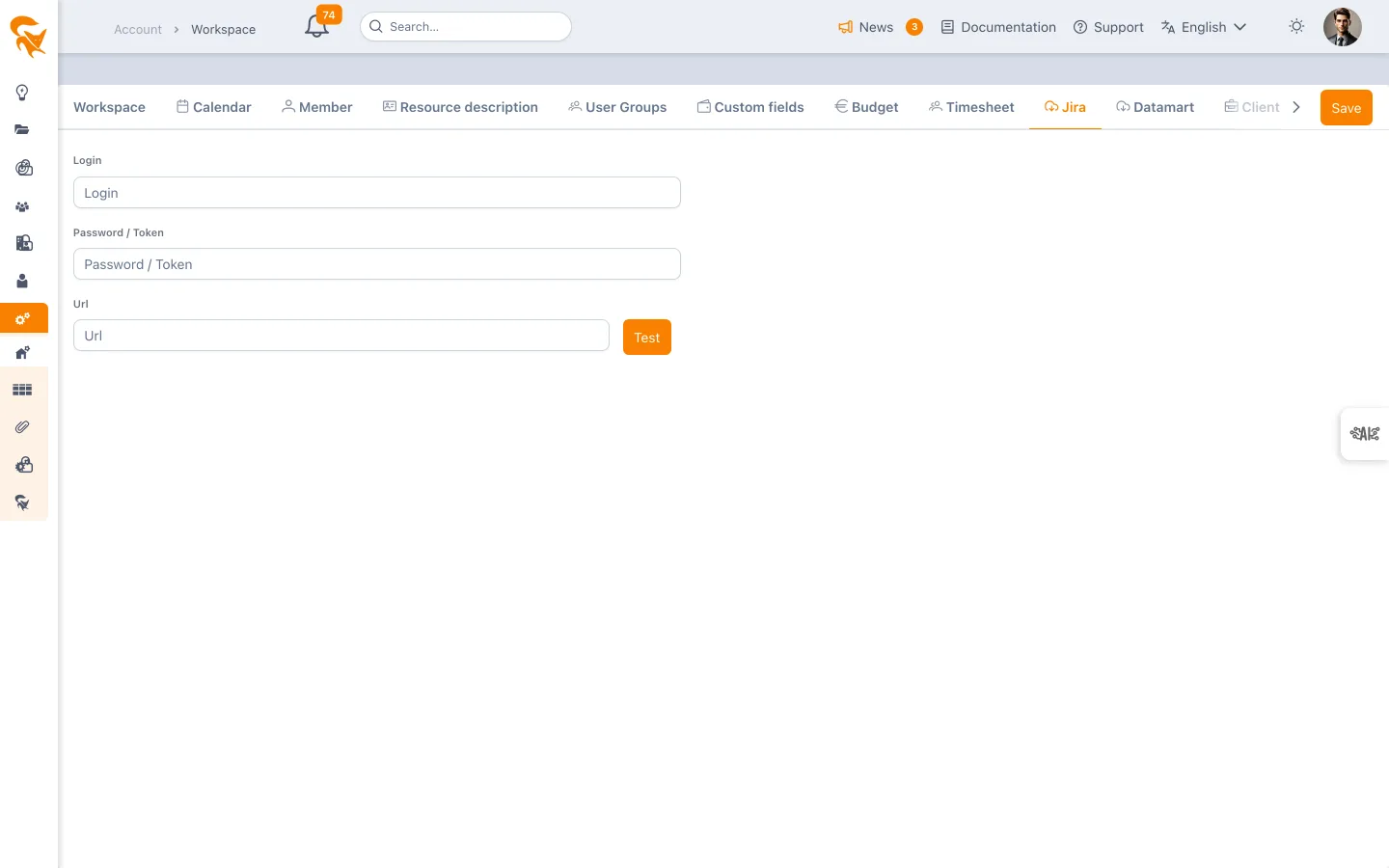
Four fields, no more:
| Field | Content |
|---|---|
| Url | The Jira server address (e.g. https://your-org.atlassian.net) |
| Identity | The technical account used to read the projects |
| Password / Token | The account password or API token |
| Sprint internal field | The Jira custom field carrying the sprint, if you use agility |
The Test button checks the link. On success, FoxPlan shows the list of available projects on that server — the most useful confirmation: it proves both that the connection works and that the account sees the expected projects. On failure, the message repeats the error returned by Jira.
This tab holds no project selection and no periodicity. The Jira project is chosen on each FoxPlan project, and the import is triggered manually.
2. The attachment (project)
In the project definition, Cards & Agility panel:
- Tick Enable synchronisation.
- Click Refresh to fetch the Your Jira projects list.
- Select the Jira project to attach — it fills the project's Jira project field.
- Save the project: otherwise the selection is not kept for later imports.
Mapping statuses
Below the selection, the kanban configuration table lets you associate, by drag and drop, a column of your kanban with a FoxPlan task status. That is where the correspondence between the Jira workflow and your columns is set — project by project, which allows different workflows from one project to the next.
3. Running the import
Once the project is attached, a JIRA synchronisation button appears in the Planning toolbar of the project.
The import is manual and on demand: there is no automatic scheduling. At the end, FoxPlan shows "Import successful" followed by the number of items brought in.
The operation imports from Jira into FoxPlan. It does not write back to Jira: tickets stay authoritative in their tool of origin.
Good practice
- Test the connection before attaching a project: the project list returned by the test tells you immediately whether the technical account has the right permissions.
- Start with a single pilot project, until the column mapping is validated.
- Only fill in the Sprint internal field if you use sprints: it is a custom field specific to each Jira instance.
See also
- Project definition & members — where attachment and mapping are configured
- Planning — where the synchronisation is launched
- Card & Story — the cards fed by the import
- Connectors — the other integration route, at workspace level