Resource description
Two two-level lists describe your resources: their profiles (the role they hold) and their competencies (what they know how to do). Once filled in, they help you find the right person: when assigning a resource to a task, in the planning resource panel, and in member filters.
The lists are maintained by the administrator, under Settings → Workspace → Resource description tab. Resources pick from them, they do not add to them: that is what makes "Developer" mean the same thing for everyone.
Building the lists
Each list is organised on two levels:
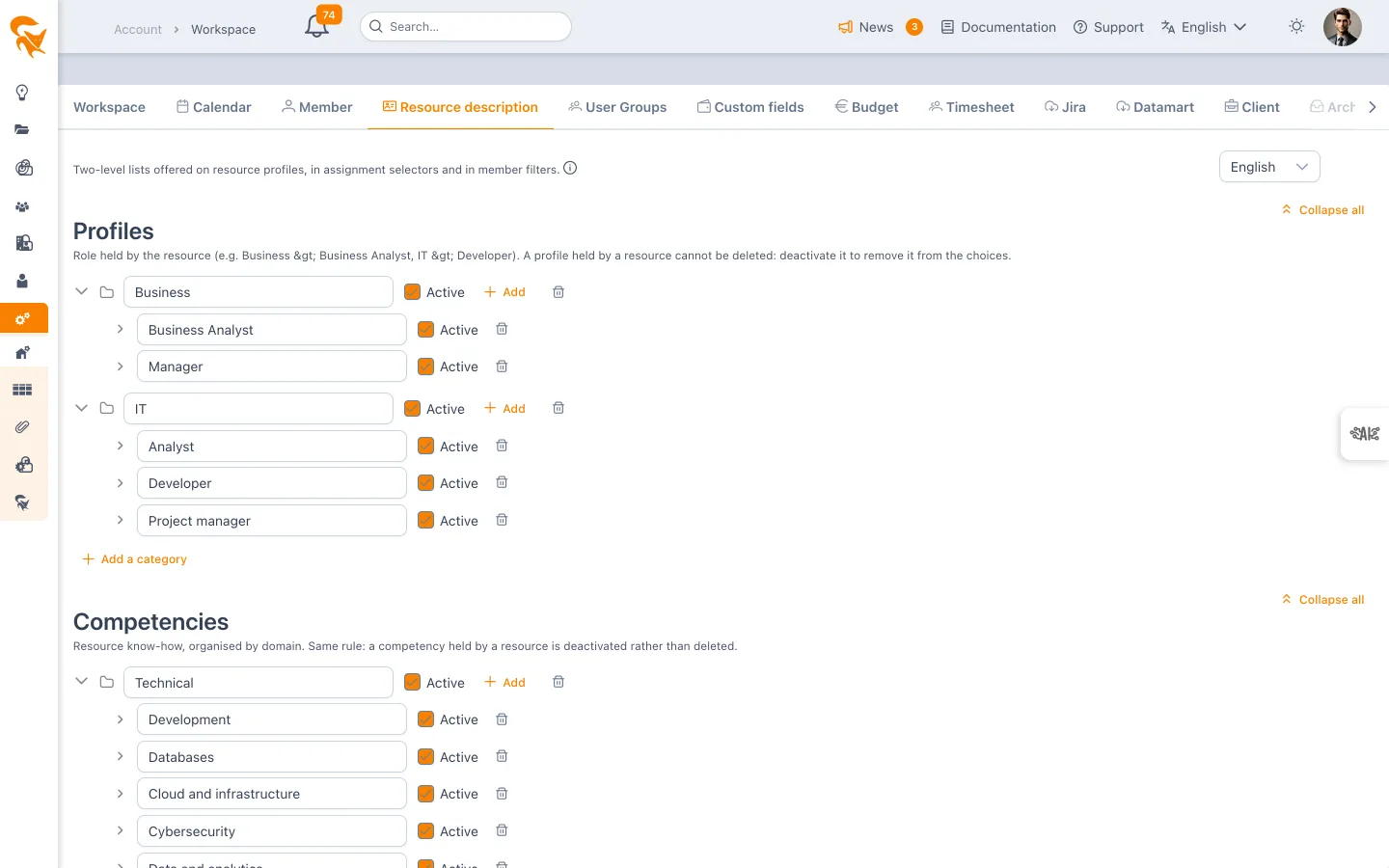
- level 1 — the category: a grouping (Business, IT, Technical…). A category cannot be assigned to a resource; it exists to organise and to read;
- level 2 — the item: this is what a resource holds (Business Analyst, Developer, Keycloak…).
A new workspace ships with examples in both lists, each in three families:
| Profiles | Competencies |
|---|---|
| Steering — Project director, Project manager, PMO, Product Owner, Scrum Master | Technical — Development, Databases, Cloud and infrastructure, Cybersecurity, Data and analytics, Integration and APIs |
| Business — Business Analyst, Domain expert, Key user, Manager | Soft skills — Communication, Leadership, Team management, Negotiation, Problem solving, Client relationship |
| IT — Architect, Analyst, Developer, Tester, System administrator | Languages — English, French, German, Spanish, Portuguese |
These are examples: rename them, extend them or delete them.
A project manager is not a technical profile. Filing them under "IT" would make the first level lie as soon as a non-IT organisation uses the lists.
Categories collapse one by one with the chevron, or all at once with Collapse all. The number of items a category holds is shown next to its name while it is collapsed.
Labels are multilingual
The language selector at the top of the tab picks the language you are typing, not the language of the screen. Each reader then sees the label in their own language.
If you fill in only one language, it applies to all the others. You therefore do not have to translate your profiles before you start using them.
Removing an item
An item held by at least one resource cannot be deleted: saving is refused. Uncheck Active instead. It then disappears from the offered choices, while the resources holding it keep showing it — history stays readable.
Deleting a category also deletes the items it contains.
Filling in a resource
On a resource's form (Settings → Workspace → Member tab, then the member's picture), two fields draw on the lists: Profile and Competencies. The former free-text entry is gone from it.
The profile is the role held — it carries the rate, and it is the granularity of time lines in an ERP such as Everwin. It is therefore single: several profiles would make "under which profile is this person sold on this project?" unanswerable. This mirrors Workday's job profile or the qualification field of an IT-services ERP.
A competency is a fact: you can hold as many as needed.
To express "this person can hold that role" — a presales need, distinct from the grade — use a competency ("Project management") rather than a second profile.
These two fields follow the same rights as the other organisational fields (company, department, team, position): the person themselves, a workspace administrator, or their resource manager.
The level per competency
Each selected competency can be given a level: Awareness, Intermediate, Advanced or Expert. The level then shows below the resource's name in assignment selectors — "Technical > Keycloak (Expert)" — and the search sweeps it: typing "expert keycloak" is enough.
Leaving the level empty means not assessed, which is not the same as a low level. An empty field therefore shows no level rather than a default one: someone looking for an expert should not rule out a resource merely because nobody has assessed them yet.
Finding a resource
Once resources are described, searching by name is no longer the only way in.
While assigning a resource to a task
In the task panel as well as in the planning assignment dialog, the resource selector's search field accepts a name, a profile, a competency — but also a company, a department, a team or a position. The list narrows to matching resources, and each row recalls the person's profiles and competencies below their name.
In the planning resource panel
The planning's right-hand panel (Resources button) offers the same full-text search, over the same attributes. Handy for finding who to drag onto a task.
In member filters
The filter panel of member screens — workspace, project, portfolio, resources — offers two criteria: Profile and Competency. As for company or team, the offered values are the ones actually held by the workspace's resources: a profile nobody holds does not clutter the list. A resource holding several profiles comes out as soon as one of them is selected.
A free-text Profile field existed before these lists. It is no longer editable on the form nor offered as a filter — two "Profile" fields contradicted each other — but its value is kept: the full-text search still sweeps it, and both the bulk import and the dashboard grouping still use it.
Configuration export and import
Both lists are part of the workspace configuration: they appear under Administration → Configuration documentation and travel from one workspace to another through export / import, like custom fields or billing lists.