Connectors (Marketplace)
The connector marketplace centralises the integrations between FoxPlan and your external tools (messaging, CRM, ERP, ITSM, HR). Each connector is installed on a workspace, configured once, then automatically reacts to FoxPlan business events (status change, assignment, comment…).
Settings → Connectors
The Connectors screen is reserved for workspace or company administrators, like the rest of the Settings menu. It has two tabs: the Marketplace (outbound connectors) and API (API accounts, Swagger documentation, request log). The marketplace is a feature being rolled out: FoxPlan opens the whole catalog or only some connectors to your instance, and you only see the ones opened to you — until any is, the tab says so. To request access, contact your FoxPlan representative.
Catalogue
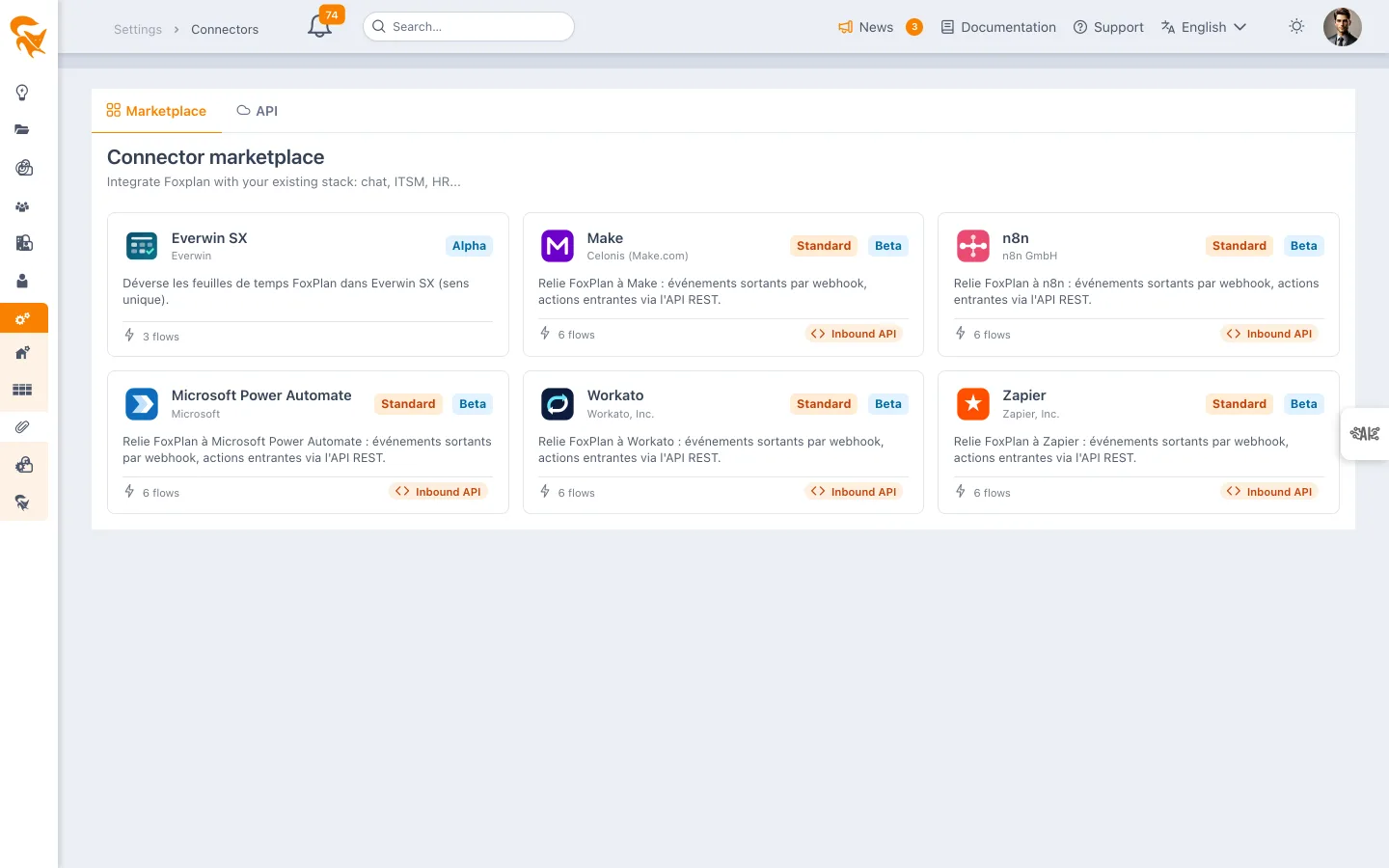
| Connector | Vendor | Categories | Maturity |
|---|---|---|---|
| Slack | Slack | Communication, Notifications | Stable |
| Microsoft Teams | Microsoft | Communication, Notifications | Stable |
| Google Chat | Communication, Notifications | Stable | |
| Jira Cloud | Atlassian | ITSM, Project management | Beta |
| HubSpot | HubSpot, Inc. | CRM, Marketing | Alpha |
| Odoo | Odoo S.A. | ERP, Open Source | Alpha |
| Pennylane | Pennylane | Finance, Accounting | Alpha |
| Sage Business Cloud Accounting | Sage Group plc | Finance, Accounting | Alpha |
| Cegid | Cegid | ERP, Finance, HR | Alpha |
| HiBob | Hibob | HR, People | Alpha |
| Infor M3 | Infor | ERP, Manufacturing | Alpha |
| SAP S/4HANA Cloud (Public) | SAP SE | ERP, Finance | Alpha |
| Everwin SX | Everwin | ERP, Timesheets, Finance | Alpha |
| Zapier | Zapier | Middleware, iPaaS, Automation | Beta — standard |
| Make | Celonis (Make.com) | Middleware, iPaaS, Automation | Beta — standard |
| n8n | n8n | Middleware, iPaaS, Automation | Beta — standard |
| Microsoft Power Automate | Microsoft | Middleware, iPaaS, Automation | Beta — standard |
| Workato | Workato | Middleware, iPaaS, Automation | Beta — standard |
- Stable: production-ready.
- Beta: functional, scope may still change.
- Alpha: bootstrap connector (connection test + one flow). Evaluation only.
Installing a connector
- Open Settings → Connectors.
- Click the card of the connector you want to open its page.
- Configuration tab: fill in the required fields (URL, tokens, credentials…).
- Click Save. The connector is then installed on the workspace.
- Use Test to check the connection before enabling the flows.
The toggle at the top of the page enables / disables the whole installation without losing its configuration.
Configuration fields
The pages use typed fields: text, URL, number, boolean, list, text area, password and secret. Fields flagged as secret (API tokens, signed webhook URLs…) are encrypted at rest and are never displayed again in clear text — a mask (••••) shows that a value is already stored.
Authentication depends on the connector: incoming webhook URL (chat), API token, Bearer, Basic or OAuth depending on the target tool.
Flows and triggers
A connector exposes one or more flows. Each flow is enabled independently in the Flows tab of its page.
Messaging connectors (Slack, Teams, Google Chat) and iPaaS middlewares offer six flows, reacting to the following events:
| Flow | Events |
|---|---|
| Task notifications | status, owner (assignment) or planning allocation change |
| Comment notifications | comment added to a task |
| Task progress | change of a task's completion percentage |
| Project objects | creation, update or deletion of a risk, decision, requirement, change, file or project weather report |
| Support tickets | creation of a Support ticket and status change |
| Comments on objects | comment added to a project object or a Support ticket |
The first two flows (tasks and task comments) only fire if the matching project notification options are enabled (Notify on status change, Notify on assignment, Notify on comment…), set in Project definition. A freshly installed connector therefore stays silent on those two flows until the options are ticked on the projects concerned.
The four other flows (progress, project objects, Support tickets, comments on objects) do not depend on any project option: enabling the flow in the connector is enough.
Manual trigger
On-demand flows (a synchronisation, for example) can be started manually with the Run now button in the Flows tab. The outcome (success / failure, HTTP code) is returned immediately.
Everwin SX
The Everwin SX connector pushes FoxPlan timesheets into Everwin one way only: nothing comes back from Everwin.
Configuration: the REST v3 API URL (https://<your-host>/sx/rest/v3), the API key generated in the SX administration console and the push trigger. The key is stored encrypted and sent in the x-api-key header. Test first checks that the timesheet-lines service answers, then reads one line to validate the key.
Trigger — either when the timesheet is saved (the default) or when it is approved. Beware of the second one: if your workspace approves timesheets automatically, without a manager's validation, it holds back nothing the first one wouldn't.
Unit — the amount is sent in days (quantityInDay), never converted to hours: FoxPlan works in man-days and the length of a day is an Everwin setting.
Automatic import — tick Daily leave import and pick an hour (and a timezone if needed). The import then replays every night on its own, and stays available on demand from the Flows tab. Every scheduled run shows up in the Logs tab like a manual trigger: an overnight import that failed is visible the next morning.
It runs as the person who installed the connector — they are the one holding write access to the calendars. If their account is deactivated, the import is suspended and says so rather than carrying on with undefined rights.
Matching keys — three correspondences are needed for a timesheet line to find its place in Everwin:
| Object | FoxPlan side | Everwin side |
|---|---|---|
| Project | project Code field (Definition tab) | project business code |
| Task | task Code field (Other section of the edit panel) | project line id |
| Resource | email address | employee email |
It exists on every task, independently of Everwin, and stays empty until you use it. It is a free-form code: Everwin reads a project line id from it, but nothing prevents another use. A task without a code is simply not pushed.
Choosing the granularity — an Everwin timesheet line is usually broader than a FoxPlan task. The task code sets the level of consolidation, and a task without a code inherits its parent task's:
| You want in Everwin… | Where to put the project line code |
|---|---|
| One line per project | On the project's root task — every task inherits it |
| One line per phase or work package | On each phase summary task — its subtasks inherit it |
| One line per macro-task | On each task concerned |
Every task sharing a code is summed per day into a single timesheet line. You can mix the three levels within one project: the nearest code wins.
What is sent — one timesheet line per day of recorded time entered in the timesheet. Time recorded on the planning side is out of scope: it is not dated day by day, and the two paths are mutually exclusive anyway.
Sending the same day twice does not duplicate it. FoxPlan remembers the id of every line it creates in Everwin. A day saved again with no change sends nothing at all; a changed value or comment updates the existing line; an emptied cell deletes it; time moved to another task is removed from the first and added to the second. If someone deletes the line directly in Everwin, FoxPlan recreates it on the next push rather than failing forever.
A task without a code is ignored — without an error: an internal task has no reason to exist in the ERP. A project code that Everwin does not know, or a month with no open timesheet, are reported as failures in the Logs tab, naming the code or the month. One failing day does not stop the others.
The connector does not create timesheets in Everwin: it adds lines to them. If the month is not open for the employee, the push fails and says so.
iPaaS middleware (Zapier, Make, n8n, Power Automate, Workato)
Five connectors to no-code automation platforms ship as standard on every instance: they appear in Settings → Connectors for your administrators, with no access request. They work in both directions — outbound JSON events by webhook, inbound actions through the REST API (API tab of the connector page) — and can only act on the instance they are attached to.
Setup tool by tool, the format of the event sent and the API catalogue are described on the dedicated page: iPaaS middleware.
Monitoring and logs
The Logs tab of each connector lists the latest executions: date, flow, event type, status, HTTP code, duration and message.
- Sending to external tools is asynchronous: it never impacts saving the task in FoxPlan. If a connector fails, the FoxPlan action still completes and the error is logged.
- Logs are purged automatically after a retention period (60 days by default), handled by a MongoDB TTL index.
Slack / Teams / Google Chat webhook URLs entered directly on the project record keep working as before, alongside the connectors. Marketplace connectors do not replace them: they offer a centralised, workspace-wide configuration.
Security
- All connector secrets are encrypted (AES-GCM) with a dedicated key (
CONNECTOR_SECRETS_ENCRYPTION_KEY). - Connector data (installations, flow configuration, logs) is partitioned per workspace (tenant).
- Access to the screen is restricted to FoxPlan accounts, and the matching API calls are protected server-side.