Subscription and upgrading to Pro
The Settings → Subscription screen is where you upgrade to Pro, follow your subscription, change your licenses and download your invoices. You also reach it with the Subscribe button in the top bar, and automatically when your license has expired.
Only company administrators subscribe and manage the subscription; for them, the screen is also in the Settings → Subscription menu, to find the subscription once it is active. Other users only see the names of the administrators to contact.
For an administrator, the screen has two tabs:
- Users and licenses: the current license, the license count and the list of users, see Users and licenses tab;
- Subscription: plan, renewal date, payment method, adding or removing licenses and invoices; or, without a subscription, the ways to subscribe described below.
The screen opens on the Users and licenses tab. It opens on Subscription during a trial or once the license has expired, to subscribe or renew.
On-premise installation. When online subscription is not set up on the instance, the screen only shows the Users and licenses tab: current license and its users. FoxPlan sends you a new license file to renew or change it; upload it in that same tab, see License file. The Subscription, Invoices and Billing profile tabs are not displayed: billing takes place outside the application.
A problem or a question at any step: write to contact@fox-plan.com. The address is shown at the top of the screen.
Prices
| License | Yearly | Monthly |
|---|---|---|
| Full | €360 excl. tax per user per year (€30 a month) | €36 excl. tax per user per month |
| Contributor | €120 excl. tax per user per year (€10 a month) | €12 excl. tax per user per month |
Monthly costs 20% more than yearly and is paid by card only. A license covers one workspace. SEPA direct debit only appears if it is enabled on your instance; otherwise, yearly is paid by card or by bank transfer with a quote.
Choosing how to subscribe
The screen starts with the calculation: enter your full and contributor licenses (pre-filled with the users already assigned), and the billing period for card payment. The total excluding tax, the VAT and the total including tax appear at once. Then choose how to pay below.
At the top of the screen, say whether you are a private company or a public body. The options depend on it:
| Option | Payment | Private company | Public body |
|---|---|---|---|
| Subscribe online | Card (monthly or yearly) or SEPA direct debit (yearly) | Yes | Yes |
| Order with a quote | Bank transfer within 30 days or SEPA direct debit, yearly | Yes | Yes |
| Public contract (Chorus Pro) | As with a quote; the invoice is filed on Chorus Pro | — | Yes |
| Order through UGAP | Through UGAP; goes through an email to our team | — | Yes |
All invoices are issued by our bank Qonto, as an e-invoice when your company can be reached on the e-invoicing network, whatever its country (France, Belgium…), otherwise by email.
The billing profile
It is asked once, whichever option you choose. Enter your SIREN, SIRET or company name, then pick your company from the results: the company name, address and VAT number are taken from the French public company directory. Outside France, fill in the fields yourself.
Complete the contracting contact, the invoice email and the invoice language (French, English, German, Spanish or Italian).
A public body enters the SIRET of the establishment being invoiced, its Chorus Pro service code and its legal commitment number. Without them, Chorus Pro rejects the invoice.
The profile is saved for your instance and reused for every subscription or quote: you do not enter it again. Company administrators view and change it at any time in the Billing profile tab of the Subscription screen. This tab also shows the subscription's payment method: for a card, its brand, last four digits and expiry date, and Change payment method opens Stripe's secure customer portal; otherwise, SEPA direct debit or bank transfer on a quote. Once the profile is complete, it is no longer shown during a subscription: the confirmation says “Billed to …” and the Edit the billing profile link opens its tab.
Terms and conditions of sale
Before paying by card, signing the direct debit mandate or requesting a quote, tick I have read and accept the general terms and conditions of sale below the order summary. The buttons stay greyed out until the box is ticked.
The terms are available in French, English, German, Spanish, Portuguese and Japanese. Your profile language is selected by default; change it in the Terms language list. The download link shows the language of the PDF, for example "Download the terms (PDF, Deutsch)". If the versions differ, the French version prevails.
FoxPlan records your acceptance: terms version, language, date, user and IP address. When a new version of the terms is published, it must be accepted at the next subscription.
Subscribing online
- Licenses. The quantities and billing period come from the calculation; Change the quantities goes back to it. You cannot order fewer licenses than assigned users.
- Payment method.
- Credit card, monthly or yearly: Pay by card opens Stripe's secure payment page. Your card is never entered in FoxPlan. The subscription is active as soon as you are back in FoxPlan, without signing in again.
- SEPA direct debit, yearly only: Sign the direct debit mandate opens Qonto's signature page. The subscription starts as soon as the mandate is signed; the invoice reaches you 14 days before the debit.
Ordering with a quote
- Enter the quantities in the calculation, choose Order with a quote, complete the billing profile if it is not complete yet, choose the payment method (transfer or direct debit), then Get the quote. The quote is yearly: a monthly calculation is redone for the year. It is emailed to the contracting contact and stays downloadable on the screen. It is valid for 30 days.
- Approve the quote by attaching your purchase order (file or just its number) or the signed quote (file), as a PDF, PNG or JPEG of up to 5 MB. If our team has sent you an electronic signature request, the Sign the quote button also lets you approve it. The quote states that approving it means accepting the current version of the general terms of sale, downloadable on this screen.
- Our team validates the order: your licenses are activated for 12 months and the invoice, linked to the quote and showing your purchase order number, is sent to you.
- Pay the invoice by bank transfer within 30 days, or it is debited if you chose direct debit (the mandate signature link appears on the order).
The invoice for an order with a quote, like a card payment's, is sent as an electronic invoice if your company can be reached on the e-invoicing network (France, Belgium…), and by email otherwise. The invoice list on the screen shows the channel used.
While the quote is not approved, Change the quote reopens the calculation with its quantities: Order with a quote sends a new quote, which replaces the old one, deleted. For any other change (discount, term, specific clause), Request another change opens an email to our team with the quote number.
While an order is in progress, the subscription cards are hidden: only the order box is shown. While the quote is not approved, Choose another way to subscribe shows them again, for example to pay by card after all.
For a French public contract, choose the Public contract (Chorus Pro) card: the path is the quote one, but the profile requires the SIRET of the invoiced establishment, the service code and the legal commitment number, without which Chorus Pro rejects the invoice. Qonto files the e-invoice on Chorus Pro, and payment comes from the public accountant. The order is marked “Chorus Pro” on the screen.
Following your subscription
Once the subscription is active, the screen shows:
- the subscription status (active, payment failed, blocked) and how it is paid;
- for each license type, the number subscribed and the number assigned ("5 subscribed · 3 assigned"), to decide whether to add or remove some; See users and their licenses opens the other tab;
- the subscription amount, broken down by license type (quantity × unit price for the billing period), with the total excluding and including tax;
- auto-renewal: “On” with the next renewal date, or “Off” with the end date, and a planned change if there is one;
- the next payment: its date and amount including and excluding tax, at the renewal quantities (planned decrease included). When the subscription waits for the end date of a current license, the status reads “First charge pending”;
- your invoices, in the Invoices tab, downloadable as PDF.
For a card subscription, Update payment method opens Stripe's secure customer area, where you change your card.
Stop auto-renewal asks for confirmation, then no further payment is taken: FoxPlan stays available until the end of the paid period, then the license expires. Until that date, Turn auto-renewal back on undoes the stop. For a card subscription, the stop is passed on to Stripe, which no longer charges the card.
Before that confirmation, a short exit survey asks why you are stopping (required) and, depending on the answer, offers an alternative: a call back to adjust your plan, a free onboarding session or a talk with the product team. Accepting the alternative keeps the renewal on; our team gets back to you. Only the FoxPlan team reads your answers.
A yearly subscription paid by direct debit or with a quote renews by itself: the invoice for the next period is sent 14 days before the renewal date.
Changing payment method
The Change payment method block lists the methods available from your subscription. The change happens without interruption: the current subscription continues until the switch, and the license is never interrupted.
| From | To | What happens |
|---|---|---|
| Card | Annual SEPA direct debit | You sign a mandate now. The card stops at the renewal date, and the annual direct debit starts on that date. |
| Direct debit or transfer | Card | You save your card on Stripe's secure page. The first payment is made at the current renewal date, then the annual renewal stops. |
| Direct debit | Another bank account | You sign a new mandate. It replaces the old one as soon as it is signed, and unpaid invoices are presented on it again. |
| Bank transfer on quote | Direct debit | You sign a mandate. The following invoices are debited. |
Until the change takes place, the block shows the switch date and the mandate to sign. Cancel the change keeps the current payment method, with no change to the subscription.
Without a signed mandate at the renewal date, no direct debit starts: sign it before the date shown. Switching to card must be requested at least 3 days before the renewal date, and before the renewal invoice is issued.
An automatic subscription, by card or direct debit, stays automatic: it cannot go back to bank transfer on quote. A quote subscription, on the other hand, can move to direct debit or card.
To change only your card, use Update payment method.
Adding or removing licenses
In Change my licenses, enter the new quantities. Calculate shows what the change costs before you confirm it.
- An addition applies at once. It is invoiced pro rata for the days left until renewal: by card, Stripe charges the difference; by direct debit or with a quote, an additional invoice is issued.
- A reduction takes effect at the next renewal, with no credit: a period already started is not refunded. Cancel this change, next to the planned change, removes it: the current quantities are renewed at the end date.
- The number of licenses can never go below the number of users assigned. To reduce, remove users first.
- The help bubble next to Full licenses and Contributor licenses recalls what each type gives access to and which roles use it. It also appears at the order step and in the Users and licenses tab.
Current license outside an online subscription
If your license was purchased from our team (contract signed separately, license loaded into your instance), the Subscription screen shows it in the Your license block: subscribed and assigned licenses by type, and the end date. The subscription cards are not offered while it runs.
The Change my licenses block lets you change its quantities:
- Adding licenses only costs the difference, prorated over the days left until the end date. The amount excluding and including tax appears as soon as you change the quantities. Pay it either with Pay by card (Stripe secure page, licenses available as soon as you pay) or with Get a quote (Qonto quote to approve like an order with a quote; the licenses are added when our team validates it). The license end date does not change.
- Removing licenses takes effect at the end date, with no credit note: Confirm the removal at the end date saves it and notifies our team, who renews the license with the new quantities. The Your license block shows the planned change. Cancel this change, next to the planned change, removes it and notifies our team.
- The number cannot go below the assigned users.
The billing profile is requested for an increase if it is not complete yet; otherwise a “Billed to …” line and the Edit the billing profile link are enough. Card payment requires accepting the terms and conditions of sale.
Renewal at the end date. By default, the license ends on its end date and our team offers you its renewal. The Your license block also lets you turn on auto-renewal by card: choose yearly or monthly (monthly only exists with auto-renewal), the amount of the first charge is shown, then accept the terms of sale. The card is only charged at the end date, for all licenses (planned decrease included); if a card is already saved with Stripe, there is nothing to re-enter, otherwise Stripe's secure page opens without charging. When adding licenses by card, the Also auto-renew all licenses by card box does the same in one go. The screen then switches to My subscription, where auto-renewal can be stopped like any subscription.
Users and licenses tab
This tab, reserved for company administrators whatever the subscription mode (online, quote or on premise), brings together what used to be in the Users and license tab of Settings → Company. Former links to that tab lead here. Its content is only loaded the first time you open it.
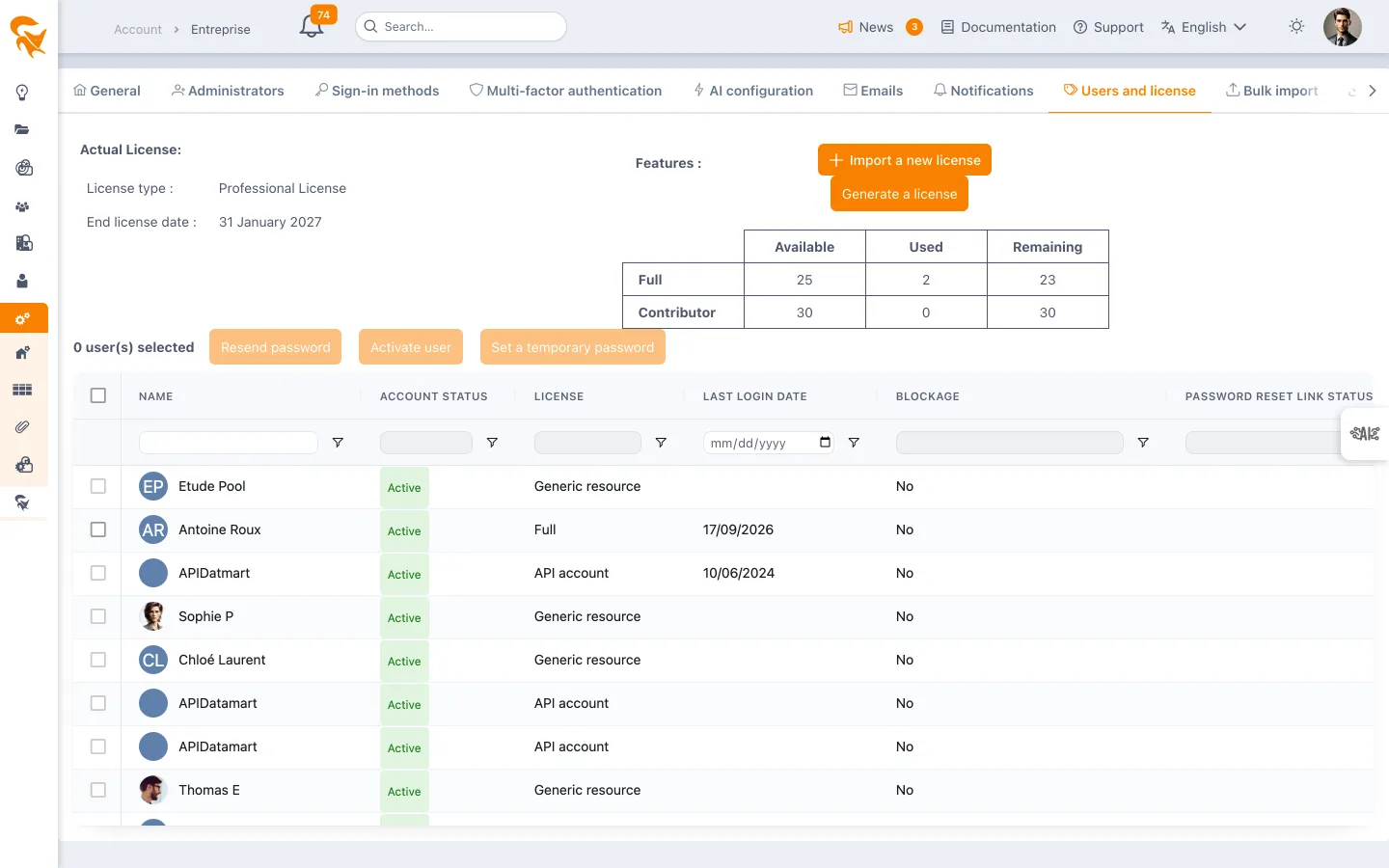
- Current license: type, expiry date and reserved domains.
- Count: full and contributor licenses available, used and remaining. Contributors beyond the available contributor licenses take up full licenses. Adding a user follows the same count: one more contributor is accepted as long as a contributor license or, failing that, a full license remains.
- Users: the list is shown as soon as the tab opens, with each user's license type, account status, last sign-in and password reset link status. Used licenses are counted at that point: it can take a few seconds on a large instance. Hide users collapses the list without reloading it. Tick users to resend a password link, activate them or set a temporary password; click an avatar to open the profile.
No licence is consumed by:
- generic resources, i.e. accounts with no e-mail address, which never sign in;
- API accounts (Connectors > API tab), which authenticate with an ID and a token. They appear in the list with the "API account" label instead of a licence type, whatever role they are given in the workspace.
Reserved domains
A licence can reserve one or more email domains for your instance (for example your-company.com). They are shown under Current licence, read-only: they are supplied by FoxPlan with the licence and cannot be changed from this screen. To add or remove one, contact FoxPlan.
Anyone who tries to create a new instance with an address from one of these domains (subdomains included) — by email, Google or Microsoft — sees a message telling them their company already has a space. They receive an email at that address with the first name, last name and address of the enterprise administrators to contact to be invited. These details are never shown on screen.
License file
On an on-premise installation, the administrator uploads the license file sent by FoxPlan here (Choose), checks the new quantities and expiry date, then clicks Save. A license with fewer licenses than users already assigned is rejected. With an online subscription, the license follows the subscription: uploading a file is reserved for the FoxPlan team.
Failed payment
By card. If a renewal fails, FoxPlan stays available while the payment is retried, and the screen shows Payment failed. Update your card to settle it. When every attempt has failed, the subscription becomes Blocked.
By direct debit. If the debit is rejected, the subscription shows Payment failed and the screen offers Retry the debit. You can also pay the invoice by bank transfer. Without settlement within 14 days, the subscription becomes Blocked.
An invoice from a quote paid by bank transfer never blocks access automatically: our team contacts you.
A blocked instance is no longer available, neither in the application nor through the API, except this screen for administrators. As soon as the invoice is paid, FoxPlan is unblocked. Your data is never deleted at this stage.