Plan definition & members
The Definition & members screen organises the plan in four tabs, following the project portfolio layout.
Creating or deleting a plan
- Creation: Create a plan button in the top bar. The creator becomes the plan's owner.
- Deletion: trash icon in the tab bar. As a safety measure, deletion requires typing the plan name and your email; it removes the objectives, the project contributions and the history snapshots.
General tab
Plan name and description. The name is the one shown in the top bar selector.
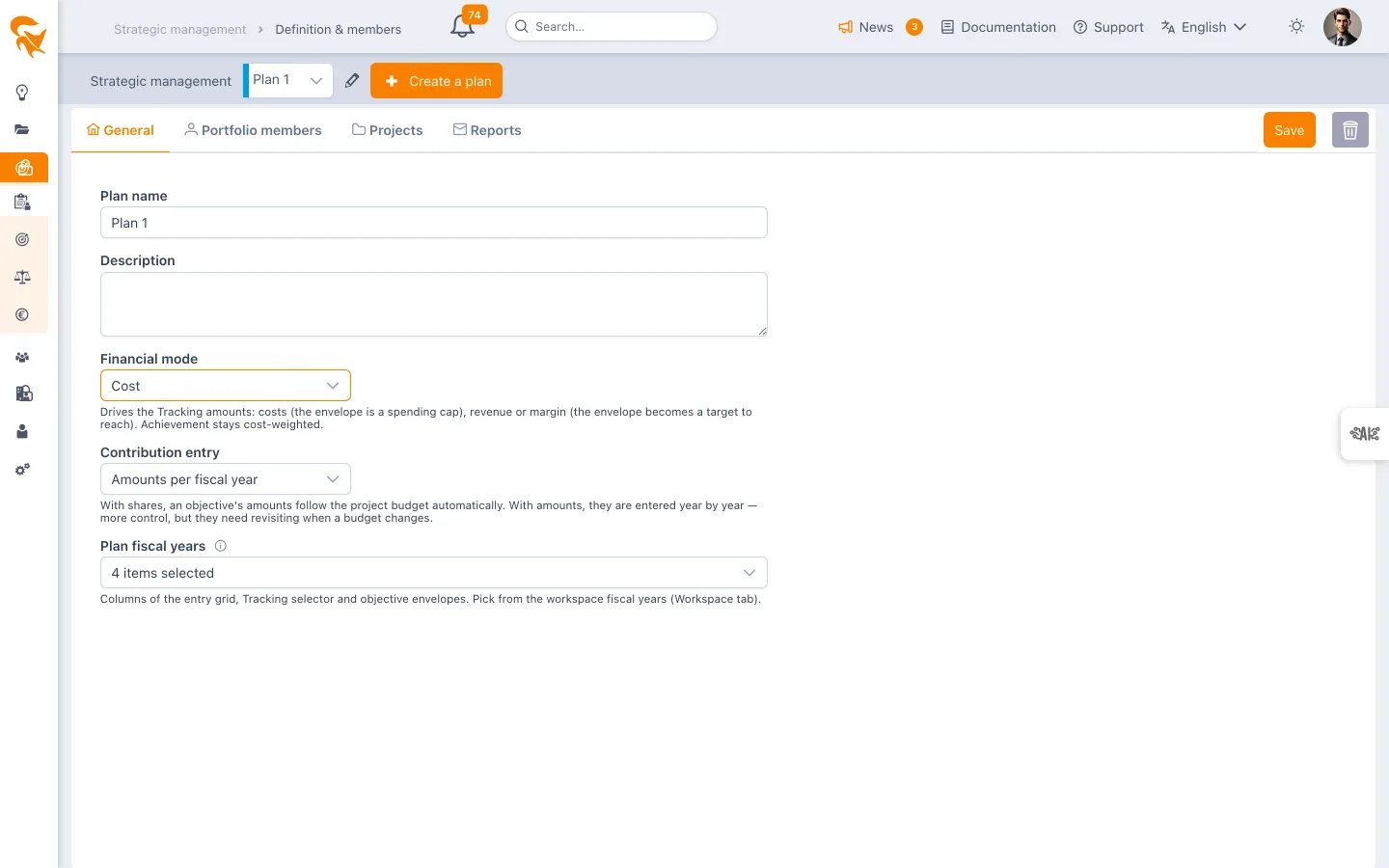
Financial mode
The plan can be steered by cost (default), revenue or margin (revenue − cost). The mode drives the amounts and the reading of the Tracking screen:
| Mode | The envelope is… | Reading |
|---|---|---|
| Cost | a spending cap | Balance = envelope − allocated; consumption turns red above 100 %. |
| Revenue | a target to reach | Remaining = target − actual; realisation turns green from 100 %. |
| Margin | a margin target | Like revenue, on the projects' margin (revenue − cost). |
The achievement computation stays weighted by allocated costs whatever the mode (a margin can be negative, which would make the weighting inconsistent). Switching modes midway makes earlier history curves non-comparable — the mode is photographed in each snapshot.
Plan fiscal years
Fiscal years determine the columns of the contribution entry grid, the selector on the Monitoring screen and the objective envelopes. They are chosen from the workspace fiscal year list, defined in Settings → Workspace: a plan does not create its own years.
A help bubble next to the field recalls where the list comes from: it is defined and maintained by the administrator at workspace level, not from the plan.
A fiscal year removed from the workspace list stays selected on the plans already using it — it simply stops being offered to the others.
Members tab
Member management is identical to portfolios: drag and drop workspace users onto the desired role (Owner or Reader), search and attribute filters, adding a new member by email.
Projects tab — the contribution scope
This tab defines which projects can appear in the Contributions screen. Two modes, like a project portfolio:
Manual selection
Drag and drop workspace projects (left) onto Plan projects (right). The filter criteria on the left act as a pre-filter to quickly find the projects to add (by status, program, organisation…) — they do not affect the selection already made.
Dynamic scope
Tick Dynamic: the right-hand list disappears and the scope becomes the result of the filter criteria, continuously re-evaluated. A new project matching the criteria automatically enters the scope — useful for a plan like "all projects of program X".
A plan without a configured scope offers all workspace projects in the Contributions screen. Configure the scope when the volume of projects makes the list noisy.
Reports tab
Schedules an email with a status of the plan, at the chosen frequency and to the chosen recipients: objectives with a budget alert, objectives with no project, achievement behind spending, projects with no contribution or over-allocated — and, if needed, the project contents (deadlines, delays, staffing, governance, budget) applied to the plan's projects. Only the plan Owner can create or edit a report. See Scheduled reports.