Objectives
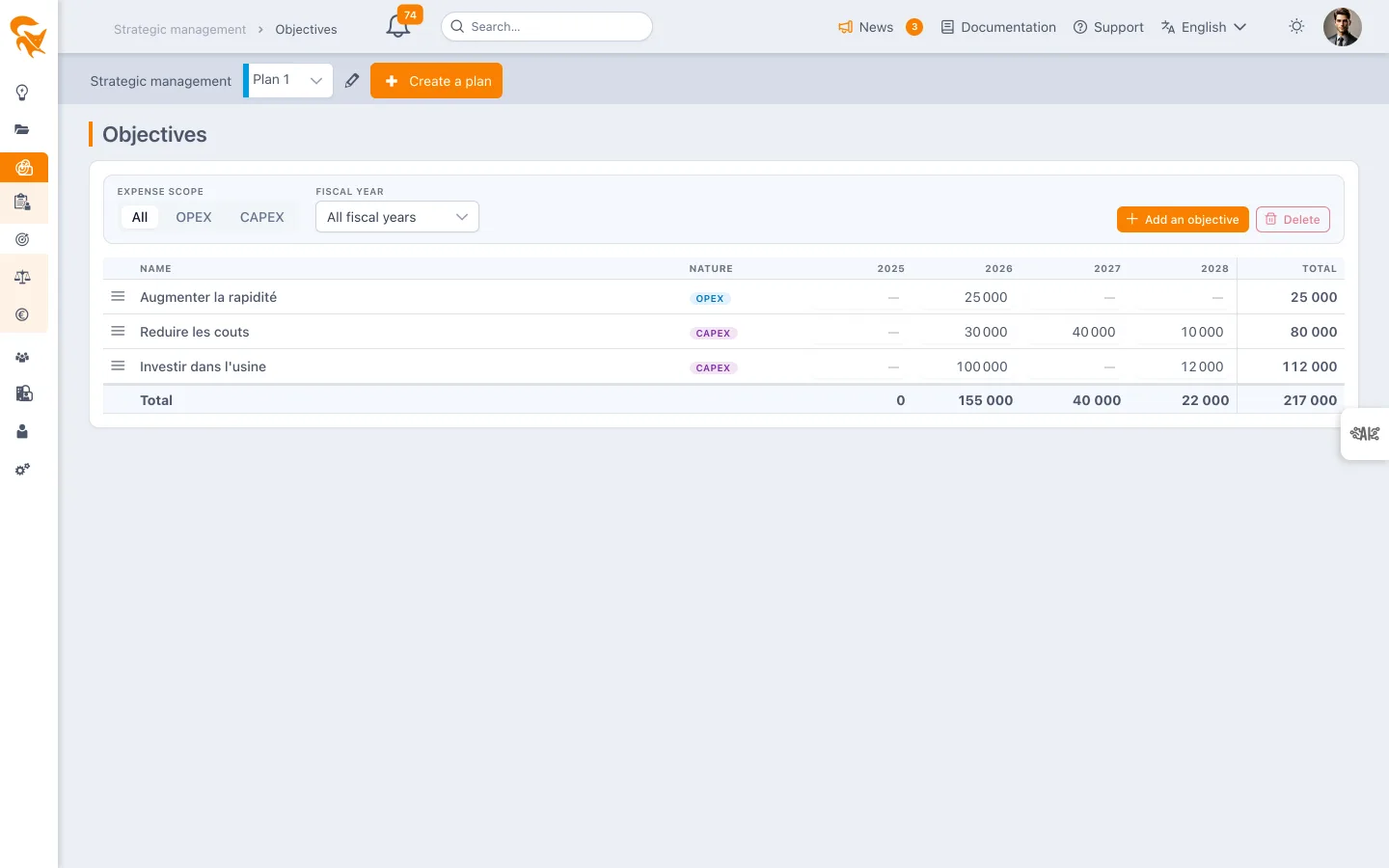
The Objectives screen lists the plan's objectives: one objective per row, one column per fiscal year carrying its envelope.
Managing the list
- Add an objective creates a row and opens the edit panel on the right.
- Drag and drop a row by its handle to reorder it. The order is yours: it carries over to the contributions grid columns and to Tracking.
- Delete removes the selected objective. If projects are attached to it, an extra confirmation is requested: the projects will be detached from the plan.
The list is flat: a plan has a single level of objectives. This simplification dates from August 2026; plans created earlier with sub-objectives are still displayed and computed as before, indented, but no further level can be created.
Fiscal-year columns and filters
Every fiscal year declared in Definition & members becomes a column. The cell shows the objective's envelope for that year, the Total column sums them, and the footer row totals each fiscal year across the whole plan.
Two filters sit above the table:
- Expense scope — All, OPEX or CAPEX: keeps only the objectives of that nature.
- Fiscal year — All fiscal years (one column per year), or the selected years, in which case the table shrinks to those columns. Your choice is kept from one visit to the next.
Drag and drop is disabled as soon as a filter hides rows: the drop position would no longer point at a real rank in the full list.
Entering envelopes
The envelope is the objective's financial endowment for a fiscal year. It is entered straight into its column: since fiscal years are set at plan level, there is nothing to declare objective by objective. The amount is saved when the field loses focus; row and footer totals recompute immediately. Clearing a cell removes the endowment for that year.
The Tracking screen then compares the envelope with the allocated amount to compute the balance.
OPEX / CAPEX nature
Each objective can carry a nature: All expenses (default), OPEX or CAPEX. In Tracking, an OPEX objective only counts the contributing projects' budgets typed OPEX (the "Type" field of the Budget module) — and likewise for CAPEX. Budget typing does the sorting: a mixed project brings its OPEX share to a run objective and its CAPEX share to an investment objective, without splitting the shares by hand.
- The share then applies normally, on the filtered family. A project can contribute 100 % of its OPEX to an OPEX objective and 100 % of its CAPEX to a CAPEX objective (see the validation rules).
- The envelope of an OPEX/CAPEX objective naturally reads as an envelope of that nature.
- The nature is shown as a badge in the list and in Tracking, and doubles as a filter on both screens.
A budget without an OPEX/CAPEX nature is only counted by links pointing at objectives without a nature — it does not roll up into a typed objective. In the Tracking project drill-down, a ⚠ icon flags the amounts that escape an objective's filter this way — set the nature on the budgets concerned to bring them back in.
Observed achievement
A field reserved for the objective owner: a value entered here replaces the achievement computed from project progress.
Why this field? Project progress measures execution; it does not guarantee the strategic effect obtained. A project can be 100 % complete without the objective (market share, customer satisfaction…) being reached — and vice versa. Observed achievement lets the owner make the field measurement prevail. In the Tracking screen, an icon distinguishes observed achievements from computed ones.