Global search
The search bar in the header, on the right of the screen, searches the whole workspace — without having to open the right project or the right screen first. It is the shortest path to an object whose name you know.
How it works
Type: results come in from the very first letter, refreshed as you type (with a short delay so the server is not queried on every keystroke). The cross clears the input; Esc or a click outside closes the list.
⌘K (Mac) or Ctrl+K (Windows, Linux) puts the cursor in the bar from any screen. The arrow keys then move through the list, screens first and data next, and Enter opens the highlighted item: no mouse needed.
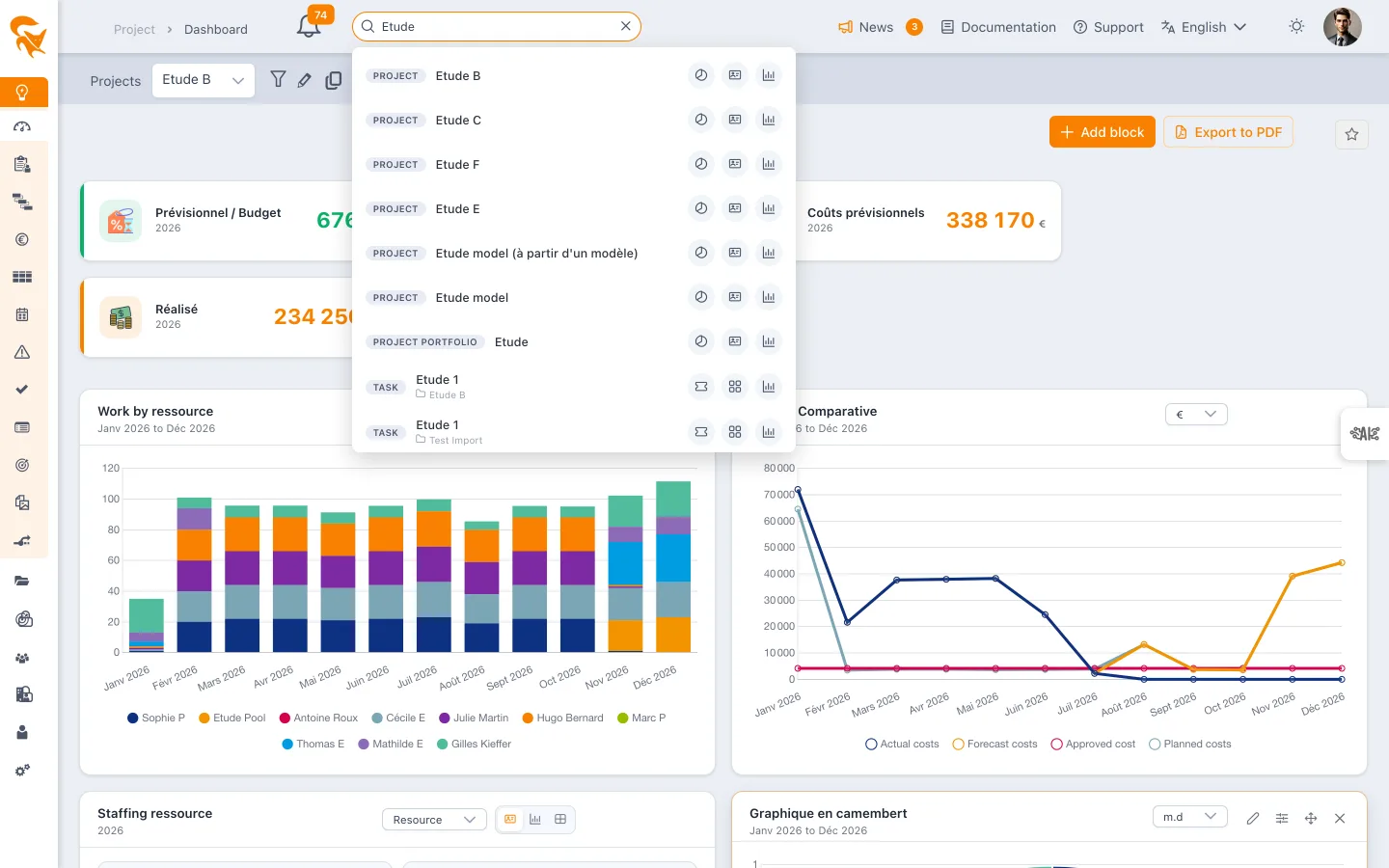
The search covers the name and the description of every object, as a substring and case-insensitively: typing migra finds SI Migration as well as Migration plan. Two types also search their own fields — the code for projects and requirements, the progress comments for status reports.
It also covers portfolios, both project and resource ones: their name is searched the same way, and the result opens the portfolio view directly.
What is searched
| Type | What is found |
|---|---|
| Project | Name, description, code |
| Project portfolio | Portfolio name and description |
| Resource portfolio | Portfolio name and description |
| Task | Plan tasks, cards and stories |
| Risk | Risks and issues |
| Decision | Decisions |
| Change | Change requests |
| Document | Files attached to projects |
| Requirement | Requirements (name, description, code) |
| Status report | Progress comments of reports |
| Budget | Budget envelopes |
Each result carries a type chip, the object name, an excerpt of the text that matched, and the parent project.
It only walks the projects you have access to. A project you are not a member of — and that no portfolio grants you rights on — stays invisible, along with everything it contains. Likewise, only the portfolios offered in your selector show up: those where you are a member, manager or reader, and every portfolio of the workspace if you are an administrator. The filtering is applied server-side, not at display time.
Opening a result
Clicking a row opens the object in its default screen.
Some objects exist in several screens: the row then shows shortcuts to each of them, and the first one is what a direct click opens.
| Type | Screens offered |
|---|---|
| Project | Planning (default), Definition & members, Dashboard |
| Project portfolio | Global Planning (default), Definition & members, Dashboard |
| Resource portfolio | Workload (default), Definition & members, Resources list |
| Task | Planning (default), Task list, Card & Story |
The other types have a single screen: a risk opens the Risks view, a decision the Decisions view, and so on.
A task opens directly: the planning expands its collapsed parents, brings it into view and shows its detail panel. A card or story opens the same way in the Card & Story view, since the planning does not necessarily display them.
This is the main benefit of the search: it switches project — or portfolio — for you. Finding a task from another project and opening it in its plan does not require going through the project selector; opening a portfolio from the search selects it in the header as if you had picked it from the list.
Finding a screen
The search also finds the application's screens: the menu entries, as well as the tabs of the settings screens (Workspace, Foxplan Account, Admin). Type budget: the project, portfolio and client Budget screens appear at the top of the list, in a Screens section, above the objects found in Data.
A screen can also be found by what it contains, not only by its name:
- by its keywords:
ganttfinds the Planning,permissionsthe User access tab,invoicethe pre-invoices and the budget; - by the fields of your workspace it displays, system and custom fields alike: a task field Delivery batch brings up the Planning and the Tasks List.
The row then shows what brought the screen up, for example keyword “gantt” or field “Remaining (d)”. Field names shared by almost every object (Name, Description, Status…) are ignored: they would point to any screen. Fields are read the first time you use the search, then again every ten minutes or when you switch workspace.
- Each screen shows its path in the menu (Portfolios, Settings › Workspace): two screens with the same name, such as the various Dashboard screens, can be told apart at a glance.
- Accents and capital letters are ignored, and every word typed must match:
budget portfkeeps only the portfolio budget. - Start your entry with
>to search among screens only, without querying the data. - Clicking a tab opens the screen directly on that tab.
The search only offers the screens that your menu displays: a screen hidden by your rights, by your group's menu access or by your licence cannot be found. Tabs reserved for company administrators (SSO, two-factor authentication, AI…) are offered to them only.
See also
- Portfolio document library — the file-specific search, with content indexing of PDF, Word and Excel
- Task list — the per-field search inside a project
For an object you reopen often, the search beats navigation; for one you reopen every day, prefer a favourite on the relevant screen.