Notifications in FoxPlan
FoxPlan maintains team alignment through a flexible, multi-channel notification system covering task assignments, status updates, comments, deadlines, and support activities.
1. Notification channels
The platform delivers alerts across multiple pathways:
- Email — Asynchronous delivery via SMTP providers (Gmail, SendGrid, etc.) with full internationalization
- In-app bell — Real-time inbox in the top navigation with unread badges and quick task access
- Collaboration webhooks — Direct integration with Slack, Microsoft Teams, and Google Chat
- System alerts and toasts — On-screen notifications for license status, confirmation messages, and MFA codes
2. Events that trigger notifications
Automated triggers include:
- Task ownership or assignment changes
- Resource allocation and workload modifications
- Task status transitions
- Comments with user mentions — the @All mention notifies every member of the commented object's project at once
- Support ticket creation and status updates
- Daily consolidated deadline alerts
Following a task or a card
On top of the recipients configured on the project, any project member can follow a task or a card from the Followers section of its detail panel:
- Follow / Unfollow subscribes you to all three events in one click;
- for each follower, three chips select the events followed: Status, Changes (name, description, dates, duration, deadline, owner, priority, progress) and Comments;
- Add a follower subscribes a colleague. Only project members are offered, whatever their role (a reader can follow a task);
- unticking the last event removes the subscription.
The author of an action is never notified of their own action, and a follower already notified through another channel (project matrix, mention) does not get a duplicate. Someone who leaves the project stops being notified. Personal cards, visible to their owner only, have no followers.
Adding or removing a colleague requires the right to edit the project planning; managing your own subscription only requires read access.
3. Personal notification preferences
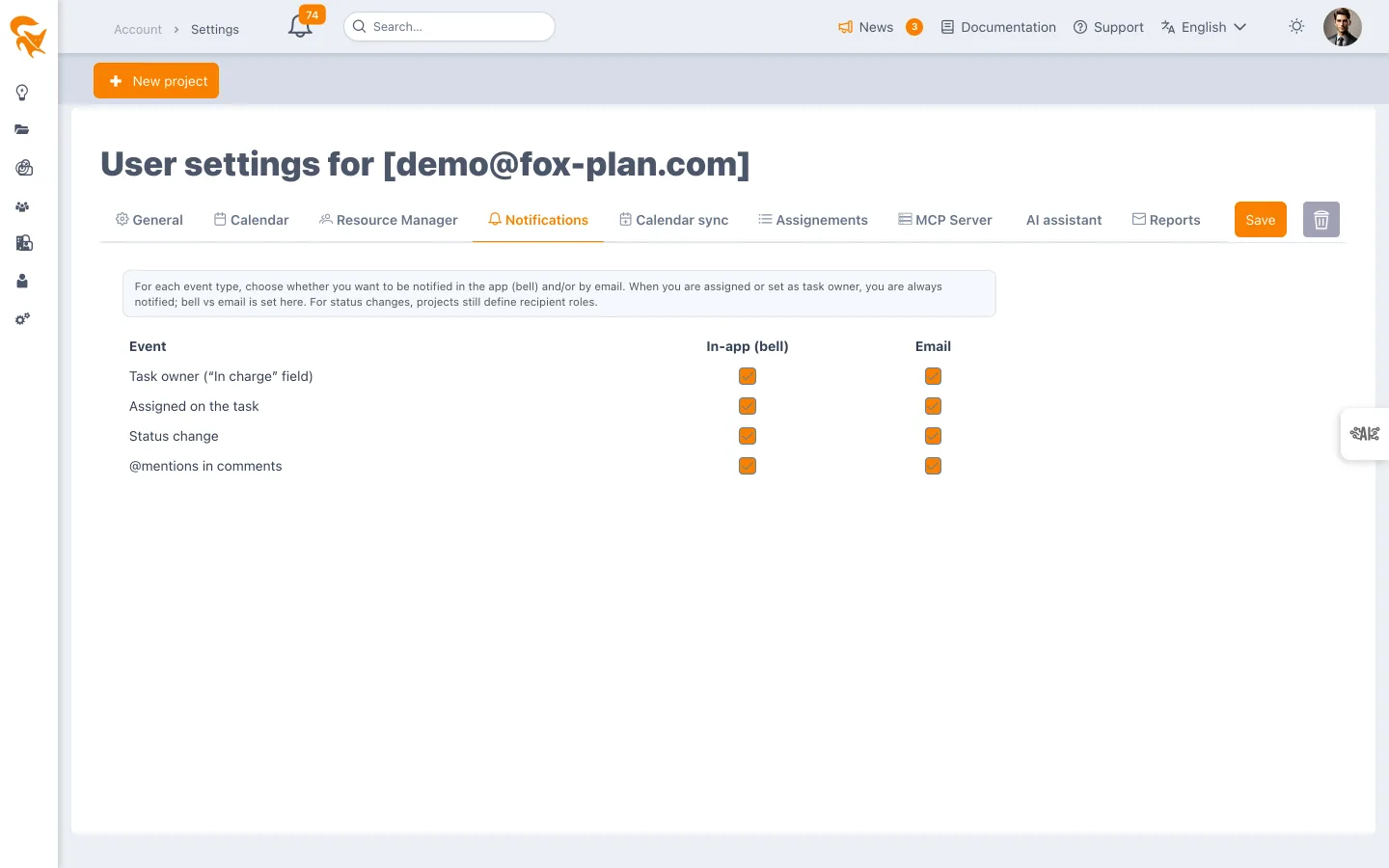
Users customize settings via Account → Notifications, independently controlling in-app and email channels for each event type (ownership changes, planning assignments, status updates, mentions).
The Subscriptions part, below the table, sets the channel used for subscriptions (bell, email, or both — the default) and lists the tasks and cards you follow, with the events selected, a link to open each one and a button to stop following it (even after leaving the project). The events you follow are chosen on each task. Generic resources and API accounts cannot follow a task: they have neither email nor login.
4. Project-level notification rules
Project administrators manage notifications in Definitions → Projects → Notifications, configuring:
- Event-specific delivery methods (email, webhook, both, or none)
- Webhook URLs for Slack, Teams, and Google Chat
- Role-based status change notifications
- Comment notification toggles
5. The in-app notification center
The bell icon opens a dedicated panel featuring:
- Unread count badges
- Categorical organization (planning, ownership, status, comments)
- Direct task navigation
- Mark read options (single or bulk)
- Storage of the latest 200 notifications per user
6. Account, security and license emails
Transactional emails cover account activation, password resets, MFA codes, project invitations, and license expiry warnings (triggered 30 days before expiration).