Dark mode
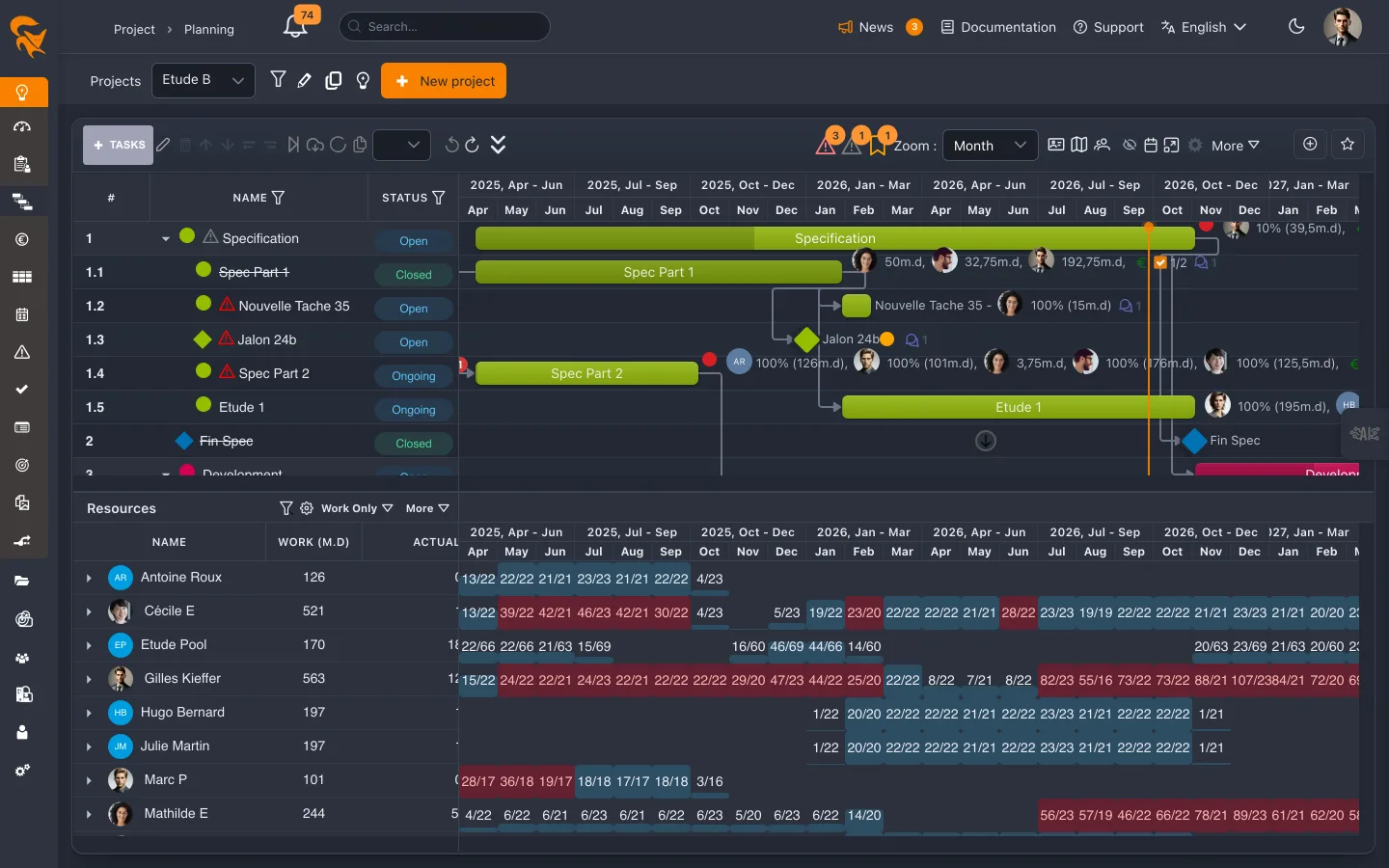
FoxPlan can be displayed in light or dark mode. Dark mode uses exactly the same palette as this documentation: same background, same greys, same brand orange. Moving between the application and the documentation therefore keeps the same feel on screen.
Switching between modes
The button sits to the right of your profile picture, in the top bar:
- a sun icon while you are in light mode — click it to switch to dark;
- a moon icon while you are in dark mode — click it to go back to light.
The switch is immediate: no page reload needed.
The choice follows you
Your choice is stored on your profile, not just in the browser. You will find the same mode on another machine, in another session, or after signing back in. It is yours alone: nothing changes for the other members of the workspace.
The documentation has its own light/dark switch in its navigation bar. The two settings are independent — you are free to read the documentation in light mode while the application stays dark.
What dark mode covers
The whole application follows the theme: top bar, menu, breadcrumb, editing screens, dashboards, and the densest views — planning (Gantt), budget and its charts, cards (Kanban), workload, risk matrix, calendars.
A few elements deliberately keep their colour, because that colour carries information rather than decoration:
- the brand orange of action buttons;
- the status pills on tasks and budgets;
- the overload colours of the workload diagram and of priorities;
- the colours your workspace picked for projects and portfolios.
Exports
Exports are produced by the server, not by your browser: an Excel file, a PDF or a planning image therefore always comes out on a light background, whether you are in dark mode or not. A document meant to be shared or printed reads better that way.