Enterprise sign-in methods (SSO) & multi-factor authentication (MFA)
Configuration location
Enterprise administrators access these settings via Settings → Enterprise, in the Sign-in methods and Multi-factor authentication tabs.
If your users sign in behind a VPN, a corporate proxy or a firewall performing SSL inspection, some SSO flows may be blocked or altered (state cookie stripped, identity domains unreachable). The typical symptom is a sign-in that fails or loops — while SSO works without the VPN. Share the network flow matrix with your network team to allow the required domains without SSL inspection or cookie rewriting.
Available sign-in methods
FoxPlan supports multiple authentication approaches:
- Password-based login
- Google Sign-in
- Microsoft Sign-in
- Enterprise SSO (OIDC)
Enterprise administrators always keep password sign-in, even when it is disabled for the enterprise. This prevents being locked out of FoxPlan if the identity provider becomes unavailable.
Exceptions: keeping password sign-in for specific users
When moving your organization to SSO, you can disable password sign-in for everyone except a designated list of users.
Clear the Password checkbox: an "Exceptions: users keeping password sign-in" picker appears below the checkboxes. Select the relevant users there, then save.
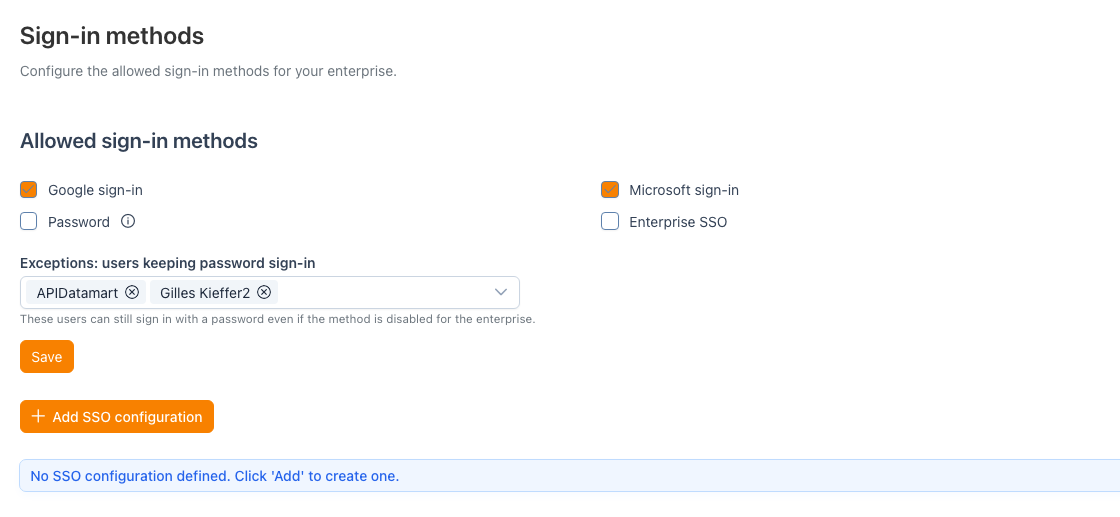
Those users keep seeing the password field on the sign-in screen, while everyone else must use SSO or Google/Microsoft sign-in.
Typical use cases:
- Break-glass accounts in case of an identity provider outage
- Contractors or external users who are not in your corporate directory
- Phased migration: moving teams to SSO in waves
The picker only appears when the Password method is unchecked: while it is enabled, it already applies to everyone and no exception is needed.
Multi-factor authentication options
Organizations can select from these MFA approaches:
- TOTP (compatible with Google Authenticator, Microsoft Authenticator, Okta, Keycloak)
- Email-based verification
- No MFA
Scope: who multi-factor authentication applies to
As soon as a method is selected (TOTP or Email), an "Applies to" section lets you choose the target population:
| Option | Effect |
|---|---|
| All users | Multi-factor authentication is enforced across the whole enterprise (default behaviour). |
| Only the listed users | Only the selected users go through multi-factor authentication. |
| All users except the listed ones | Multi-factor authentication applies everywhere, except for the selected users. |
For the last two modes, a picker lets you designate the users concerned.
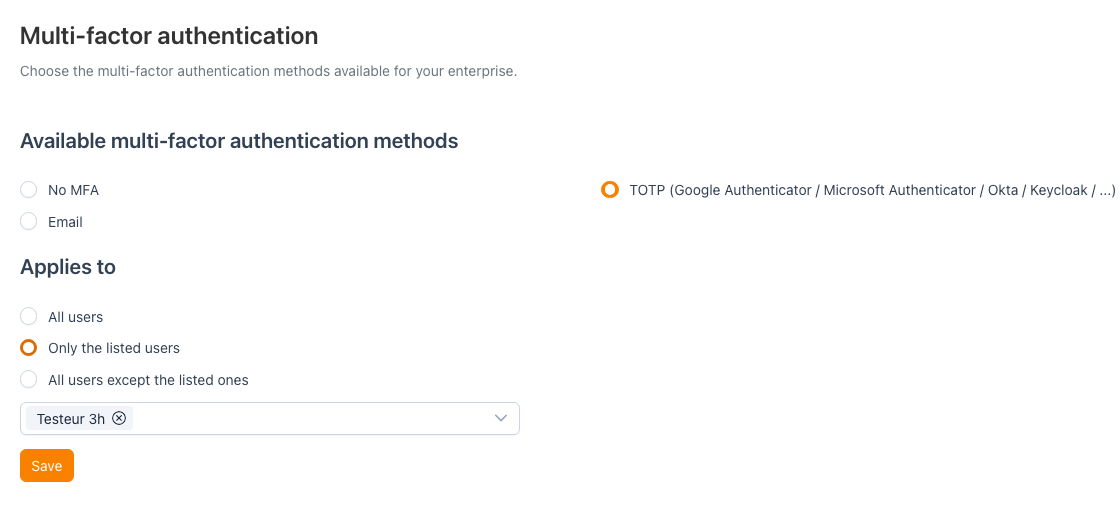
Typical use cases:
- Phased rollout: start with "Only the listed users" and a pilot team, then switch to "All users".
- Targeted hardening: require multi-factor authentication only for administrators and sensitive profiles.
- Technical exclusions: exempt accounts that cannot answer an MFA challenge (service accounts, shared kiosks) via "All users except the listed ones".
The scope is enforced server-side: a user outside the scope signs in directly, with no MFA challenge, even when a method is active for the enterprise.
In "All users except the listed ones" mode, every excluded user weakens your security posture. Review that list regularly.
Login flow process
- User provides email and proceeds
- FoxPlan identifies the associated enterprise
- Available authentication methods display for that organization
- User selects Password or SSO based on enabled options
For password-based flows, MFA challenges apply. SSO flows delegate authentication assurance to the identity provider.
Enterprise SSO (OIDC) setup
FoxPlan supports OIDC providers including Okta, Keycloak, Google, Microsoft, and custom implementations.
Identity provider configuration:
- Create a Web-type OIDC application
- Redirect URI:
{origin}/login/oauth2/code/{registrationId} - Collect Client ID, Client Secret, and Issuer URI
FoxPlan SSO form fields:
- Provider selection
- Display Name
- Client ID and Secret
- Issuer URI
- Scopes:
openid,profile,email - Username attribute (typically
suboremail) - Enable toggle
Provider-specific configuration
Google — Issuer URI: https://accounts.google.com
Microsoft / Azure — Issuer pattern: https://login.microsoftonline.com/{tenantId}/v2.0
Okta — Web app type with proper assignment and access policies
Keycloak — Realm issuer URI with Authorization Code flow configured
Troubleshooting
Verify these elements when experiencing authentication issues:
- Redirect URI matches exactly between IdP and FoxPlan
- SSO configuration is enabled
- User email belongs to the correct enterprise
- For Okta/Azure/Keycloak, confirm user assignment and policy compliance
- For Password+MFA users, verify valid enrollment (TOTP secret or email)