Budget management
A project's Budget screen lets you build, track and analyze a project's full budget: both costs and revenues, in currency or man-days, with monitoring of the gap between what was planned and what is delivered.
You reach it from the Budget menu in the project sidebar.

Overview
A project budget is organized into lines (or envelopes), each matching a category. Each line is typed:
- Expense — a cost (resources, services, purchases…)
- Income — a revenue (customer billing…)
Two display modes are available:
- Hierarchical — lines grouped under a parent envelope
- Flat — all lines at the same level
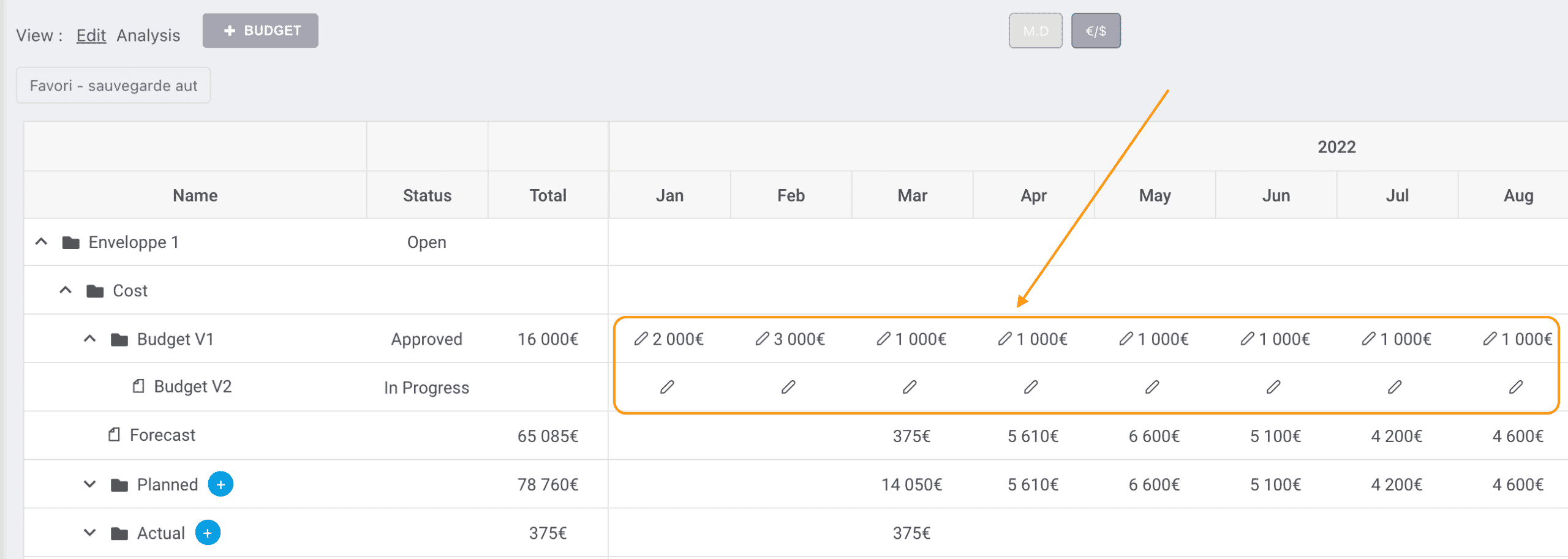
And two entry units, switchable via the selector at the top:
- Currency (€, $, £, CHF, xof…)
- M.D — man-days

Adding and editing a budget
To add a line, click "+ Budget" at the top left of the budget screen.

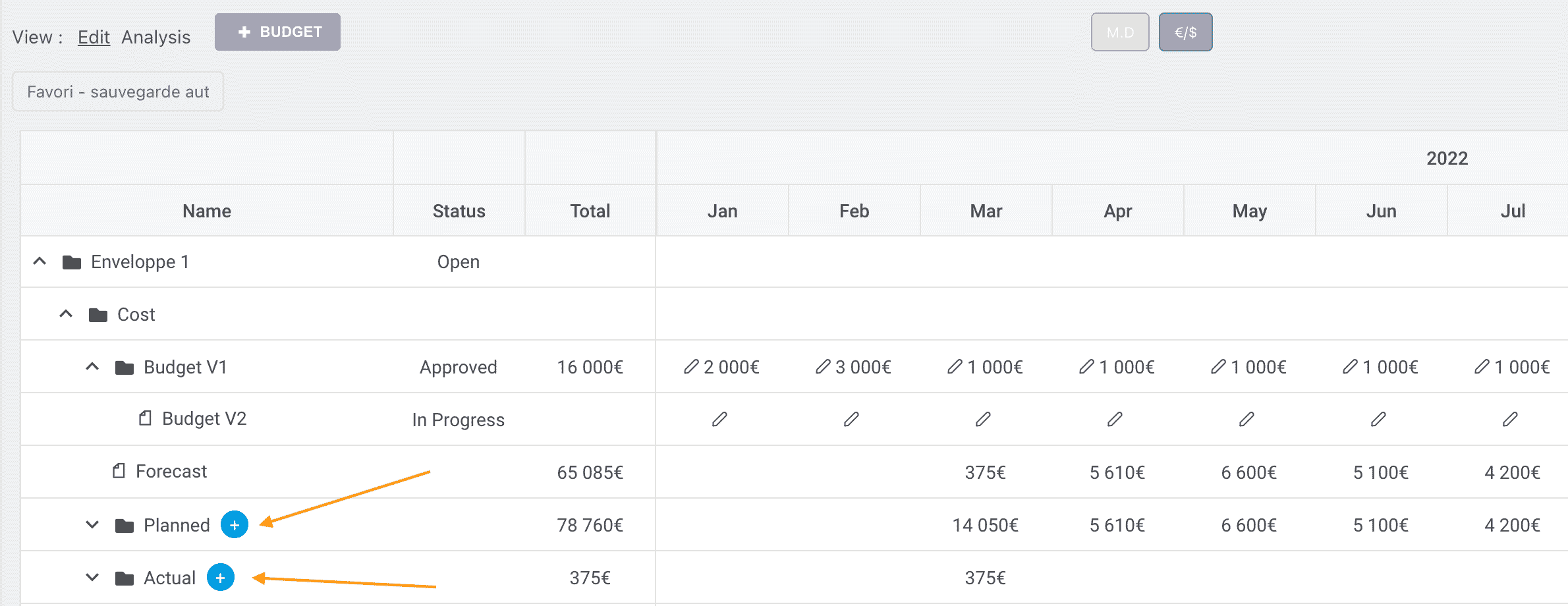
When you assign a resource to a task, you can specify which budget the allocation is charged to. FoxPlan then automatically integrates the planned and actual values into the matching lines (see Costs from resources).
You can also manually add envelopes in currency or man-days via the "+" button next to Planned or Actual.
Fields of a budget line
When editing a line (or a cost), you fill in, depending on the case:
| Field | Description |
|---|---|
| Title / Name | Line label |
| Type | Expense or Income |
| Envelope | Parent grouping of the line |
| Parent task | Project task the line is attached to |
| Planned / Actual amount | Expected then observed values |
| Cost / Revenue | Cost or revenue amount |
| Resource cost | Computed automatically from allocations |
| Billable cost / Billable revenue | For customer billing |
| Daily rate | Daily rate applied (M.D → currency) |
| Currency + Exchange rate | For foreign-currency lines |
| Customer / supplier name | Third party involved |
| Supplier expenses | External costs |
| Internal / third-party reference | Reference numbers (PO, invoice…) |
| Attachment | Supporting document |
| Event | Associated milestone or event |
Budget versions
FoxPlan tracks each line across several versions (or scenarios), which lets you compare planned vs actual:
| Version | Costs | Revenues | Margin |
|---|---|---|---|
| Approved budget | Approved costs | Approved revenues | Budgeted margin |
| Forecast budget | Forecast costs | Forecast revenues | Forecast margin |
| Planned budget | Planned costs | Planned revenues | Planned margin |
| Actual budget | Actual costs | Actual revenues | Actual margin |
A version's margin is the gap between its revenues and its costs. Comparing the forecast margin to the actual margin highlights the project's financial drift.
- Approved = the validated reference budget
- Forecast = the to-date projection (re-forecast)
- Planned = what the resource planning implies
- Actual = what was actually spent / billed
Costs from resources
The resource cost does not have to be entered manually: it derives from planning.
- The planned cost comes from the resources' planned allocations on the tasks charged to the budget.
- The actual cost comes from time entries / actuals.
- The amount is computed via the resource's daily rate × the number of man-days.
You can also analyze the cost by resource or the cost by state, as well as the matching revenues.
Budget line statuses
Each line (or version) can carry a status, useful for steering and locking:
| Status | Meaning |
|---|---|
| Open | Free entry |
| Ongoing | Being processed |
| Pending | To be validated |
| Approved | Validated |
| Baseline | Frozen reference for comparison |
| Closed | Closed |
| Archived | Archived |
Draft mode
The draft lets you work on a copy of the budget table without saving changes — ideal to simulate a scenario or prepare a one-off export.
- Open a draft: you switch to the copy; changes are no longer persisted.
- Close the draft: you return to the real data.
As long as a draft is open, no change is saved to the real budget. Close the draft to return to normal mode.
Configuring budget entry display
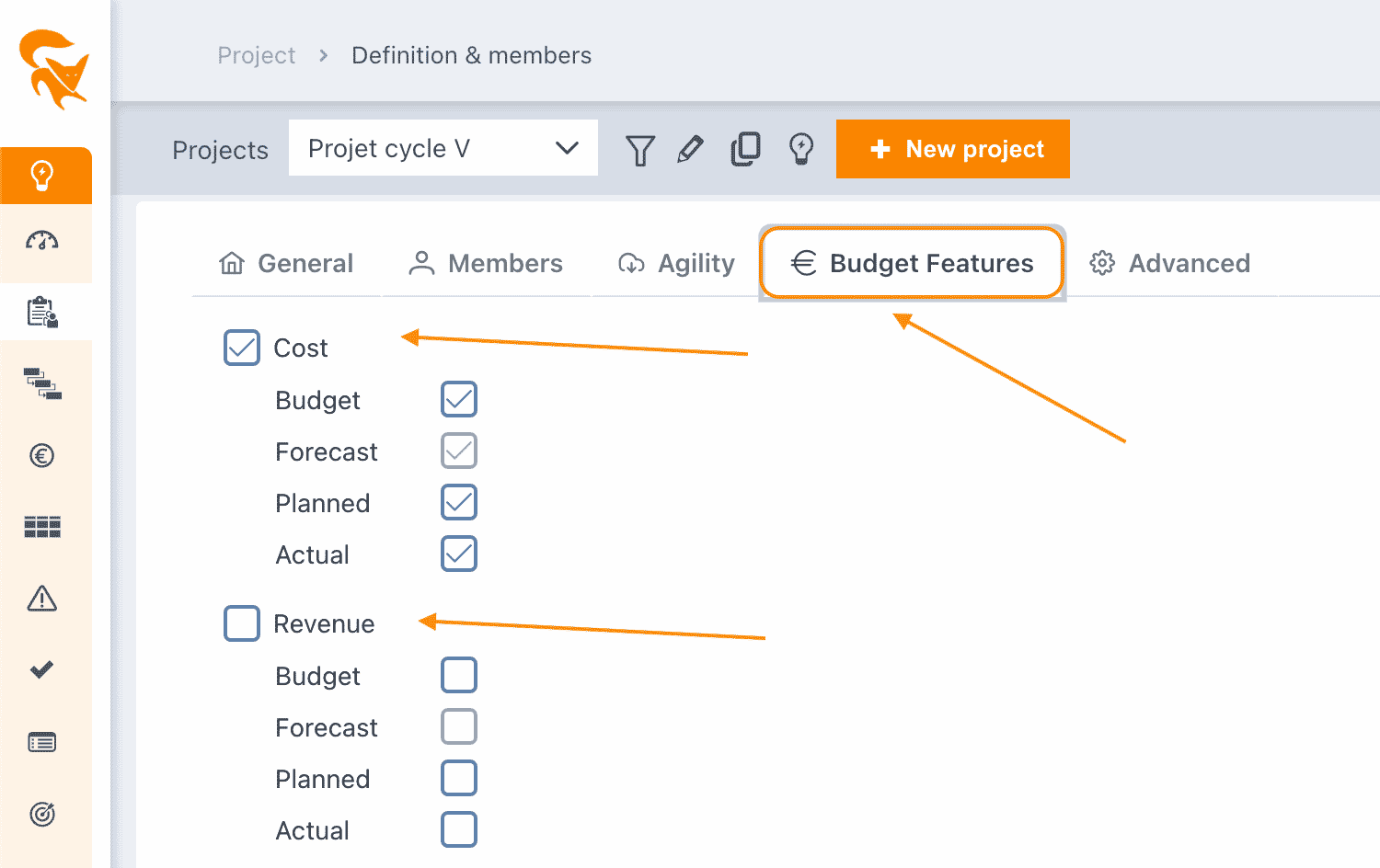
Entry configuration happens at the project definition level, Budget tab. It lets you show only the elements relevant to your project.
FoxPlan handles costs and/or revenues, each trackable as:
- Approved budget
- Forecast
- Planned
- Actual
Checking / unchecking these elements simplifies the display: for example, disabling Revenues for a cost-only project, or removing Planned if you only track actuals.
Configuring budget management (workspace)
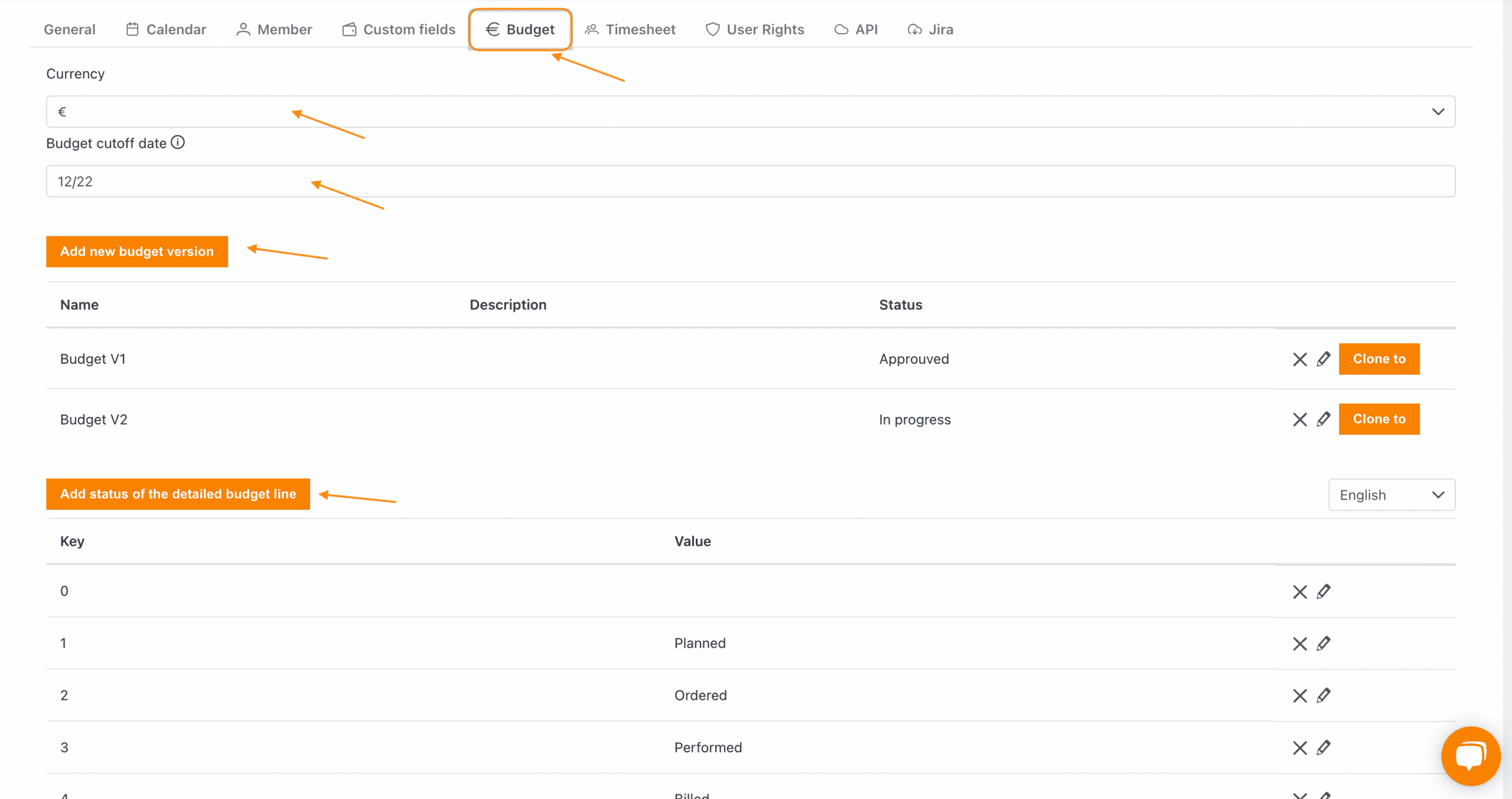
Global configuration happens in Settings → Workspace → Budget tab:
- Default currency
- Budget cutoff dates
- Number of decimals
- Creation / duplication of budget versions
- Available budget line statuses
Remember to save after each change.
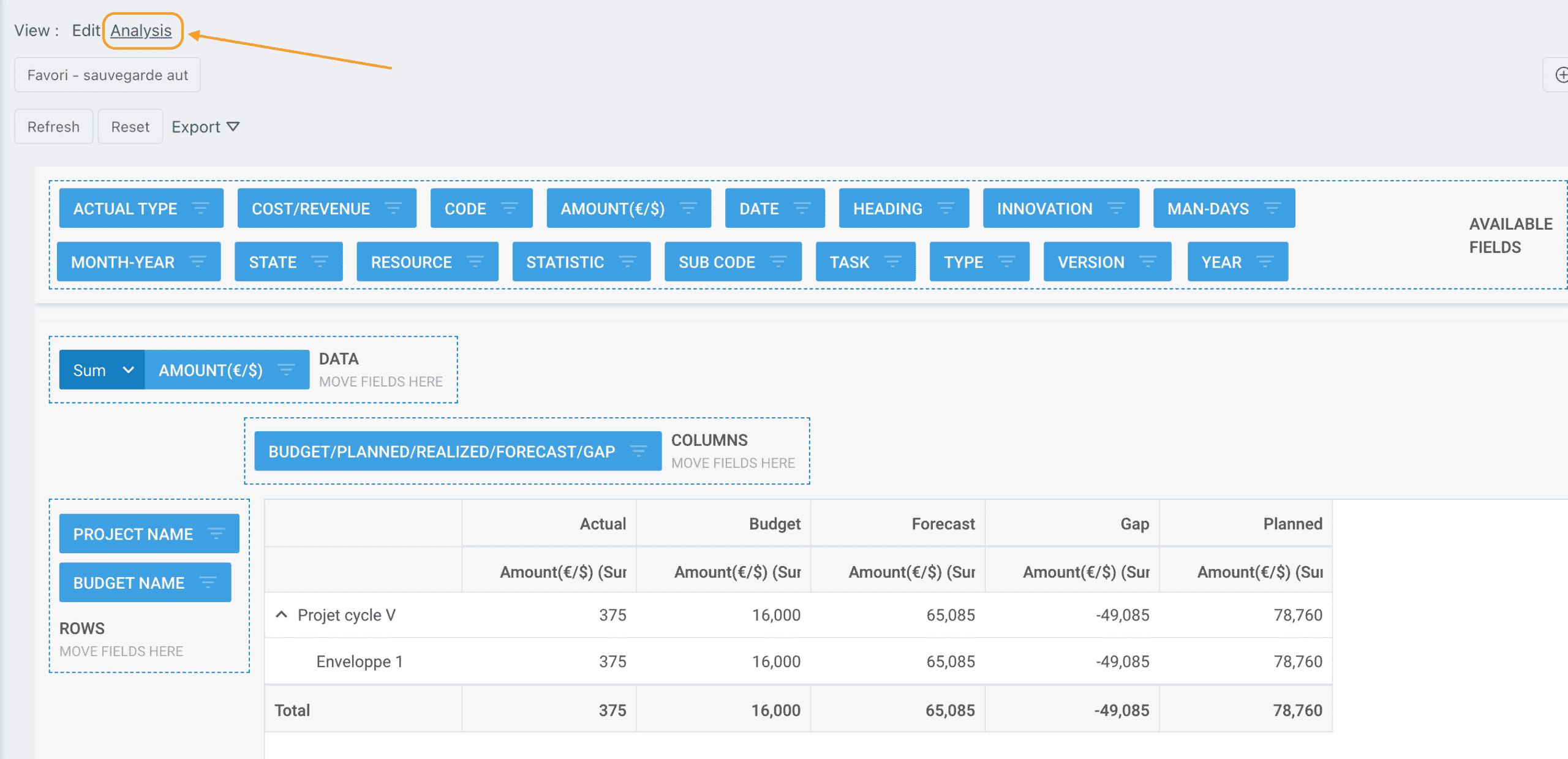
Analyzing a budget (pivot table)
Budget analysis at project or portfolio level is available through a built-in pivot table.
- Select Analysis at the top of the screen
- Available fields appear at the top: drag them into the table (rows / columns / values)
- Filter each field via the three-line icon
- Export the result to Excel


Some advanced budget analyses may be part of the Pro version.
See also
- Project management — planning and resource allocation that feed the costs
- Project members — who can edit the budget depending on their role